Monitoring and Logging
AKS observability must cover cluster state, node health, workload health, and control-plane-related signals. Effective monitoring is the difference between guessing and diagnosing.
Prerequisites
- Log Analytics workspace or equivalent telemetry backend is available.
- Metrics Server and/or Azure Monitor pipelines are configured.
- Alert ownership and escalation paths are defined.
When to Use
- Building the baseline observability stack.
- Expanding alerts for new critical workloads.
- Diagnosing incidents with cluster and node evidence.
Procedure
flowchart TD
    A[Cluster Metrics] --> B[Logs]
    B --> C[Alerts]
    C --> D[Dashboards]
    D --> E[Incident Triage]
az aks enable-addons \
--resource-group "$RG" \
--name "$CLUSTER_NAME" \
--addons monitoring
kubectl top nodes
kubectl top pods --all-namespaces
kubectl get events --all-namespaces --sort-by=.lastTimestamp
| Command | Purpose |
|---|---|
az aks enable-addons | Enable the Container Insights monitoring add-on. |
--resource-group | Resource group that contains the AKS cluster. |
--name | Name of the AKS cluster. |
--addons | Add-on to enable, monitoring for Container Insights. |
kubectl top nodes | Show current node CPU and memory usage. |
kubectl top pods | Show current pod CPU and memory usage. |
kubectl get events | List Kubernetes events for troubleshooting. |
Verification
az aks show --resource-group $RG --name $CLUSTER_NAME --query addonProfiles.omsagent.enabled --output tsv
kubectl get pods --namespace kube-system
| Command | Purpose |
|---|---|
az aks show | Check whether the Container Insights agent is enabled. |
--resource-group | Resource group that contains the AKS cluster. |
--name | Name of the AKS cluster. |
--query | Selects the monitoring add-on enabled flag. |
--output | Output format for the result. |
kubectl get pods | List monitoring pods in the kube-system namespace. |
You can confirm the same telemetry in the Azure Portal on the cluster monitoring blades.
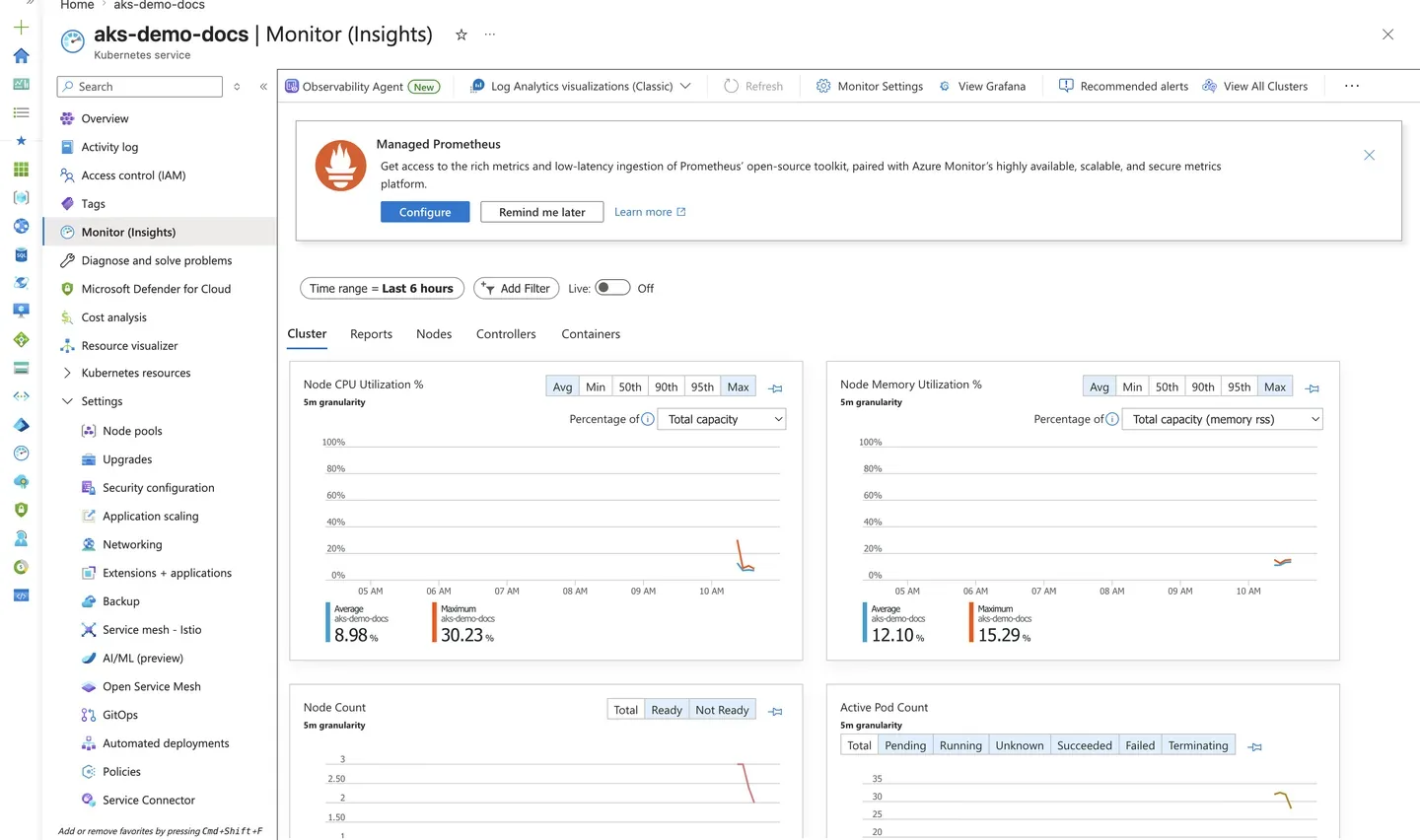
Purpose: Confirm Container insights is collecting live node and workload telemetry after enabling the monitoring add-on.
Look for:
- Node CPU and memory charts show recent, non-empty data points.
- The node and pod counts match the cluster's actual topology.
- No agent health warnings are shown at the top of the blade.
Expected result: Container insights reports live utilization, confirming the monitoring pipeline is active.
Next step: Build a custom chart on the Metrics blade for a specific signal.
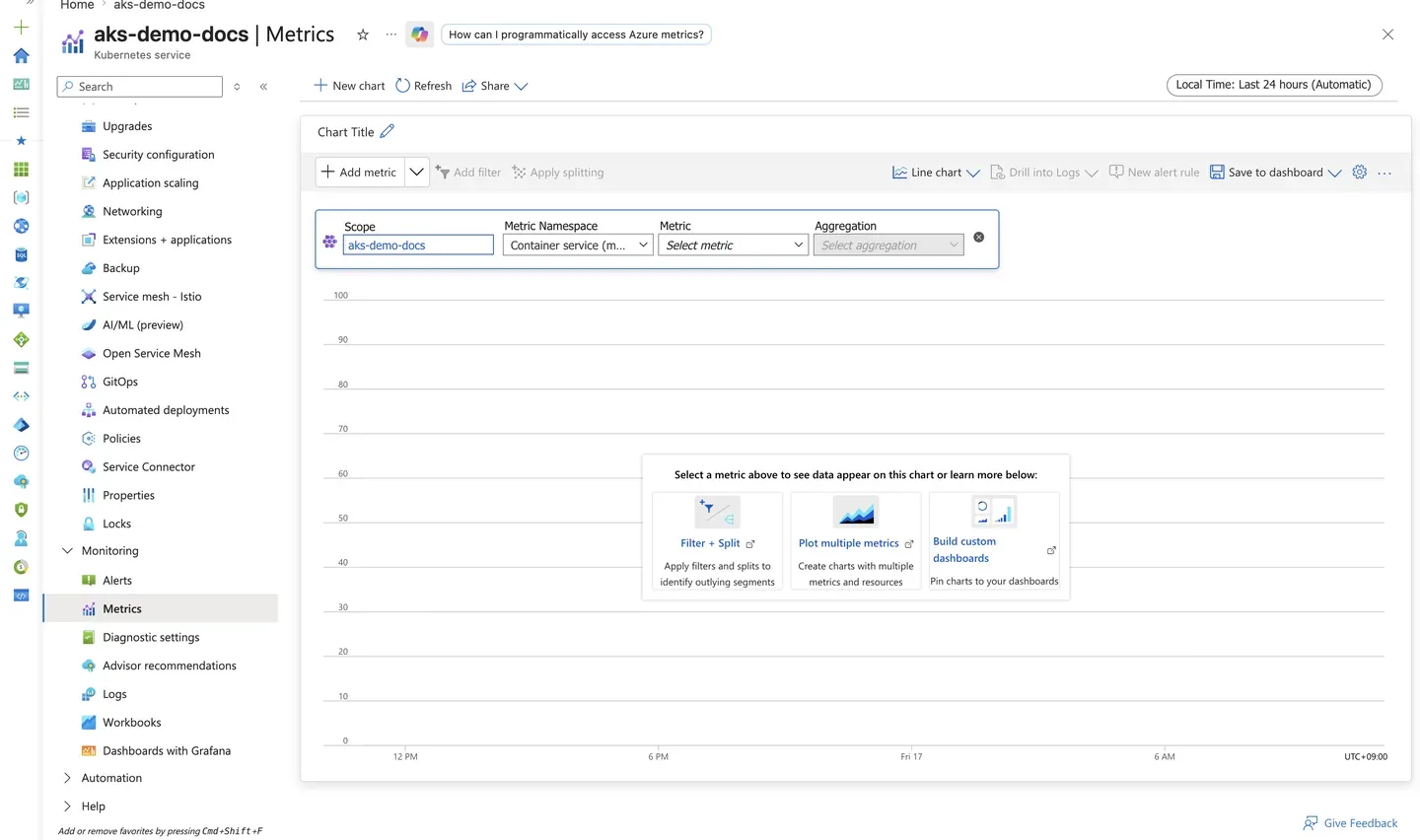
Purpose: Show where to build ad hoc charts from platform metrics for a specific investigation.
Look for:
- The Scope is the AKS cluster and the Metric Namespace is
Container service. - The chart builder lets you add a metric, aggregation, and splitting.
- The time range control reflects the window you want to inspect.
Expected result: You can compose a metric chart for any supported AKS signal and optionally pin it to a dashboard.
Next step: Configure a diagnostic setting to stream control-plane logs to Log Analytics.
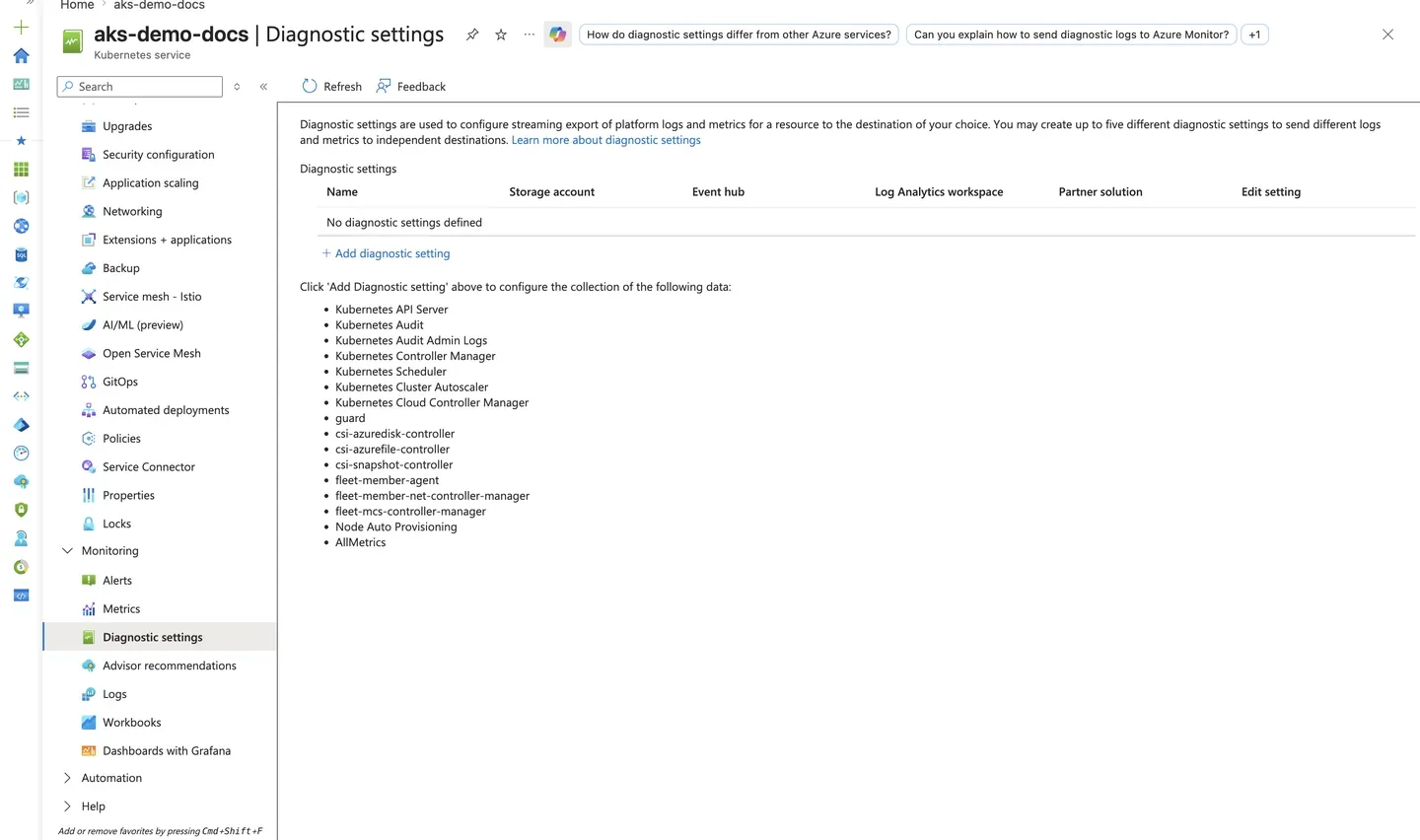
Purpose: Show where to enable streaming export of control-plane logs (API server, audit, scheduler) to a destination.
Look for:
- The blade lists log categories such as Kubernetes API Server, Kubernetes Audit, and Cluster Autoscaler.
- A destination (Log Analytics workspace, storage account, or event hub) can be attached.
- Any existing diagnostic settings and their destinations are visible.
Expected result: You can route control-plane logs to Log Analytics for audit and incident investigation.
Next step: Query the exported logs from the Diagnostic Commands reference.
Rollback / Troubleshooting
- If metrics are missing, check Metrics Server and Azure Monitor agent health.
- If control-plane KQL queries return no data, create the AKS diagnostic setting before assuming the cluster emitted no logs.
- If logs exist but are unusable, refine namespace, workload, and owner labeling.
- If alerts are noisy, fix thresholds and missing suppression logic instead of disabling visibility.
- If Prometheus dashboards are empty but Container insights works, check the Azure Monitor workspace and Grafana linkage separately from the Log Analytics workspace.
See Also
- Reference: Diagnostic Commands
- Diagnostic Settings
- Managed Prometheus
- Baseline Alerts
- Evidence Map
- Performance Checklist
- KQL Query Packs