Cluster Creation
A good AKS cluster is mostly decided before the first az aks create command. Use this runbook to create a cluster with explicit networking, identity, and observability choices.
Prerequisites
- Azure CLI,
kubectl, andkubelogininstalled. - Resource group, VNet strategy, and Log Analytics workspace decided.
- VM quota confirmed for the target region and node size.
When to Use
- Creating a new environment.
- Rebuilding a cluster from a reviewed baseline.
- Standardizing cluster creation across teams.
Procedure
flowchart TD
    A[Prepare RG and region] --> B[Create cluster]
    B --> C[Get credentials]
    C --> D[Validate nodes]
    D --> E[Enable baseline add-ons]
Creation-time decisions
Before creating the cluster, decide the outbound type and API server exposure model. Use --outbound-type when the default egress path is not acceptable, --enable-private-cluster for private API access, and --api-server-authorized-ip-ranges when using a public API endpoint restricted to known operator egress IPs. See Outbound Networking and Private Cluster API Connectivity.
export RG="rg-aks-demo"
export CLUSTER_NAME="aks-demo"
export LOCATION="koreacentral"

az group create --name $RG --location $LOCATION
az aks create     --resource-group $RG     --name $CLUSTER_NAME     --location $LOCATION     --node-count 3     --node-vm-size Standard_D4ds_v5     --enable-managed-identity     --enable-oidc-issuer     --enable-workload-identity     --network-plugin azure     --network-plugin-mode overlay     --generate-ssh-keys
az aks get-credentials --resource-group $RG --name $CLUSTER_NAME --overwrite-existing
kubectl get nodes -o wide
| Command | Purpose |
|---|---|
az group create | Create the resource group for the cluster. |
--name | Name of the resource group. |
--location | Azure region for the resource group. |
az aks create | Create the demo AKS cluster. |
--resource-group | Resource group that contains the AKS cluster. |
--name | Name of the AKS cluster. |
--location | Azure region for the cluster. |
--node-count | Number of nodes in the default pool. |
--node-vm-size | VM size for the default pool nodes. |
--enable-managed-identity | Use a managed identity instead of a service principal. |
--enable-oidc-issuer | Enable the OIDC issuer for workload identity. |
--enable-workload-identity | Enable Microsoft Entra Workload ID. |
--network-plugin | Container networking plugin. |
--network-plugin-mode | Network plugin mode such as overlay. |
--generate-ssh-keys | Generate SSH keys if none are provided. |
az aks get-credentials | Merge cluster credentials into the local kubeconfig. |
--resource-group | Resource group that contains the AKS cluster. |
--name | Name of the AKS cluster. |
--overwrite-existing | Overwrite any existing kubeconfig entry for the cluster. |
kubectl get nodes | List cluster nodes to confirm the cluster is ready. |
Verification
az aks show --resource-group $RG --name $CLUSTER_NAME --query "{powerState:powerState.code,kubernetesVersion:kubernetesVersion,networkPlugin:networkProfile.networkPlugin,networkMode:networkProfile.networkPluginMode}" --output yaml
kubectl get pods -n kube-system
| Command | Purpose |
|---|---|
az aks show | Show cluster power state, version, and network mode. |
--resource-group | Resource group that contains the AKS cluster. |
--name | Name of the AKS cluster. |
--query | Selects power state, version, and network fields. |
--output | Output format for the result. |
kubectl get pods | List system pods to confirm cluster health. |
You can confirm the same state in the Azure Portal on the cluster Overview blade.
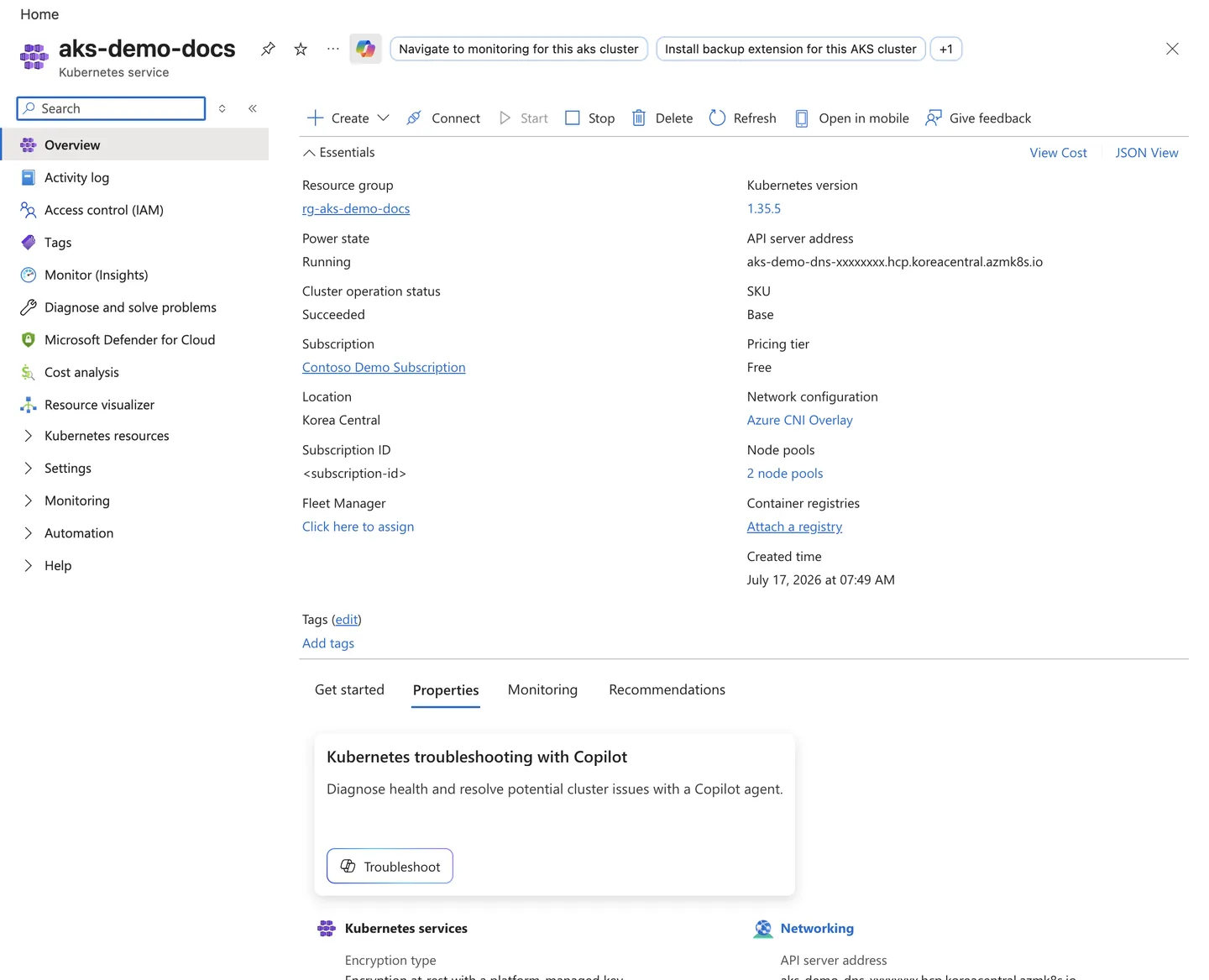
Purpose: Show where to confirm the AKS cluster's basic health and identity in the Azure Portal after creation.
Look for:
- The Power state shows
Runningand Cluster operation status showsSucceeded. - The Kubernetes version matches the version expected by this runbook.
- The Resource group, Subscription, Subscription ID, and API server address are sanitized in the screenshot (
<subscription-id>,Contoso Demo Subscription,aks-demo-dns-xxxxxxxx.hcp.<region>.azmk8s.io). - No provisioning failures or critical warnings are visible.
Expected result: The cluster is in a healthy running state with core identity and version fields visible, and 2 node pools are reported.
Next step: Open the Node pools blade to verify system and user node pool health and sizing.
Rollback / Troubleshooting
- Delete the cluster only if it was a failed greenfield setup and no state was attached.
- If creation fails, check quota, subnet sizing, and Azure Policy denies first.
- If credentials fail, re-run
az aks get-credentialsand validate Entra login requirements.