First 10 Minutes: Quick Triage Checklist
Use this ordered checklist when a Container App is down, unhealthy, or unreachable. Run each step in sequence and stop when you find the first confirmed failure.
flowchart TD
    START["App Down / Unhealthy"] --> R["1) Revision Status"]
    R --> REP["2) Replica Status"]
    REP --> LOG["3) Container Logs"]
    LOG --> IMG["4) Image Pull"]
    IMG --> ING["5) Ingress Config"]
    ING --> PROBE["6) Health Probes"]
    PROBE --> REGAUTH["7) Registry Auth"]
    REGAUTH --> SEC["8) Secrets and Config"]
    SEC --> NET["9) Environment and Network"]
    NET --> DEP["10) Dependencies"]
Run from a clean shell session
Export variables once to avoid command mistakes:
1) Revision Status
az containerapp show --name "$APP_NAME" --resource-group "$RG" --query "properties.provisioningState" --output tsv
| Command | Why it is used |
|---|---|
az containerapp show --name ... | Reads the Container App configuration so the documented setting can be verified. |
Expected baseline from a healthy deployment:
az containerapp revision list --name "$APP_NAME" --resource-group "$RG" --query "[].{name:name,active:properties.active,health:properties.healthState,running:properties.runningState,created:properties.createdTime}" --output table
| Command | Why it is used |
|---|---|
az containerapp revision list ... | Lists revisions so rollout state, traffic, and health can be verified. |
Observed output pattern:
Name               Active    Health    Running    Created
-----------------  --------  --------  ---------  -------------------------
ca-myapp--0000001  True      Healthy   Running    2026-04-04T11:30:41+00:00
- Look for the latest revision with
health=Healthyandrunning=Running. - Failure patterns:
Provisioning failed,Failed,Degraded, inactive latest revision. - If failed → go to Revision Provisioning Failure.
Portal view: Revisions and replicas
Navigate: Container App → Application → Revisions and replicas → Active revisions.
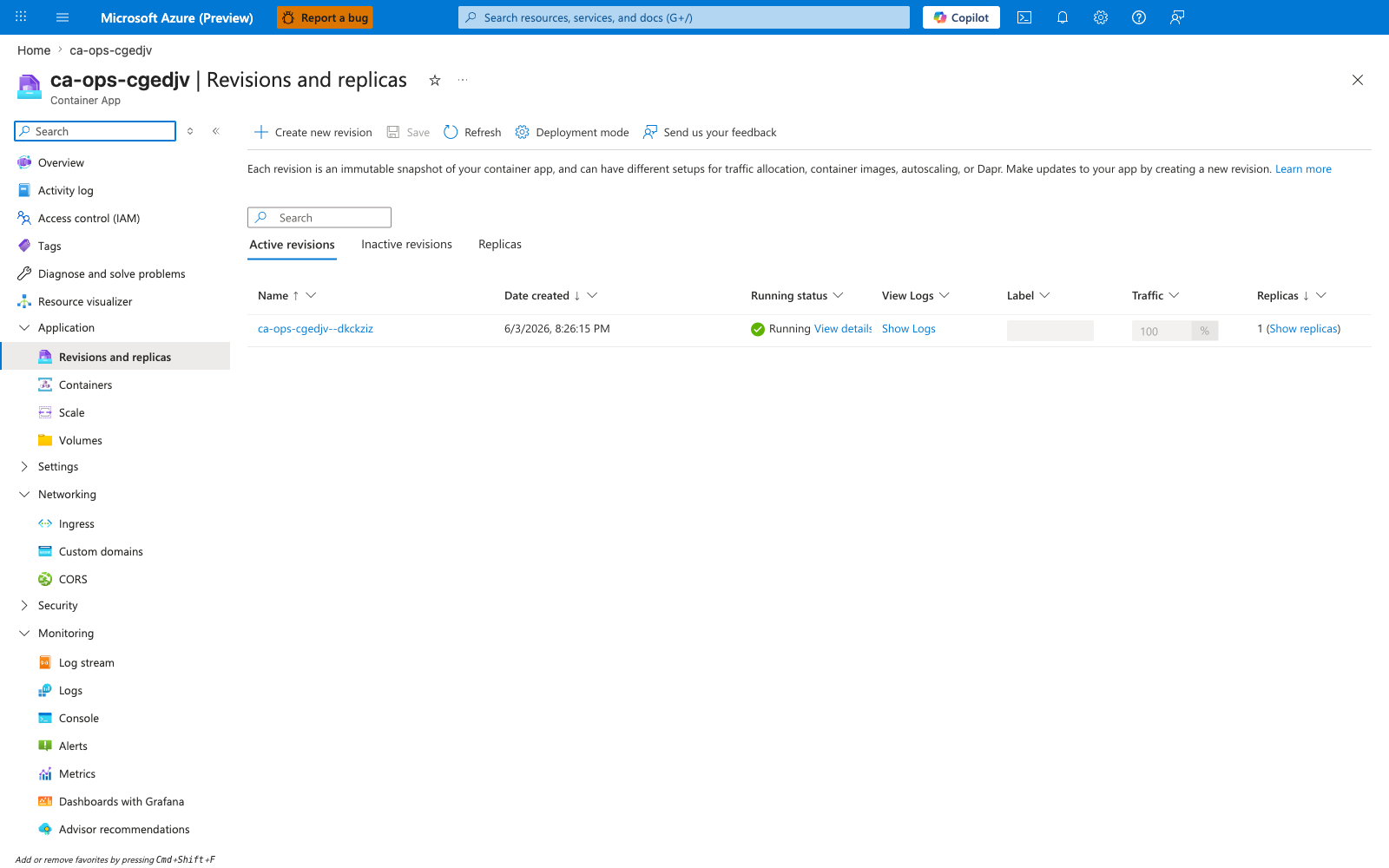
[Observed] The Active revisions tab lists the revision ca-ops-cgedjv--dkckziz with Running status: Running, Traffic: 100%, and Replicas: 1.
[Inferred] A single active revision serving 100% of traffic with a Running replica is the expected steady state for this app, so this snapshot is consistent with a healthy deployment. If the latest revision is missing, shows Provisioning failed, or is split into multiple competing revisions, jump to the playbook linked above.
[Not Proven] This blade does not confirm that the replica is handling requests successfully — only that the platform considers it Running. End-to-end health requires a probe response or a request-log entry (see Step 6 and Step 3).
2) Replica Status
az containerapp replica list --name "$APP_NAME" --resource-group "$RG" --query "[].{replica:name,runningState:properties.runningState,created:properties.createdTime}" --output table
| Command | Why it is used |
|---|---|
az containerapp replica list ... | Runs the Azure CLI operation required by the documented step. |
Observed output pattern:
Replica                                RunningState    Created
-------------------------------------  --------------  -------------------------
ca-myapp--0000001-646779b4c5-bhc2v     Running         2026-04-04T11:30:52+00:00
- Look for replicas that remain in
Runningstate. - Failure patterns: repeated short-lived replicas, no replicas created, restart loops.
- If failed → go to Container Start Failure.
Portal view: Replicas tab
Navigate: Container App → Application → Revisions and replicas → Replicas.
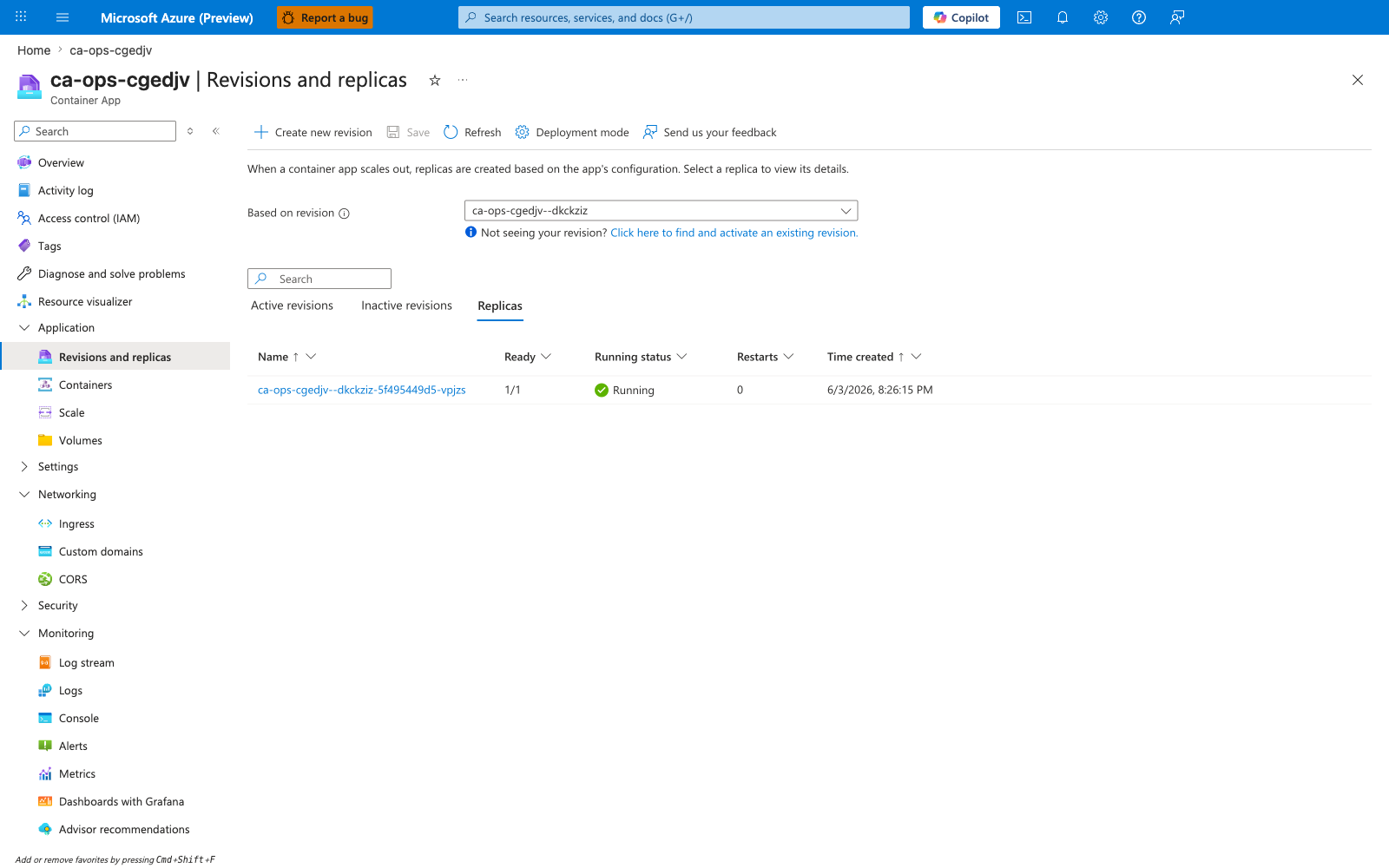
[Observed] The Replicas tab lists a single replica ca-ops-cgedjv--dkckziz-5f495449d5-vpjzs in Running state, tied to the active revision.
[Inferred] If you refresh the blade every 30 seconds and see the replica name change repeatedly (different pod-hash suffix), the container is crash-looping even though the revision shows healthy. That symptom maps to Container Start Failure.
[Not Proven] A single observation of one Running replica does not prove the replica is long-lived; only repeated refreshes (or kubectl-style restart counters, which this blade does not expose) can confirm stability over time.
3) Container Logs
| Command | Why it is used |
|---|---|
az containerapp logs show ... | Runs the Azure CLI operation required by the documented step. |
For continuous streaming, add --follow and press Ctrl+C to exit.
Observed healthy startup console sequence (Gunicorn):
Starting application...
PORT=8000
Workers=auto
[2026-04-04 11:30:53 +0000] [7] [INFO] Starting gunicorn 25.3.0
[2026-04-04 11:30:53 +0000] [7] [INFO] Listening at: http://0.0.0.0:8000 (7)
[2026-04-04 11:30:53 +0000] [7] [INFO] Using worker: sync
[2026-04-04 11:30:54 +0000] [8] [INFO] Booting worker with pid: 8
- Look for Python traceback, startup command failures, bind errors, missing configuration.
- Failure patterns:
ModuleNotFoundError,Address already in use,connection refused, crash loops. - If failed → go to Container Start Failure.
Portal view: Log stream
Navigate: Container App → Monitoring → Log stream.
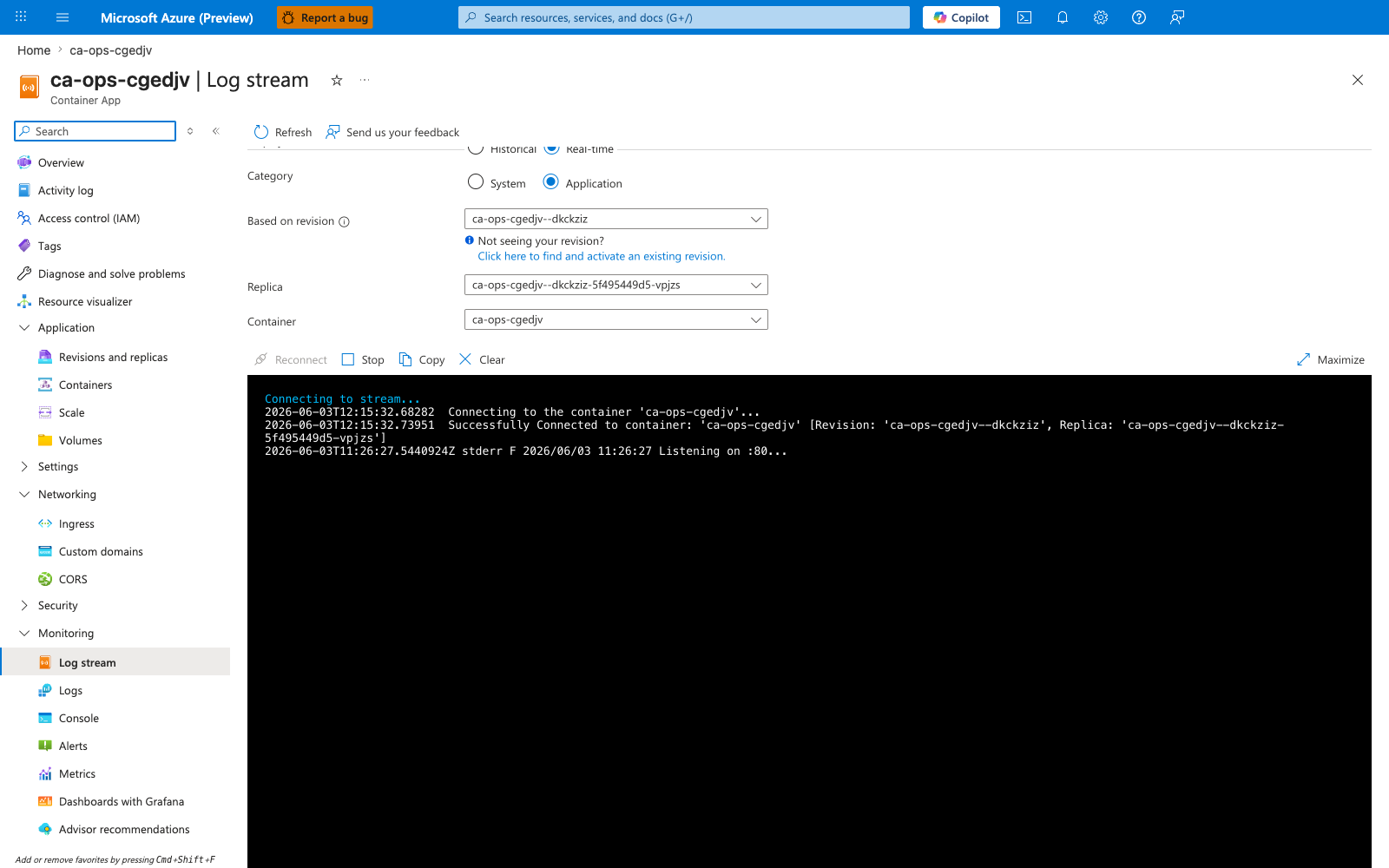
[Observed] The Log stream blade exposes Replica and Container dropdowns above a console area that renders incoming stdout/stderr from the selected target.
[Inferred] This surface is the right tool when a replica has just started and you need output immediately — it subscribes to the live log channel rather than querying ingested data, so it avoids whatever ingestion delay the workspace currently has.
[Not Proven] The blade does not show historical logs — only what arrives after you open it — and the exact ingestion lag for the same lines to appear in ContainerAppConsoleLogs_CL is not visible here. For past failures, query the workspace through the Logs blade.
4) Image Pull
az containerapp logs show --name "$APP_NAME" --resource-group "$RG" --type system
az acr repository show-tags --name "$ACR_NAME" --repository "$APP_NAME" --output table
| Command | Why it is used |
|---|---|
az containerapp logs show ... | Runs the Azure CLI operation required by the documented step. |
Observed pull success pattern:
TimeGenerated              Reason_s      Log_s
-------------------------  ------------  ---------------------------------------------------------------
2026-04-04T12:54:11.477Z   PullingImage  Pulling image '<acr-name>.azurecr.io/myapp:v1.0.0'
2026-04-04T12:54:11.477Z   PulledImage   Successfully pulled image in 2.42s. Image size: 58720256 bytes.
- Confirm image tag exists and system logs do not show pull/auth errors.
- Failure patterns:
ImagePullBackOff,manifest unknown,unauthorized,denied. - If failed → go to Image Pull Failure.
Portal view: Container image configuration
Navigate: Container App → Application → Containers → Properties.
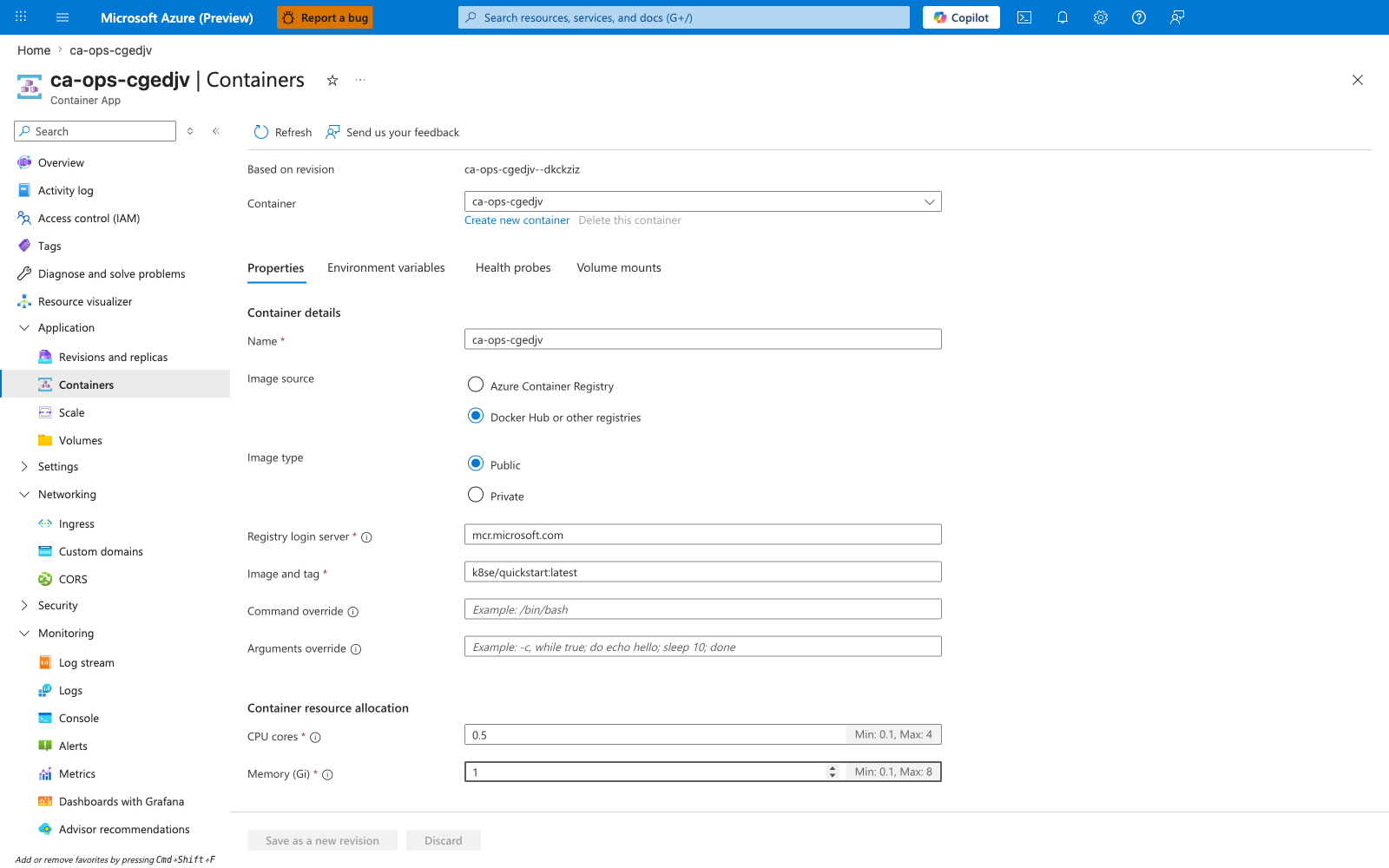
[Observed] The Properties tab under Containers shows the Registry login server (mcr.microsoft.com) and Image and tag (k8se/quickstart:latest) currently configured on the active revision, along with the CPU/memory allocation for the container.
[Inferred] If the values here do not match what your last CI/CD run pushed, the most recent revision was created from a stale template — re-check the az containerapp update --image step (or equivalent IaC) in the pipeline.
[Not Proven] This blade only shows the configured image reference; it does not prove the pull actually succeeded. Pull success must still be verified through system logs (the CLI command above) or the Activity log.
5) Ingress Configuration
az containerapp show --name "$APP_NAME" --resource-group "$RG" --query "properties.configuration.ingress" --output json
| Command | Why it is used |
|---|---|
az containerapp show --name ... | Reads the Container App configuration so the documented setting can be verified. |
- Confirm
externalsetting matches your access model andtargetPortmatches app listening port. - Failure patterns: ingress disabled, wrong
targetPort, internal app tested from public internet. - If failed → go to Ingress Not Reachable.
Portal view: Ingress
Navigate: Container App → Networking → Ingress.
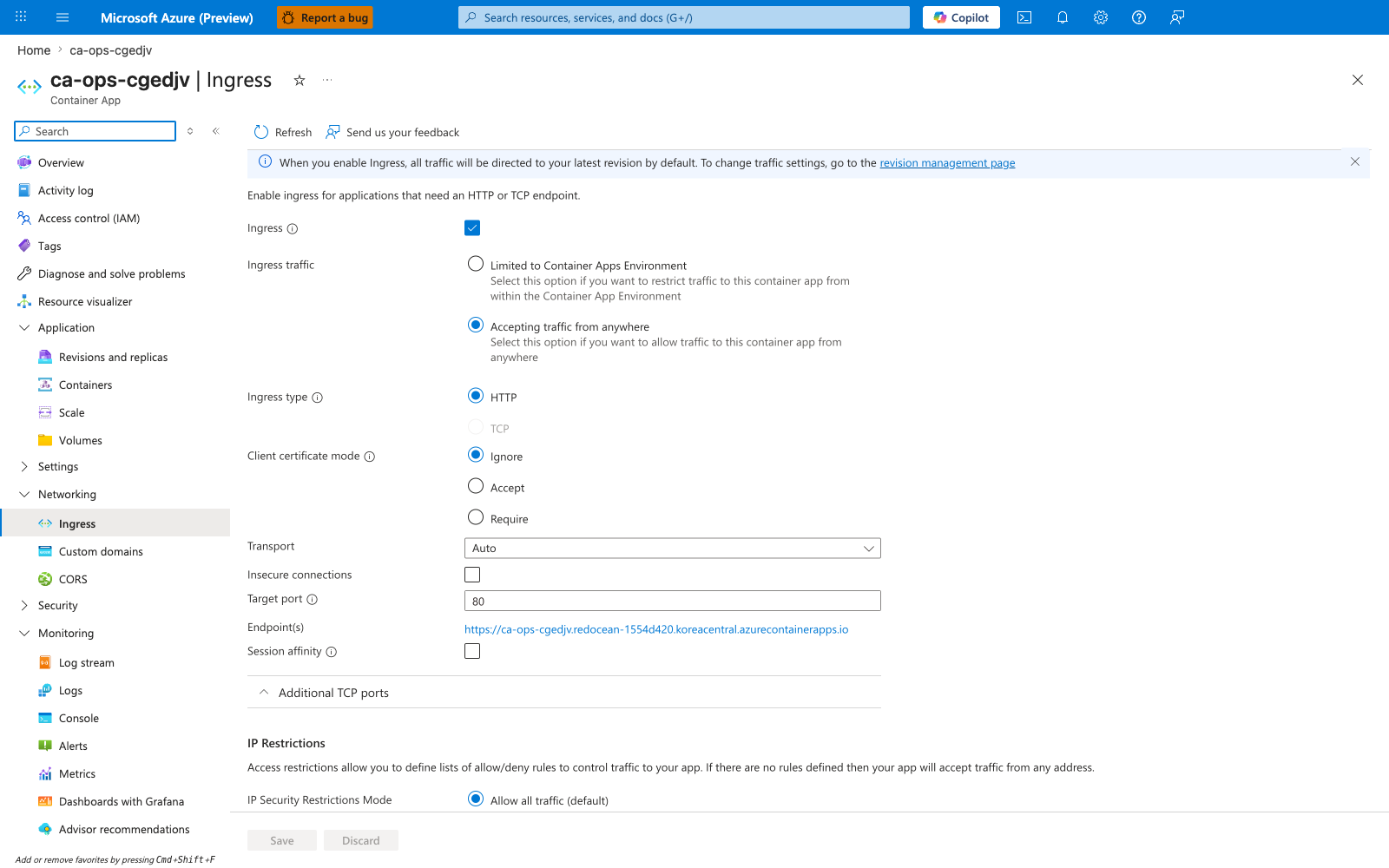
[Observed] The Ingress blade shows Ingress: enabled, Accepting traffic from: Anywhere, Target port: 80, Transport: Auto, and an Endpoint(s) field that lists the app's URL.
[Inferred] Because Accepting traffic from is set to Anywhere, the URL listed under Endpoint(s) should be reachable from the public internet — this is the externally exposed FQDN for the app. Three common misconfigurations are visible here at a glance: (1) toggle off → no FQDN issued, (2) Accepting traffic from set to VNet while you are testing from the public internet → DNS resolves but connection times out, (3) Target port does not match the port your app listens on (e.g. app binds 8000 but ingress points at 80) → connections reset with no app logs.
[Not Proven] This blade does not prove the FQDN actually resolves in public DNS or that an HTTP request reaches the container — confirm with curl -v https://<fqdn>/ from outside the VNet.
6) Health Probes
az containerapp show --name "$APP_NAME" --resource-group "$RG" --query "properties.template.containers[0].probes" --output json
| Command | Why it is used |
|---|---|
az containerapp show --name ... | Reads the Container App configuration so the documented setting can be verified. |
- Confirm liveness/readiness probe paths and ports are valid; startup probe timeout fits app boot time.
- Failure patterns: probe path returns 404/500, startup timeout too short, wrong probe port.
- If failed → go to Probe Failure and Slow Start.
Probe defaults can still fail
Apps with migrations, cold dependency checks, or large model loads often need a longer startup probe window.
Portal view: Health probes
Navigate: Container App → Application → Containers → Health probes.
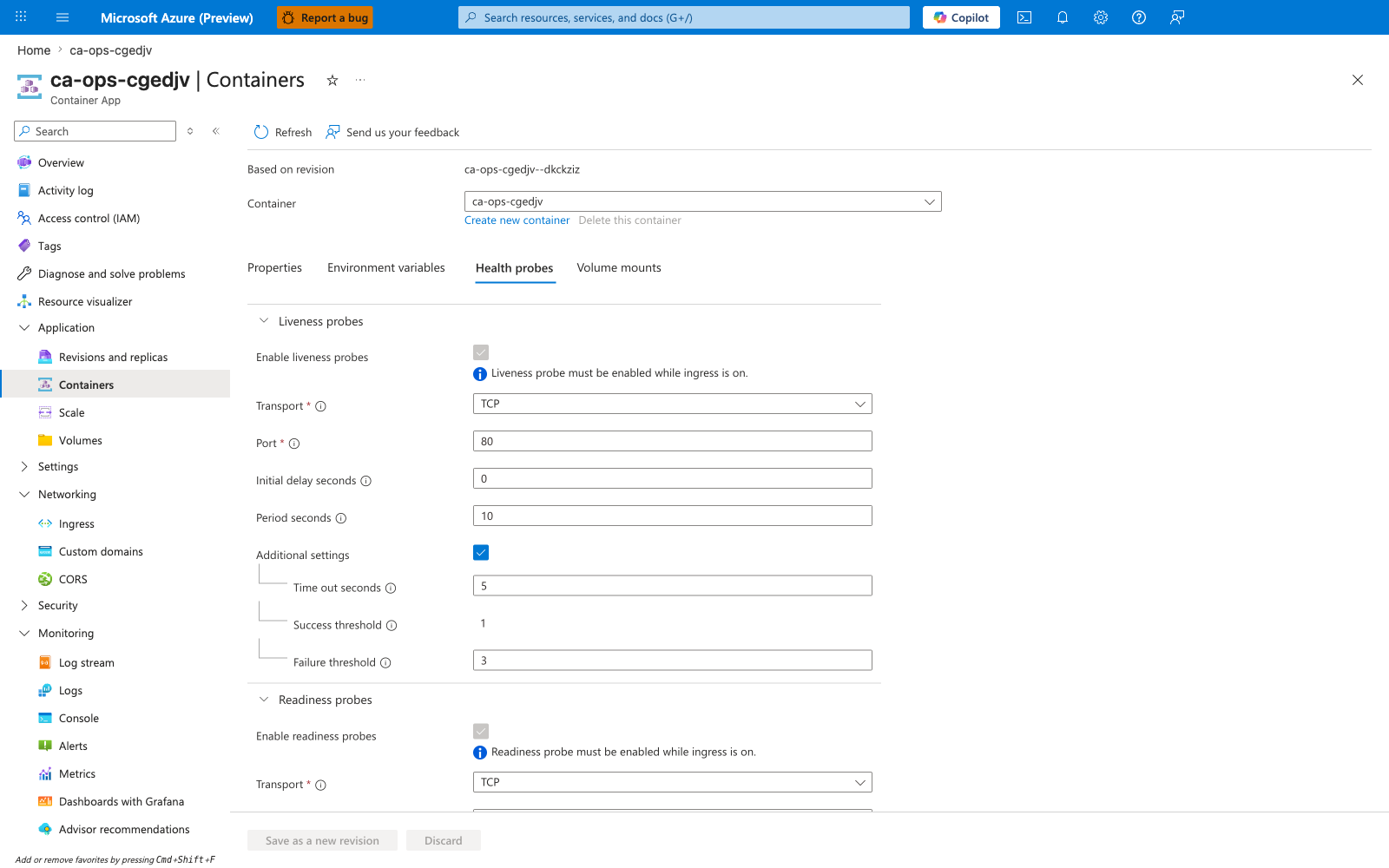
[Observed] The Health probes tab under Containers lists the configured probes — the visible portion of the blade shows Liveness and Readiness sections with their transport (HTTP/TCP/gRPC), path, port, and timing fields exposed as editable form fields rather than raw JSON. Startup probe (the third type Container Apps supports) is rendered in the same scrollable list.
[Inferred] This view is the fastest way to catch the three classic probe mistakes: (1) path returns 404 in the app's router → readiness flaps, (2) Startup probe timeout shorter than actual boot time (e.g. 30 s for an app that needs 60 s to warm a model) → revision never goes Ready, (3) probe Port does not match the container's listening port → TCP probe succeeds (port open) but HTTP probe fails.
[Not Proven] The Portal does not show historical probe results; for that, query ContainerAppSystemLogs_CL | where Reason_s in ("LivenessProbeFailed","ReadinessProbeFailed","StartupProbeFailed") in Log Analytics.
7) Registry Authentication
az containerapp show --name "$APP_NAME" --resource-group "$RG" --query "identity" --output json
az role assignment list --scope "$(az acr show --name "$ACR_NAME" --query id --output tsv)" --assignee "$(az containerapp show --name "$APP_NAME" --resource-group "$RG" --query identity.principalId --output tsv)" --output table
| Command | Why it is used |
|---|---|
az containerapp show --name ... | Reads the Container App configuration so the documented setting can be verified. |
- Confirm managed identity exists and has
AcrPullrole on the registry scope. - Failure patterns: no principal ID, missing
AcrPull, ACR firewall blocks environment egress. - If failed → go to Managed Identity Auth Failure and Image Pull Failure.
Portal view: Identity
Navigate: Container App → Settings → Identity.
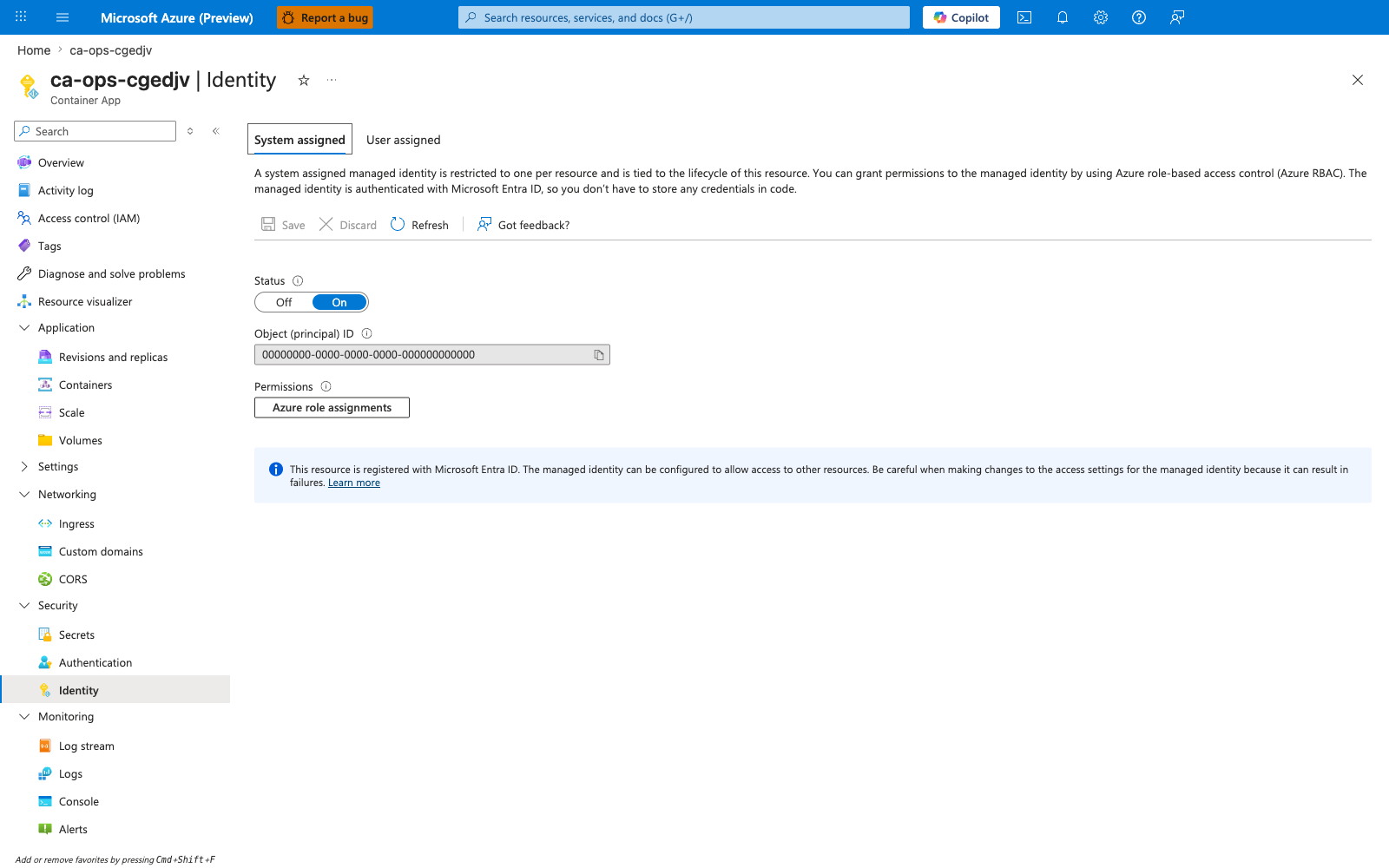
[Observed] The System assigned tab shows Status: On, an Object (principal) ID value, a User assigned sibling tab, and an Azure role assignments button under Permissions. A notice at the bottom of the blade confirms the resource is registered with Microsoft Entra ID.
[Inferred] If Status is Off, the app cannot use a system-assigned managed identity at all — registry pulls fall back to admin credentials (which may be disabled on hardened ACRs) and any Key Vault references fail at revision-provisioning time. The Azure role assignments button is the quickest way to verify that this Object ID actually holds AcrPull (or whatever role) on the registry scope.
[Not Proven] This blade does not show which revisions are currently using the identity, nor whether a recent role assignment has propagated through Entra ID — propagation can lag image-pull attempts by minutes.
8) Secrets and Config
az containerapp secret list --name "$APP_NAME" --resource-group "$RG"
az containerapp show --name "$APP_NAME" --resource-group "$RG" --query "properties.template.containers[0].env" --output json
| Command | Why it is used |
|---|---|
az containerapp secret list ... | Manages Container Apps secrets without exposing secret values in plain configuration. |
- Confirm secret references exist and expected environment variables are present.
- Failure patterns:
secretRefpoints to missing secret, null env var values, stale revision after secret update. - If failed → go to Secret and Key Vault Reference Failure and Revision Provisioning Failure.
Portal capture intentionally omitted for this step
The Portal Secrets blade is intentionally not captured for this step. The CLI commands above are authoritative because they print secret references (env-var name → secret name → Key Vault URI) in a single output, which the Portal splits across multiple blades. Use the CLI as the source of truth for triage; open the Portal Secrets blade only when you need the inline edit/version UI.
9) Environment and Network
az containerapp env show --name "$ACA_ENV_NAME" --resource-group "$RG" --output json
az network private-endpoint list --resource-group "$RG" --output table
| Command | Why it is used |
|---|---|
az containerapp env show ... | Reads managed environment settings for networking, logging, or workload profile verification. |
- Confirm environment is healthy and network dependencies (private DNS/private endpoints) are correctly configured.
- Failure patterns: DNS resolution failures, blocked NSG outbound rules, missing private DNS link.
- If failed → go to Internal DNS and Private Endpoint Failure.
Portal view: Container Apps Environment overview
Navigate: Container Apps Environment → Overview.
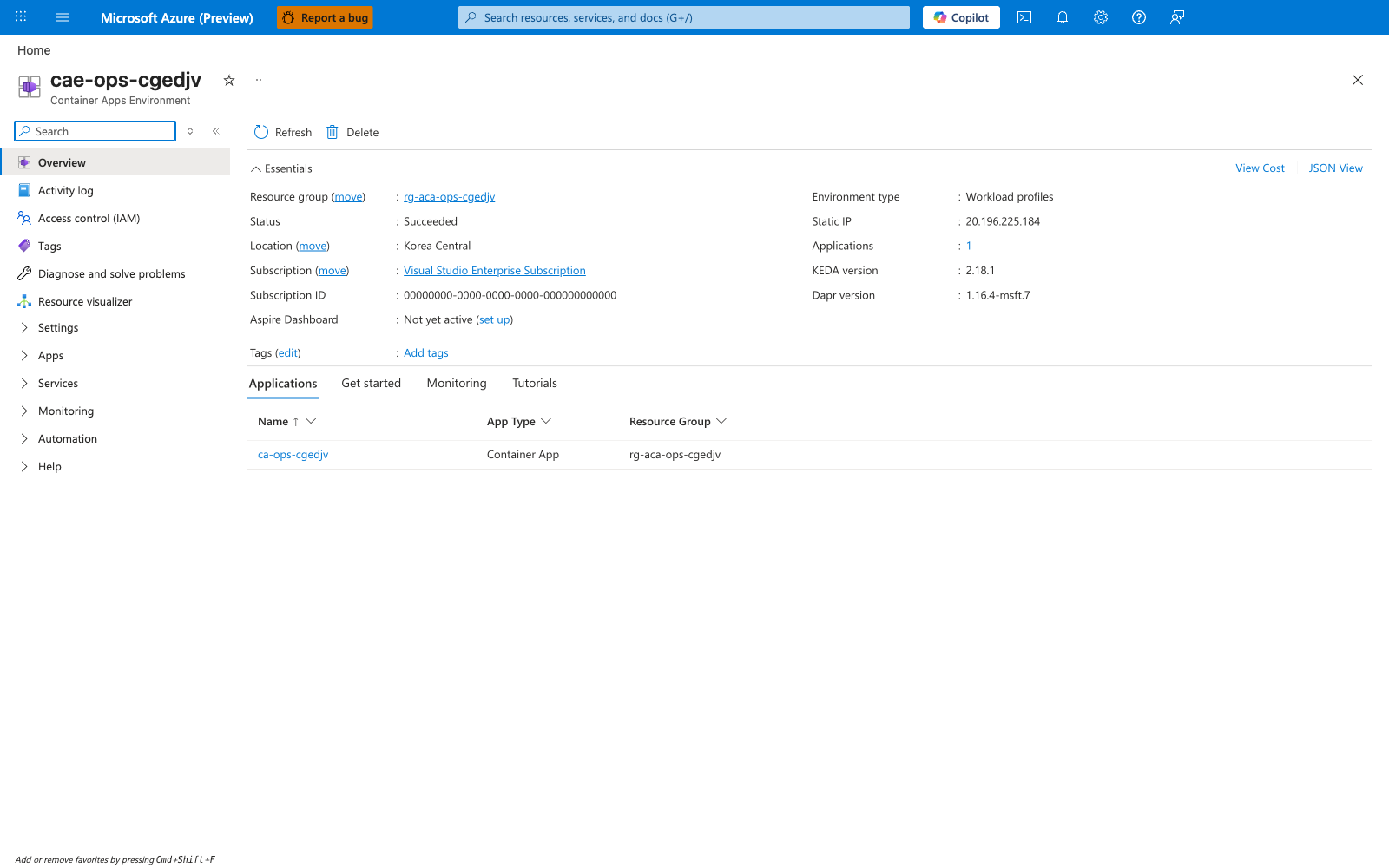
[Observed] The Environment Overview blade shows Status: Succeeded, the linked Log Analytics workspace, the Environment type (Workload profiles or Consumption only), and the list of Container Apps deployed inside the environment.
[Inferred] If the environment is in a custom VNet, the Overview also exposes the Infrastructure subnet — use that as the starting point for verifying outbound NSG rules and route tables. If the environment status is anything other than Succeeded (Failed, Updating, Canceled), every app inside is affected; fix the environment before debugging individual apps.
[Not Proven] The Overview does not show DNS resolution success or NSG flow logs — use Network Watcher → Connection Troubleshoot from the environment's subnet to test specific dependency endpoints.
10) Dependencies
az containerapp exec --name "$APP_NAME" --resource-group "$RG" --command "python -c 'import socket; print(socket.gethostbyname(\"example.database.windows.net\"))'"
| Command | Why it is used |
|---|---|
az containerapp exec --name ... | Runs the Azure CLI operation required by the documented step. |
- Confirm the app can resolve and reach critical services (database, storage, API endpoints).
- Failure patterns: DNS timeout, TLS handshake errors, outbound firewall denials.
- If failed → go to Service-to-Service Connectivity Failure, Managed Identity Auth Failure, or Internal DNS and Private Endpoint Failure.
Portal view: Console (exec into a replica)
Navigate: Container App → Monitoring → Console.
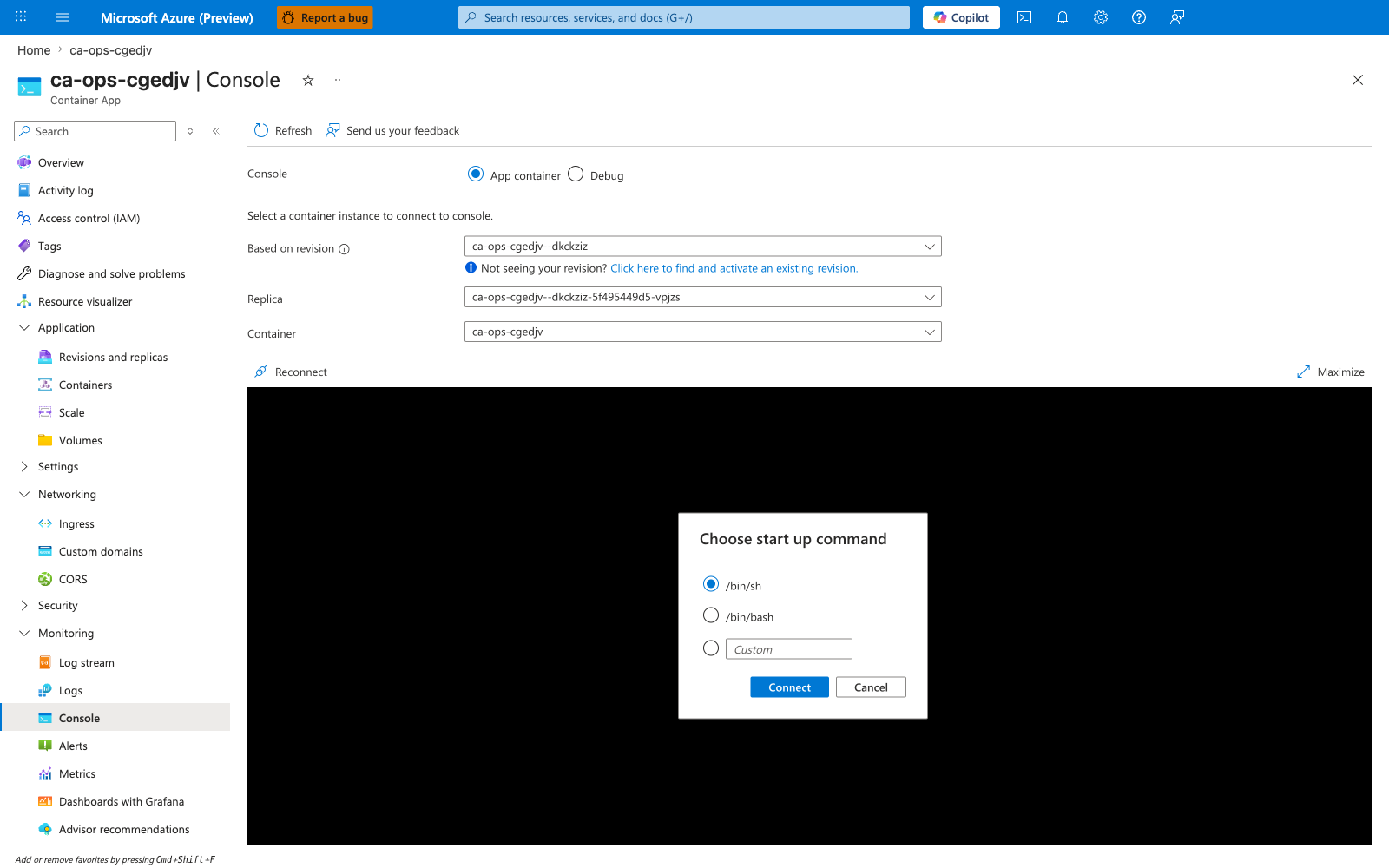
[Observed] The Console blade exposes Replica and Container dropdowns and opens a Choose start up command dialog offering /bin/sh, /bin/bash, or a custom command before attaching an in-browser shell.
[Inferred] Once attached, you can run dependency probes interactively (nslookup, curl -v, nc -zv) without needing az containerapp exec from your laptop, which is useful when corporate egress blocks the CLI control plane. If Reconnect loops or the shell exits immediately, the container image likely lacks a shell (distroless / scratch base) — verify dependencies from a sidecar or rebuild with a debug image.
[Not Proven] The Console runs inside one replica; a single successful probe does not prove every replica can reach the same dependency. Repeat against multiple replicas if you suspect intermittent network issues.
Escalate with Context
Observed healthy system lifecycle sequence for reference:
ContainerAppUpdate    → Updating containerApp: ca-myapp
RevisionCreation      → Creating new revision
PullingImage          → Pulling image '<acr-name>.azurecr.io/myapp:v1.0.0'
PulledImage           → Successfully pulled image in 2.42s (58720256 bytes)
ContainerCreated      → Created container 'ca-myapp'
ContainerStarted      → Started container 'ca-myapp'
ProbeFailed (Warning) → Probe of StartUp failed (multiple times during startup)
RevisionReady         → Revision ready
ContainerAppReady     → Running state reached
If the checklist does not isolate root cause, continue with Troubleshooting Methodology and include:
- failing revision name
- exact error text from system/console logs
- ingress mode and target port
- dependency endpoint(s) that failed