Revision Modes in Azure Container Apps
Revision mode decides whether Azure Container Apps keeps one active revision or several active revisions at the same time. It changes how deployment promotion, rollback, and traffic management work.
Revision Modes
Azure Container Apps exposes revision mode through the activeRevisionsMode property.
| Mode | Active revisions | Best fit | Operational effect |
|---|---|---|---|
Single | One | Standard production updates, simple zero-downtime replacement | Platform activates the new revision and deprovisions the old one after cutover |
Multiple | One or more | Canary, blue/green, A/B testing, staged rollback | You decide which revisions stay active and how ingress traffic is distributed |
flowchart TD
    A[Deploy configuration or image change] --> B{Revision mode}
    B -->|Single| C[Create new revision]
    C --> D[Wait until new revision is ready]
    D --> E[Send production traffic to new revision]
    E --> F[Deprovision prior active revision]
    B -->|Multiple| G[Create new revision]
    G --> H[Keep current revision active]
    H --> I[Choose weights or labels]
    I --> J[Promote or rollback by traffic change]
Single revision mode
Use single revision mode when you want the platform to handle cutover automatically.
- It is the default mode.
- Container Apps provisions and activates the new revision before diverting traffic.
- If an update fails, traffic remains on the old revision.
- You do not manage weighted traffic between old and new revisions.
This mode is usually the safest choice for stateless services that only need straightforward zero-downtime replacement.
Multiple revision mode
Use multiple revision mode when rollout control matters more than simplicity.
- Multiple revisions can stay active at the same time.
- You can split traffic by revision name, by label, or by routing all traffic to the latest revision.
- Rollback is usually a traffic update, not a redeploy.
- Old revisions remain your responsibility until you deactivate them.
This mode is the right platform primitive for canary and blue/green patterns.
How activation behaves
Activation behavior is different enough that it should drive your mode choice.
In single mode
The platform owns the promotion sequence:
- Create the new revision.
- Wait for the revision to become ready.
- Move production traffic.
- Deprovision the previous revision.
In multiple mode
The platform creates the revision, but you own promotion decisions:
- Create the new revision.
- Keep the prior revision active.
- Assign labels or weights.
- Deactivate older revisions when the confidence window ends.
| Command | Purpose |
|---|---|
az containerapp revision set-mode | Switches the app into multiple revision mode so old and new revisions can stay active side by side during promotion. |
--mode multiple | Enables the operational model where you manage traffic weights, labels, and deactivation explicitly instead of letting the platform auto-promote one revision. |
Deployment, rollback, and traffic implications
| Concern | Single mode | Multiple mode |
|---|---|---|
| Deployment promotion | Automatic after readiness | Manual, usually through traffic or label changes |
| Rollback speed | Re-deploy or restore previous configuration | Immediate if a stable revision is still active |
| Weighted traffic split | Not available | Native capability |
| Label-based validation | Not applicable | Native capability |
| Operational overhead | Lower | Higher |
Choose the simplest mode that matches your release strategy
If you do not need side-by-side validation or partial production exposure, stay in single revision mode.
Multiple revision mode increases release flexibility and operational responsibility
Microsoft Learn documents how to keep several revisions active and split traffic between them, but it also means you must explicitly clean up older revisions and avoid accidental drift.
Practical guidance
Choose single when:
- Production traffic should always go to one revision.
- Release automation should stay simple.
- Your rollback plan does not require pre-warmed side-by-side revisions.
Choose multiple when:
- You need a controlled canary window.
- You want blue/green labels for deterministic validation.
- You need instant rollback by moving traffic rather than rebuilding artifacts.
Portal view: Revisions and replicas blade
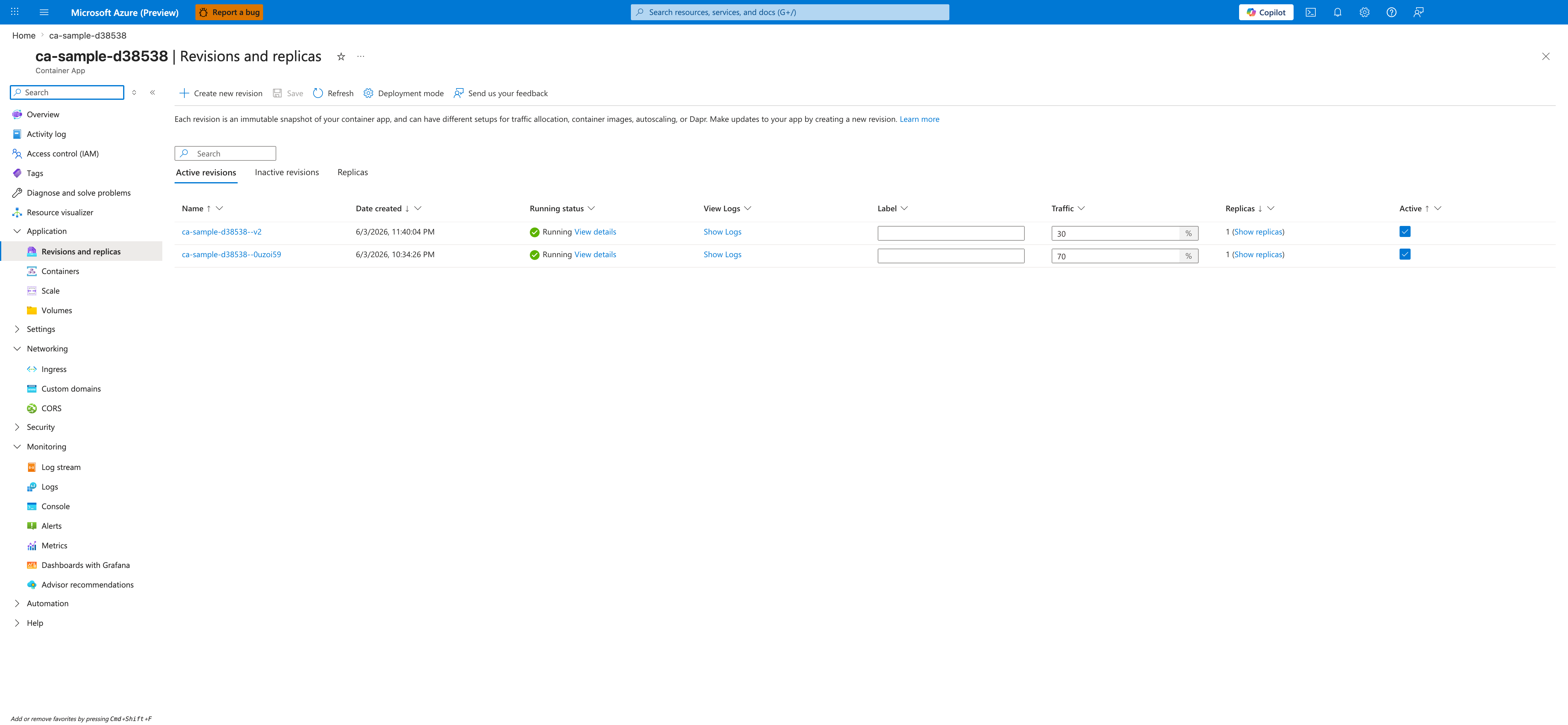
[Observed] The blade header reads <your-app-name> | Revisions and replicas with the subtitle Container App. The command bar exposes Create new revision, Save, Refresh, Deployment mode, and Send us your feedback. A banner above the table describes each revision as an immutable snapshot of the container app. A tab strip shows Active revisions (selected), Inactive revisions, and Replicas. The Active revisions table has columns Name, Date created, Running status, View Logs, Label, Traffic, Replicas, and Active. Two rows are listed: <your-app-name>--<revision-suffix-1> with a Traffic editor showing 30 % and the Active checkbox checked, and <your-app-name>--<revision-suffix-2> with a Traffic editor showing 70 % and the Active checkbox checked. Both rows show Running status and a single replica count. The left navigation highlights Revisions and replicas under Application.
[Inferred] The Deployment mode button in the command bar appears to map to the activeRevisionsMode property described in the "Revision Modes" table above, which is the same setting toggled by the az containerapp revision set-mode command shown in the "In multiple mode" section. The presence of two rows with independent Traffic percentage editors and Active checkboxes on the same blade is consistent with the multiple-mode capability described in the "Multiple revision mode" section, where the page explains that you split traffic between active revisions rather than letting the platform deprovision the older one.
[Not Proven] The panel that opens after clicking Deployment mode is not shown in this capture, so the exact label and radio shape of the Single and Multiple choices on that panel are outside the scope of this image. The blade also does not show how the Inactive revisions and Replicas tabs render, nor what happens when the Active checkbox is unchecked and Save is clicked.
See Also
- Revisions Overview
- Traffic Split
- Revision Lifecycle
- Revision Strategy Best Practices
- Revision Operations