Revision Lifecycle in Azure Container Apps
Revision lifecycle explains what happens from revision creation through activation, deactivation, and inactive retention. This is the platform view you need before designing rollout or cleanup policies.
Documented lifecycle stages
Microsoft Learn documents revision creation and management behavior more clearly than it documents a single canonical state enum. In practice, these are the lifecycle checkpoints you can reason about safely:
- Provisioning — the platform creates the revision and prepares runtime resources.
- Ready for activation — the revision is healthy enough to receive traffic.
- Active — the revision can serve requests or process events.
- Inactive — the revision is retained but not serving traffic.
- Removed — the inactive revision ages out or is purged from retention.
Microsoft Learn does not publish one authoritative end-to-end revision state enum list
Azure CLI and API responses expose fields such as provisioning state, active status, health state, and running state. Use those fields for operational diagnosis, but treat undocumented enum combinations as implementation details rather than stable platform contracts.
stateDiagram-v2
    [*] --> Provisioning
    Provisioning --> Ready: startup succeeds
    Provisioning --> Failed: startup or deployment fails
    Ready --> Active: activated or assigned traffic
    Active --> Inactive: deactivated or replaced
    Inactive --> Active: manually activated
    Inactive --> Removed: retention limit reached
    Failed --> [*]
    Removed --> [*]
How revisions enter the lifecycle
Revision-scope changes create a new revision. Common examples include:
- container image changes
- scaling rule changes
- environment variable changes
- resource limit changes
Application-scope changes update the app without creating a new revision.
Activation and deactivation
Automatic activation
In single revision mode, the platform activates the new revision when it is ready and shifts traffic to it automatically.
Manual activation and deactivation
In multiple revision mode, you can explicitly activate or deactivate revisions.
az containerapp revision activate \
  --name "$APP_NAME" \
  --resource-group "$RG" \
  --revision "$APP_NAME--20260425-1"

az containerapp revision deactivate \
  --name "$APP_NAME" \
  --resource-group "$RG" \
  --revision "$APP_NAME--20260420-3"
| Command | Why it is used |
|---|---|
az containerapp revision activate ... | Runs the Azure CLI operation required by the documented step. |
Manual deactivation is useful when:
- a canary has failed
- a confidence window has ended
- you want to reduce operational noise before the retention limit is hit
Inactive revision retention
Container Apps keeps inactive revisions so you can inspect or reactivate them later.
- Default inactive retention: up to 100 inactive revisions.
- ARM/Bicep property:
maxInactiveRevisions. - Older inactive revisions are purged when the retention limit is exceeded.
Retention is for rollback safety, not long-term history
Keep enough inactive revisions for your rollback window, but do not treat revision retention as a release archive.
Auto-deactivation behavior
| Mode | Auto-deactivation behavior |
|---|---|
| Single | The prior active revision is deprovisioned after successful cutover |
| Multiple | Older revisions stay active until you change traffic or deactivate them |
This difference is why cleanup policy matters much more in multiple revision mode.
Operational checks
Use revision queries to inspect lifecycle-related fields during rollout or incident response.
az containerapp revision list \
  --name "$APP_NAME" \
  --resource-group "$RG" \
  --query "[].{name:name,active:properties.active,createdTime:properties.createdTime,healthState:properties.healthState,runningState:properties.runningState}" \
  --output table
| Command | Why it is used |
|---|---|
az containerapp revision list ... | Lists revisions so rollout state, traffic, and health can be verified. |
Portal view: Revisions and replicas blade
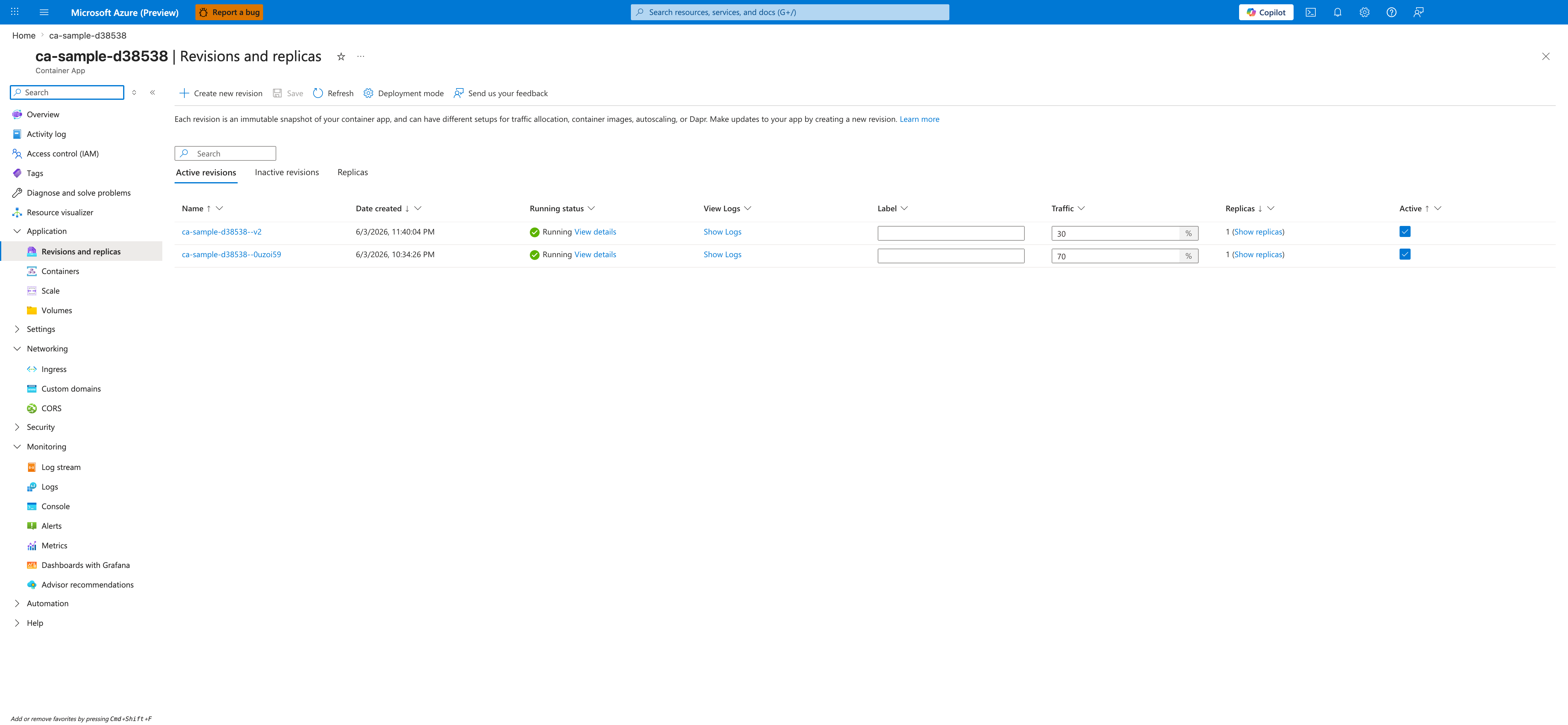
[Observed] The blade header reads <your-app-name> | Revisions and replicas with the subtitle Container App. The command bar exposes Create new revision, Save, Refresh, Deployment mode, and Send us your feedback. A tab strip shows Active revisions (selected), Inactive revisions, and Replicas. The Active revisions table has columns Name, Date created, Running status, View Logs, Label, Traffic, Replicas, and Active. Two rows are listed: <your-app-name>--<revision-suffix-1> with Date created 6/3/2026, 11:40:04 PM, Running status with a View details link, a Replicas count of 1, and the Active checkbox checked; and <your-app-name>--<revision-suffix-2> with Date created 6/3/2026, 10:34:26 PM, Running status with a View details link, a Replicas count of 1, and the Active checkbox checked. The left navigation highlights Revisions and replicas under Application.
[Inferred] The Create new revision command in the command bar appears to map to the "How revisions enter the lifecycle" section above, which lists the revision-scope changes (image, scaling rules, environment variables, resource limits) that produce a new revision. The Active revisions and Inactive revisions tabs are consistent with the Active and Inactive checkpoints in the "Documented lifecycle stages" list. The Active checkbox column paired with the Save command is consistent with the manual activation/deactivation capability described in the "Manual activation and deactivation" section, which uses the az containerapp revision activate and az containerapp revision deactivate commands. The Date created column is consistent with the createdTime field returned by the az containerapp revision list query in the "Operational checks" section.
[Not Proven] The screenshot does not show the dialog that opens after clicking Create new revision, so the form fields for revision-scope changes are outside the scope of this image. It does not show the contents of the Inactive revisions tab, so the maxInactiveRevisions retention behavior and the count of retained inactive revisions are not visible. It does not show the Replicas tab contents, the View details panel, or the prompt that follows toggling an Active checkbox and clicking Save.
See Also
- Revisions Overview
- Revision Modes
- Traffic Split
- Revision Operations
- Bad Revision Rollout and Rollback