Revision Lifecycle in Azure Container Apps
A revision is an immutable snapshot of a Container App version. Every change to the configuration or container image creates a new revision, enabling safe deployments and easy rollbacks.
Use this overview page as the entry point, then go deeper with Revision Modes, Traffic Split, and Revision Lifecycle for property-level behavior.
Revision Creation and Traffic Flow
When you deploy a change, the platform creates a new revision. Depending on your traffic settings, the ingress layer routes requests to one or more active revisions.
graph TD
    U[User] --> IN[Envoy Ingress]
    subgraph App[Container App]
      IN --> R1[Revision v1\n90% Traffic]
      IN --> R2[Revision v2\n10% Traffic]
      R3[Revision v0\nInactive]
    end
Treat revisions as immutable deployment artifacts
Avoid manual drift between revisions; configuration and image updates should flow through repeatable pipelines.
States and Transitions
Revisions progress through a lifecycle managed by the Container Apps platform.
stateDiagram-v2
    [*] --> Provisioning
    Provisioning --> Active: Health Check Pass
    Provisioning --> Failed: Timeout / Error
    Active --> Inactive: Deactivated / 0% Traffic
    Inactive --> Active: Reactivated / >0% Traffic
Inactive --> [*]: Garbage Collection- Provisioning: The platform allocates resources and pulls container images.
- Active: The revision is healthy and can receive traffic or process events.
- Inactive: The revision exists but has no replicas and receives no traffic.
- Failed: The revision could not start (e.g., image pull error or failing health probes).
Single vs Multiple Revision Mode
The revision mode determines how many revisions can be active at the same time.
| Mode | Active Revisions | Best For |
|---|---|---|
| Single | Exactly one | Standard web apps, simple updates |
| Multiple | One or more | Canary, blue-green, A/B testing |
In Single mode, the platform automatically deactivates the old revision when the new one becomes healthy. In Multiple mode, you manually control deactivation and traffic weights.
Practical Guidance
| Action | Revision Mode | Effect |
|---|---|---|
| Image Update | Single | Creates new revision; replaces old one once healthy |
| Traffic Split | Multiple | Shifts percentage of requests between active revisions |
| Deactivation | Multiple | Stops all replicas of a revision without deleting it |
| Reactivation | Multiple | Re-provisions replicas for a previously inactive revision |
Deep-Dive Topics
- Revision Modes — exact mode behavior, activation model, and rollout implications
- Traffic Split — weighted routing, labels, and
latestRevision - Revision Lifecycle — activation, inactive retention, and cleanup behavior
Portal View
The Revisions and replicas blade is where the lifecycle, mode, and traffic split concepts above become concrete. The capture below shows a Container App running in Multiple revision mode with two active revisions and a weighted traffic split.
Step 1: Open Revisions and replicas
In the left navigation of any Container App, open Application → Revisions and replicas. The blade groups revisions into three tabs (Active revisions, Inactive revisions, Replicas) and exposes the Deployment mode toggle in the command bar.
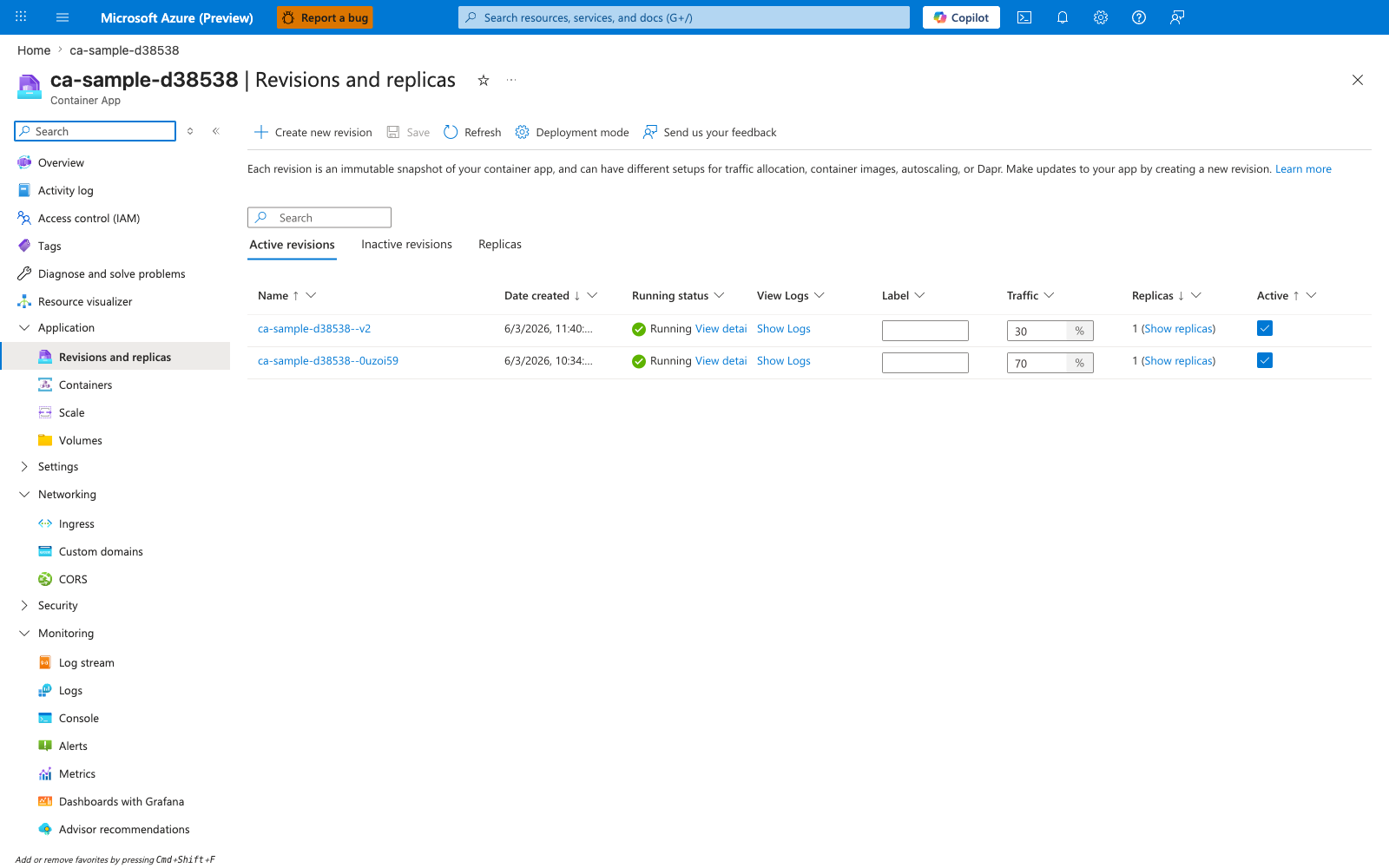
[Observed] The Active revisions tab lists two revisions: ca-sample-d38538--v2 (created 6/3/2026, 11:40) and ca-sample-d38538--0uzoi59 (created 6/3/2026, 10:34). Both show Running status with a green checkmark, Traffic values of 30 and 70 percent respectively, 1 replica each, and Active checkboxes selected. The command bar shows Create new revision, Save, Refresh, and Deployment mode actions. The page header reads "Each revision is an immutable snapshot of your container app, and can have different setups for traffic allocation, container images, autoscaling, or Dapr."
[Inferred] The presence of two simultaneously active revisions with a 70/30 traffic split confirms the app is in Multiple revision mode — Single mode would deactivate --0uzoi59 once --v2 became healthy, as described in the Single vs Multiple Revision Mode table above. The independent Traffic columns map directly to the weighted routing described in Traffic Split, and the Active checkboxes correspond to the Active state in the state diagram. The header sentence reiterates the immutability property in the language of capability: each revision can have its own container image, scale rule, and Dapr configuration, but the blade alone does not prove that these two specific rows actually differ in those fields.
[Not Proven] The blade does not reveal which container image, environment variables, or scale rules each revision uses (those live in the per-revision detail blade), nor does it show inactive revisions or replica-level health. Whether the 70/30 split was set explicitly via --revision-weight or applied by latestRevision routing is also not visible from this view; both produce the same display.
Common Pitfalls
- Sticky Sessions: Traffic splitting may disrupt session state if not handled at the app layer.
- Database Schema: Revisions share the same backing services; ensure backward compatibility.
- Max Revisions: The platform limits the number of revisions; inactive ones are eventually purged.
Use canary windows with explicit success criteria
Define rollback thresholds (error rate, latency, saturation) before shifting traffic. This keeps progressive delivery objective and repeatable.
See Also
- Revision Management and Traffic Splitting
- Revision Modes
- Traffic Split
- Revision Lifecycle
- Managing Revisions and Traffic
- Scaling with KEDA