Log Streaming
Use live log streaming when you need to watch the current behavior of a running container app, revision, or replica before you move into longer-window KQL analysis.
Prerequisites
- A running container app revision
- Azure CLI with the Container Apps extension installed
- Permission to read app logs
When to Use
- During active incidents
- During rollout validation for a new revision
- When a single replica or container is failing right now
Procedure
Start a basic live stream:
| Command | Why it is used |
|---|---|
az containerapp logs show ... | Runs the Azure CLI operation required by the documented step. |
Portal view: Log stream blade
Navigate: Container App → Monitoring → Log stream.
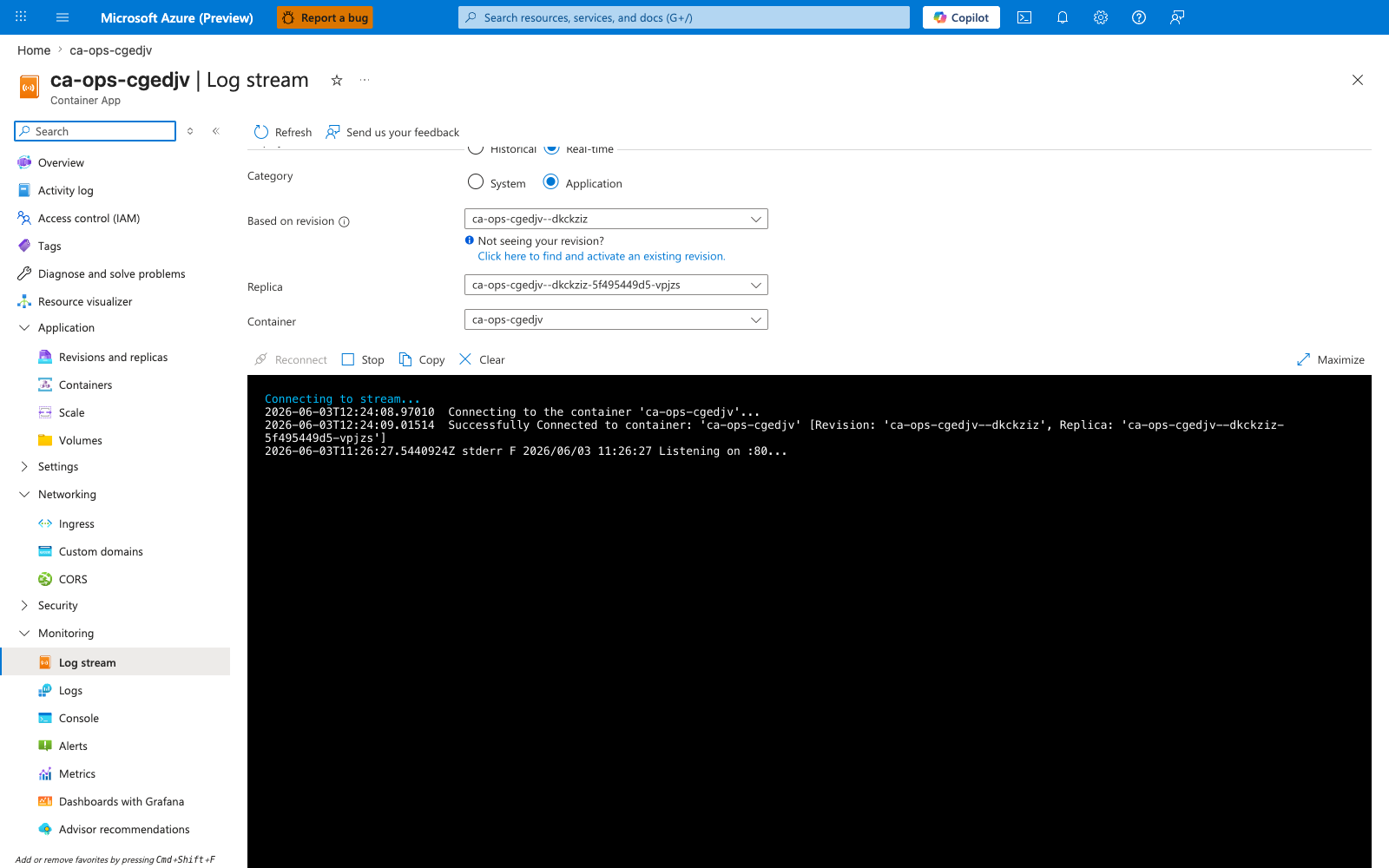
[Observed] The Log stream blade renders a live, append-only console of stdout/stderr from the selected revision. Replica and Container dropdowns at the top of the blade let you narrow the stream without leaving the page.
[Inferred] The Portal stream is the UI-equivalent of az containerapp logs show --follow — both subscribe to the same live log channel exposed by the Container Apps data plane, so it is the right tool when you need output during an active incident rather than retained history.
[Not Proven] Whether the Portal stream and the CLI stream share the exact same buffer cursor (i.e., whether they would emit identical lines for the same wall-clock window) is not verified here.
Use filters when you already know the failing scope:
az containerapp logs show \
  --name "$APP_NAME" \
  --resource-group "$RG" \
  --revision "${APP_NAME}--stable" \
  --follow
| Command | Why it is used |
|---|---|
az containerapp logs show ... | Runs the Azure CLI operation required by the documented step. |
az containerapp logs show \
  --name "$APP_NAME" \
  --resource-group "$RG" \
  --container "$APP_NAME" \
  --replica "${APP_NAME}--stable-abc123" \
  --follow
| Command | Why it is used |
|---|---|
az containerapp logs show ... | Runs the Azure CLI operation required by the documented step. |
Streaming is best for current output. Log Analytics is better when you need:
- retained history
- counts and aggregations
- cross-app or cross-revision queries
- scheduled-query alerts
Portal view: Log Analytics workspace (retained history)
Navigate: Container App → Monitoring → Logs.
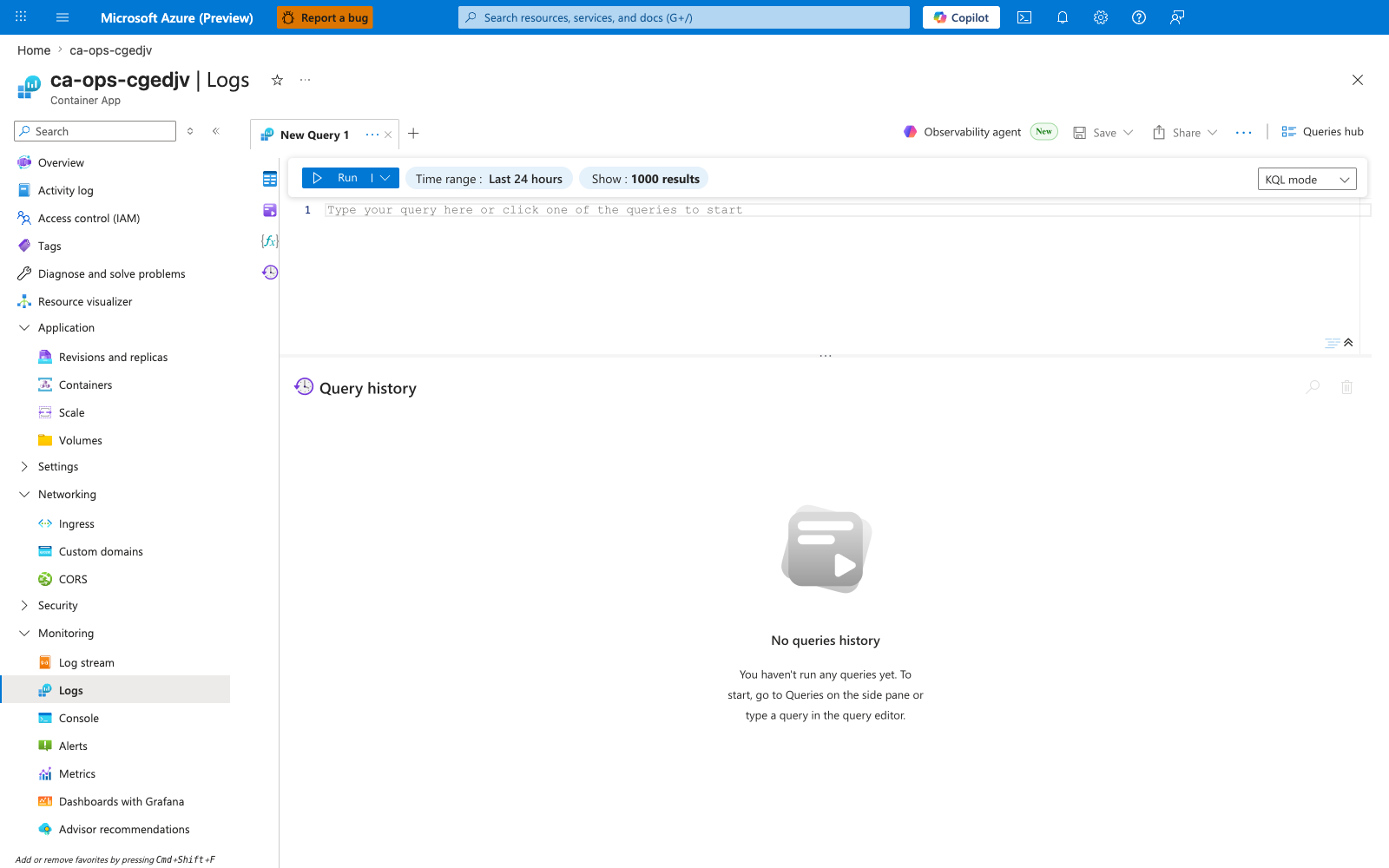
[Observed] The Logs blade on the Container App opens a query editor tab (New Query 1) with a Run button, a Time range selector (currently Last 24 hours), a Show row-limit selector (1000 results), a KQL mode dropdown, an empty editor showing the placeholder "Type your query here or click one of the queries to start", and a Query history panel below.
[Inferred] This editor is the Log Analytics surface scoped to the workspace attached to the Container Apps environment — the same workspace that the environment's diagnostic settings stream logs into. It is the correct surface for historical analysis (counts, aggregations, cross-revision queries) because the data is persisted in the workspace; live tailing belongs on the Log stream blade, not here. The tables exposed for this workload are typically ContainerAppConsoleLogs_CL (stdout/stderr) and ContainerAppSystemLogs_CL (platform events) — confirm by expanding the Tables pane on the left.
[Not Proven] The exact ingestion lag between a log line being emitted by the container and becoming queryable in this blade depends on workspace ingestion behavior and is not measured on this page.
flowchart TD
    A[Need log data] --> B{Happening now?}
    B -->|Yes| C[Use az containerapp logs show]
    B -->|No| D[Use Log Analytics query]
    C --> E[Filter by revision, replica, or container]
D --> F[Summarize trends and alerts]| Command | Why it is used |
|---|---|
az containerapp logs show ... | Runs the Azure CLI operation required by the documented step. |
Verification
- Confirm that streaming returns recent application output.
- Confirm that filters isolate the expected revision, replica, or container.
- Confirm that incident timestamps line up with later workspace queries.
Rollback / Troubleshooting
- If the stream is empty, verify the app is running and writing to stdout or stderr.
- If a filtered stream is empty, re-check the exact revision or replica name.
- If you need historical comparison, switch to Log Analytics instead of continuing to tail.