Diagnostic Settings
Use diagnostic settings when the default workspace path is not enough and you need extra export, retention, or downstream processing for Container Apps environment logs.
Prerequisites
- An existing Container Apps environment
- Permission to create diagnostic settings and target destinations
- Azure CLI access for both Container Apps and Azure Monitor resources
export RG="rg-aca-prod"
export ACA_ENV_NAME="aca-env-prod"
export ENVIRONMENT_ID="/subscriptions/<subscription-id>/resourceGroups/$RG/providers/Microsoft.App/managedEnvironments/$ACA_ENV_NAME"
When to Use
- To send environment logs to additional Azure Monitor destinations
- To integrate with SIEM, archive, or Event Hub consumers
- To keep export scope tighter than a general workspace strategy
Procedure
- Identify the managed environment resource ID.
- Decide whether you need all available log categories or a limited set.
- Create the diagnostic setting.
- Validate that records arrive at the destination.
Example to route logs to Log Analytics:
az monitor diagnostic-settings create \
  --name "aca-env-diagnostics" \
  --resource "$ENVIRONMENT_ID" \
  --workspace "/subscriptions/<subscription-id>/resourceGroups/$RG/providers/Microsoft.OperationalInsights/workspaces/law-aca-prod" \
  --logs '[{"categoryGroup":"allLogs","enabled":true}]'
| Command | Why it is used |
|---|---|
az monitor diagnostic-settings ... | Creates or inspects Azure Monitor alerts, diagnostic settings, or metrics. |
Portal view: confirm log destination on the environment
Open the Container Apps environment → Monitoring → Logging options.
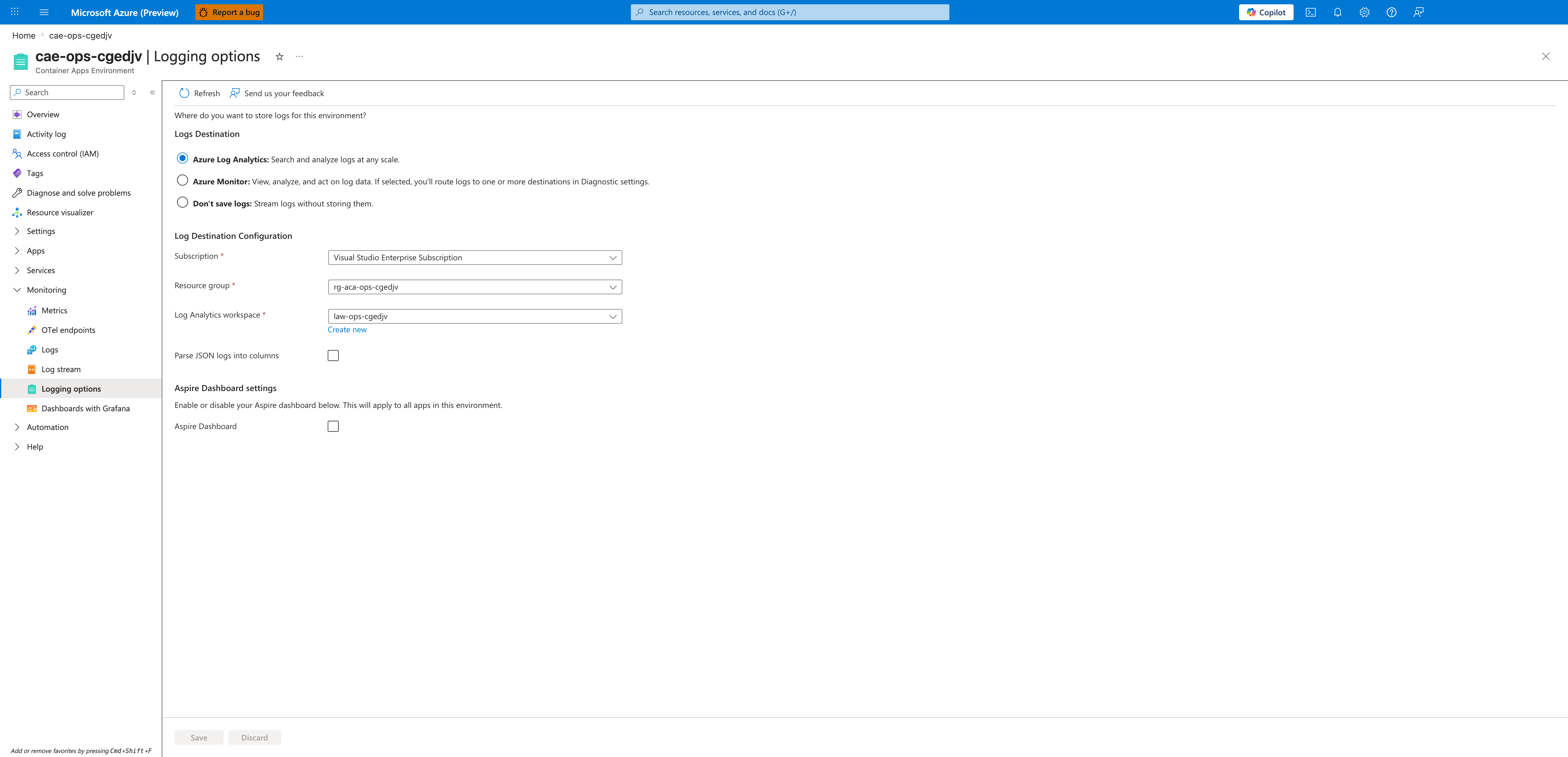
[Observed] The Logging options blade shows three radio choices under Logs Destination: Azure Log Analytics, Azure Monitor, and Don't save logs. Azure Log Analytics is the selected option. Under Log Destination Configuration, Subscription, Resource group (rg-aca-ops-cgedjv), and Log Analytics workspace (law-ops-cgedjv) are populated, the Parse JSON logs into columns checkbox is unchecked, and the toolbar Save and Discard buttons are disabled.
[Inferred] The Azure Log Analytics selection plus the populated workspace value means this environment is already sending system and console logs to law-ops-cgedjv. If you intend to add an Azure Monitor diagnostic setting on top of (or instead of) this default workspace path, you usually keep Azure Log Analytics selected here and create a separate az monitor diagnostic-settings rule against the environment resource ID; switching to Azure Monitor in this blade is the alternative entry point that the in-blade hint text describes.
[Not Proven] This blade alone does not list the az monitor diagnostic-settings rules that exist on the environment, does not show the categories or category groups those rules export, and does not confirm whether records are currently arriving at the destination — those need a separate confirmation (see the Activity log view below and the Verification section).
Portal view: confirm the diagnostic setting was created
Open the Container Apps environment → Activity log and filter by recent operations.
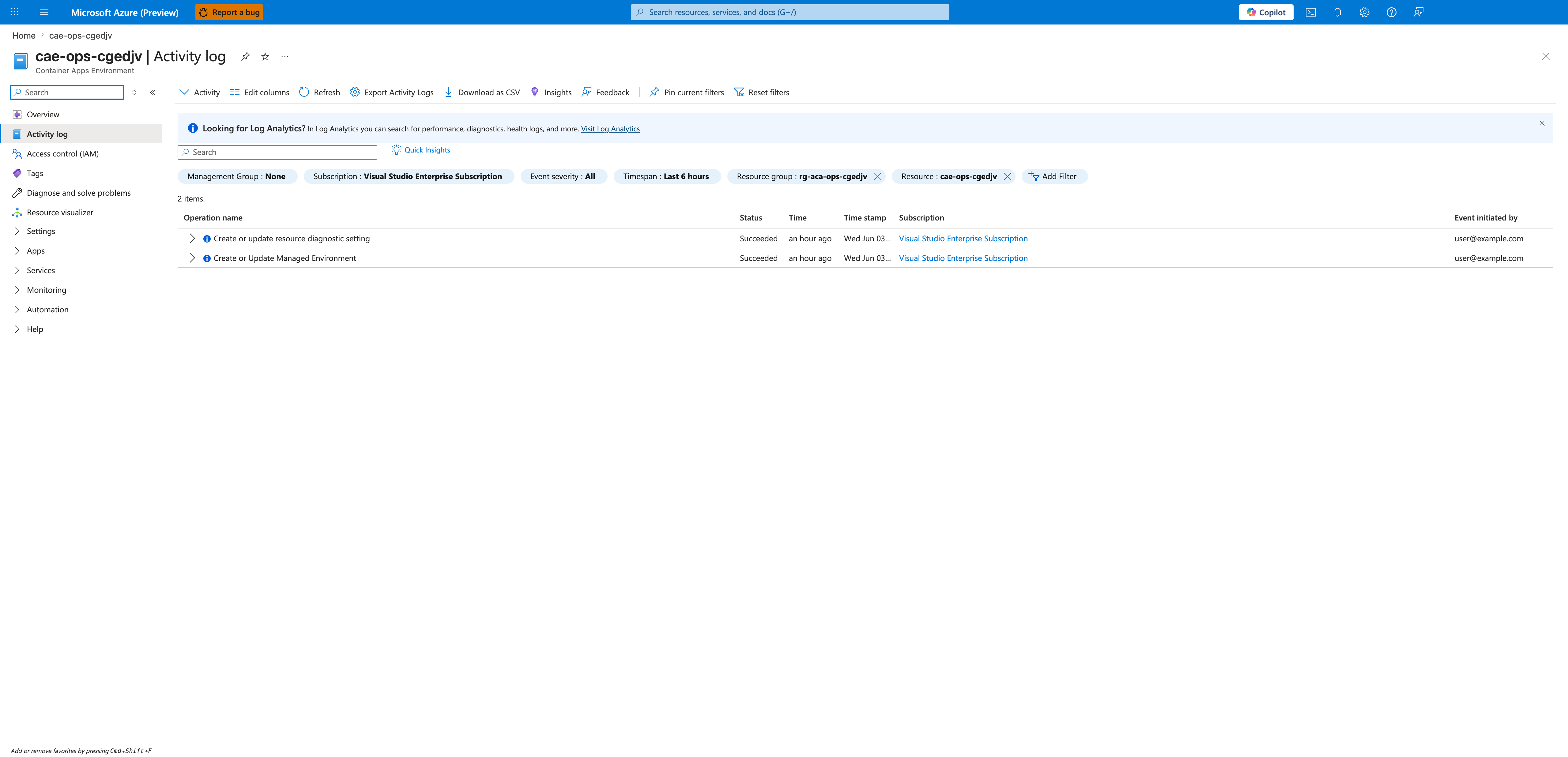
[Observed] The Activity log blade shows two rows: Create or update resource diagnostic setting and Create or Update Managed Environment, both with Status = Succeeded. The filter chips above the grid show Resource group: rg-aca-ops-cgedjv and Resource: cae-ops-cgedjv, the timespan is Last 6 hours, and the row count reads 2 items.
[Inferred] The Create or update resource diagnostic setting row that targets cae-ops-cgedjv is the Activity-log record produced by the az monitor diagnostic-settings create --resource $ENVIRONMENT_ID ... call from the Procedure. A Succeeded status here is the operation-level result for the control-plane write, so it confirms the rule was accepted by Azure Resource Manager against the managed environment.
[Not Proven] This Activity-log row does not show which categories (allLogs vs. a category subset) the rule exports, does not show the destination type (Log Analytics vs. Event Hub vs. Storage), and does not confirm that log records are flowing to that destination — only that the write succeeded. Use az monitor diagnostic-settings list --resource "$ENVIRONMENT_ID" to read the actual rule, and the Verification section below to confirm ingestion.
Minimal Bicep pattern:
resource diagnosticSetting 'Microsoft.Insights/diagnosticSettings@2021-05-01-preview' = {
  name: 'aca-env-diagnostics'
  scope: managedEnvironment
  properties: {
    logs: [
      {
        categoryGroup: 'allLogs'
        enabled: true
      }
    ]
    workspaceId: logAnalyticsWorkspace.id
  }
}
Container Apps diagnostic-setting categories
For Container Apps environments, the documented diagnostic-setting options are the category group allLogs and the categories ContainerAppConsoleLogs and ContainerAppSystemLogs.
flowchart TD
    A[Managed environment] --> B[Diagnostic settings]
    B --> C[Log Analytics workspace]
    B --> D[Event Hubs]
    B --> E[Storage account]
    C --> F[Queries and alerts]
    D --> F
E --> FVerification
- Confirm the diagnostic setting exists on the managed environment.
- Confirm the selected categories or category group match your intended scope.
- Confirm records arrive in the chosen destination.
Rollback / Troubleshooting
- If ingestion cost rises, reduce categories or retention.
- If no logs arrive, verify permissions on the destination resource.
- If you see duplicate ingestion, review overlap with existing workspace collection.