02 - First Deploy to Azure Container Apps
In this step, you provision the core Azure resources, build your image in Azure Container Registry, and deploy your first revision to Azure Container Apps.
Infrastructure Context
Service: Container Apps (Consumption) | Network: VNet integrated | VNet: ✅
This tutorial assumes a production-ready Container Apps deployment with a custom VNet, ACR with managed identity pull, and private endpoints for backend services.
flowchart TD
    INET[Internet] -->|HTTPS| CA["Container App\nConsumption\nLinux Python 3.11"]

    subgraph VNET["VNet 10.0.0.0/16"]
        subgraph ENV_SUB["Environment Subnet 10.0.0.0/23\nDelegation: Microsoft.App/environments"]
            CAE[Container Apps Environment]
            CA
        end
        subgraph PE_SUB["Private Endpoint Subnet 10.0.2.0/24"]
            PE_ACR[PE: ACR]
            PE_KV[PE: Key Vault]
            PE_ST[PE: Storage]
        end
    end

    PE_ACR --> ACR[Azure Container Registry]
    PE_KV --> KV[Key Vault]
    PE_ST --> ST[Storage Account]

    subgraph DNS[Private DNS Zones]
        DNS_ACR[privatelink.azurecr.io]
        DNS_KV[privatelink.vaultcore.azure.net]
        DNS_ST[privatelink.blob.core.windows.net]
    end

    PE_ACR -.-> DNS_ACR
    PE_KV -.-> DNS_KV
    PE_ST -.-> DNS_ST

    CA -.->|System-Assigned MI| ENTRA[Microsoft Entra ID]
    CAE --> LOG[Log Analytics]
    CA --> AI[Application Insights]

    style CA fill:#107c10,color:#fff
    style VNET fill:#E8F5E9,stroke:#4CAF50
    style DNS fill:#E3F2FD
Deployment Workflow
graph TD
    BICEP[Bicep Deploy] --> ACR[ACR Build]
    ACR --> UPDATE[Container App Update]
UPDATE --> VERIFY[Verify URL]Prerequisites
- Completed 01 - Run Locally with Docker
- Azure CLI logged in
- Bicep template at
infra/main.bicep
Step-by-step
- Set standard variables
- Create a resource group
| Command | Why it is used |
|---|---|
az group create ... | Creates the isolated resource group used by the example. |
???+ example "Expected output" json { "id": "/subscriptions/<subscription-id>/resourceGroups/rg-myapp", "location": "koreacentral", "name": "rg-myapp", "properties": { "provisioningState": "Succeeded" } }
- Deploy infrastructure (environment, Log Analytics, ACR, Container App)
az deployment group create \
   --name "$DEPLOYMENT_NAME" \
   --resource-group "$RG" \
   --template-file infra/main.bicep \
   --parameters baseName="$BASE_NAME" location="$LOCATION"
| Command | Why it is used |
|---|---|
az deployment group create ... | Deploys the Bicep or ARM template into the target resource group. |
???+ example "Expected output" This command takes 2-3 minutes to complete. When successful, it returns a JSON object containing the deployment details.
    ```json
    {
      "id": "/subscriptions/<subscription-id>/resourceGroups/rg-myapp/providers/Microsoft.Resources/deployments/main",
      "name": "main",
      "properties": {
        "provisioningState": "Succeeded",
        "outputs": {
          "containerAppName": { "type": "String", "value": "ca-myapp-<unique-suffix>" },
          "containerAppUrl": { "type": "String", "value": "https://ca-myapp-<unique-suffix>.<hash>.<region>.azurecontainerapps.io" }
       }
     }
    }
    ```
!!! note "Initial revision health can appear unhealthy" The Bicep template creates the Container App before your custom image is built and pushed. Until you complete Step 5 and update the app image, the initial revision may show as unhealthy. This is expected.
- Capture generated resource names from Bicep outputs
APP_NAME=$(az deployment group show \
  --name "$DEPLOYMENT_NAME" \
  --resource-group "$RG" \
  --query "properties.outputs.containerAppName.value" \
  --output tsv)

ACA_ENV_NAME=$(az deployment group show \
  --name "$DEPLOYMENT_NAME" \
  --resource-group "$RG" \
  --query "properties.outputs.containerAppEnvName.value" \
  --output tsv)

ACR_NAME=$(az deployment group show \
  --name "$DEPLOYMENT_NAME" \
  --resource-group "$RG" \
  --query "properties.outputs.containerRegistryName.value" \
  --output tsv)

ACR_LOGIN_SERVER=$(az deployment group show \
  --name "$DEPLOYMENT_NAME" \
  --resource-group "$RG" \
  --query "properties.outputs.containerRegistryLoginServer.value" \
  --output tsv)

APP_URL=$(az deployment group show \
  --name "$DEPLOYMENT_NAME" \
  --resource-group "$RG" \
   --query "properties.outputs.containerAppUrl.value" \
   --output tsv)
| Command | Purpose |
|---|---|
| `APP_NAME=$(az deployment group show --name "$DEPLOYMENT_NAME" --resource-group "$RG" --query "properties.outputs.containerAppName.value" --output tsv)` | Captures the generated Container App name from the deployment outputs so later tutorial steps target the exact Python app that was provisioned. |
| `ACA_ENV_NAME=$(az deployment group show --name "$DEPLOYMENT_NAME" --resource-group "$RG" --query "properties.outputs.containerAppEnvName.value" --output tsv)` | Captures the generated Container Apps environment name so environment-scoped steps stay aligned with the deployment. |
| `ACR_NAME=$(az deployment group show --name "$DEPLOYMENT_NAME" --resource-group "$RG" --query "properties.outputs.containerRegistryName.value" --output tsv)` | Captures the registry name used by the Python image build and push steps. |
| `ACR_LOGIN_SERVER=$(az deployment group show --name "$DEPLOYMENT_NAME" --resource-group "$RG" --query "properties.outputs.containerRegistryLoginServer.value" --output tsv)` | Captures the registry login server used to assemble the final image reference. |
| `APP_URL=$(az deployment group show --name "$DEPLOYMENT_NAME" --resource-group "$RG" --query "properties.outputs.containerAppUrl.value" --output tsv)` | Captures the app URL emitted by the deployment so it can be compared with later ingress verification. |
???+ example "Expected output" These commands capture the values silently. You can verify them by running:
   ```bash
   echo "APP_NAME=$APP_NAME"
   echo "ACA_ENV_NAME=$ACA_ENV_NAME"
   echo "ACR_NAME=$ACR_NAME"
   echo "ACR_LOGIN_SERVER=$ACR_LOGIN_SERVER"
   echo "APP_URL=$APP_URL"
   ```

   Output:
    ```text
    APP_NAME=ca-myapp-<unique-suffix>
    ACA_ENV_NAME=cae-myapp-<unique-suffix>
    ACR_NAME=<acr-name>
    ACR_LOGIN_SERVER=<acr-name>.azurecr.io
    APP_URL=https://ca-myapp-<unique-suffix>.<hash>.<region>.azurecontainerapps.io
    ```
- Build and push container image with ACR Tasks
| Command | Why it is used |
|---|---|
az acr build ... | Builds and pushes the container image to Azure Container Registry. |
???+ example "Expected output (az acr build)" The build output shows the Docker build progress. The last few lines should look like this:
   ```text
   Step 7/7 : CMD ["gunicorn", "--bind", "0.0.0.0:8000", "--workers", "4", "--chdir", "src", "app:app"]
    ---> Running in abc123
    ---> def456
   Successfully built def456
   Successfully tagged myapp:v1
   ```
az containerapp update \
   --name "$APP_NAME" \
   --resource-group "$RG" \
   --image "$ACR_LOGIN_SERVER/$BASE_NAME:v1"
| Command | Why it is used |
|---|---|
az containerapp update ... | Updates the existing Container App configuration without recreating the app. |
???+ example "Expected output (az containerapp update)"
{
   "latestRevision": "<your-app-name>--xxxxxxx",
   "name": "ca-myapp-<unique-suffix>",
  "provisioningState": "Succeeded"
}
- Verify deployment state and URL
az containerapp show \
   --name "$APP_NAME" \
   --resource-group "$RG" \
   --query "{state:properties.provisioningState,url:properties.configuration.ingress.fqdn}"
| Command | Why it is used |
|---|---|
az containerapp show ... | Reads the Container App configuration so the documented setting can be verified. |
???+ example "Expected output"
Verify the /health endpoint with curl:
???+ example "Expected output (health check)"
    ```json
    {"status":"healthy","timestamp":"2024-01-15T10:30:00.000000+00:00"}
    ```

Verify ingress configuration details:
```bash
az containerapp ingress show \
  --name "$APP_NAME" \
  --resource-group "$RG"
```

| Command | Why it is used |
|---|---|
| `az containerapp ingress show ...` | Reads ingress configuration such as exposure, target port, transport, and affinity. |

???+ example "Expected output (ingress configuration)"
    ```json
    {
      "allowInsecure": false,
      "external": true,
      "fqdn": "<your-app-name>.<hash>.<region>.azurecontainerapps.io",
      "targetPort": 8000,
      "transport": "Auto",
      "traffic": [
        { "latestRevision": true, "weight": 100 }
      ]
    }
    ```
- Deploy an update (creates a new revision)
az acr build --registry "$ACR_NAME" --image "$BASE_NAME:v2" ./apps/python

az containerapp update \
   --name "$APP_NAME" \
   --resource-group "$RG" \
   --image "$ACR_LOGIN_SERVER/$BASE_NAME:v2"
| Command | Why it is used |
|---|---|
az acr build --registry ... | Builds and pushes the container image to Azure Container Registry. |
???+ example "Expected output"
    ```json
    {
      "name": "<your-app-name>",
      "provisioningState": "Succeeded",
      "latestRevisionName": "<your-app-name>--xxxxxxx"
    }
    ```
Confirm revision status — you should now see two revisions (the original v1 and the new v2). In single-revision mode, the old revision is retained but inactive:
az containerapp revision list \
   --name "$APP_NAME" \
   --resource-group "$RG" \
   --query "[].{name:name,active:properties.active,trafficWeight:properties.trafficWeight,replicas:properties.replicas,healthState:properties.healthState,runningState:properties.runningState}"
| Command | Why it is used |
|---|---|
az containerapp revision list ... | Lists revisions so rollout state, traffic, and health can be verified. |
???+ example "Expected output (revision list)"
[
  {
    "name": "<your-app-name>--0000001",
    "active": false,
    "trafficWeight": 0,
    "replicas": 0,
    "healthState": "Healthy",
    "runningState": "Running"
  },
  {
    "name": "<your-app-name>--0000002",
    "active": true,
    "trafficWeight": 100,
    "replicas": 1,
    "healthState": "Healthy",
    "runningState": "Running"
  }
]
What to validate
- Image exists in ACR:
$BASE_NAME:v1and$BASE_NAME:v2 - App endpoint responds with HTTP 200 for
/health - A new revision appears after
az containerapp update
Advanced Topics
- Move to internal ingress for private APIs and pair with VNet integration.
- Add workload profiles and min/max replicas for predictable performance.
- Use managed identity-based ACR pull for stronger credential hygiene.
CLI Alternative (No Bicep)
Use these commands to deploy without Bicep templates. This creates the same resources imperatively.
Step 1: Set variables
RG="rg-flask-containerapp"
APP_NAME="ca-flask-demo"
BASE_NAME="flask-app"
ACA_ENV_NAME="cae-flask-demo"
ACR_NAME="crflaskdemo"
LOG_NAME="log-flask-demo"
LOCATION="koreacentral"
Expected output
Step 2: Create resource group
| Command | Why it is used |
|---|---|
az group create ... | Creates the isolated resource group used by the example. |
Expected output
Step 3: Create Log Analytics workspace
az monitor log-analytics workspace create --resource-group "$RG" --workspace-name "$LOG_NAME" --location "$LOCATION"

LOG_ID=$(az monitor log-analytics workspace show --resource-group "$RG" --workspace-name "$LOG_NAME" --query customerId --output tsv)
| Command | Why it is used |
|---|---|
az monitor log-analytics ... | Creates or inspects Azure Monitor alerts, diagnostic settings, or metrics. |
Expected output
{
  "id": "/subscriptions/<subscription-id>/resourceGroups/rg-flask-containerapp/providers/Microsoft.OperationalInsights/workspaces/log-flask-demo",
  "location": "koreacentral",
  "name": "log-flask-demo",
  "properties": {
    "customerId": "11111111-2222-3333-4444-555555555555",
    "provisioningState": "Succeeded"
  }
}
Step 4: Create Azure Container Registry
| Command | Why it is used |
|---|---|
az acr create --resource-group ... | Creates Azure Container Registry for container image storage. |
Expected output
Step 5: Create Container Apps environment
az containerapp env create --resource-group "$RG" --name "$ACA_ENV_NAME" --location "$LOCATION" --logs-workspace-id "$LOG_ID"
| Command | Why it is used |
|---|---|
az containerapp env create ... | Creates the managed Container Apps environment that hosts the app replicas. |
Expected output
Step 6: Build and push image with ACR Tasks
| Command | Why it is used |
|---|---|
az acr build --registry ... | Builds and pushes the container image to Azure Container Registry. |
Expected output
Step 7: Create Container App
az containerapp create --resource-group "$RG" --name "$APP_NAME" --environment "$ACA_ENV_NAME" --image "$ACR_NAME.azurecr.io/$BASE_NAME:v1" --target-port 8000 --ingress external --query "properties.configuration.ingress.fqdn"
| Command | Why it is used |
|---|---|
az containerapp create --resource-group ... | Creates the Container App with the documented image, ingress, scale, and environment settings. |
Step 8: Verify deployment
APP_FQDN=$(az containerapp show --resource-group "$RG" --name "$APP_NAME" --query "properties.configuration.ingress.fqdn" --output tsv)

az containerapp show --resource-group "$RG" --name "$APP_NAME" --query "{state:properties.provisioningState,fqdn:properties.configuration.ingress.fqdn,image:properties.template.containers[0].image}"

curl "https://$APP_FQDN/health"
| Command | Why it is used |
|---|---|
az containerapp show --resource-group ... | Reads the Container App configuration so the documented setting can be verified. |
Expected output
Step 9: Verify deployment in Azure Portal
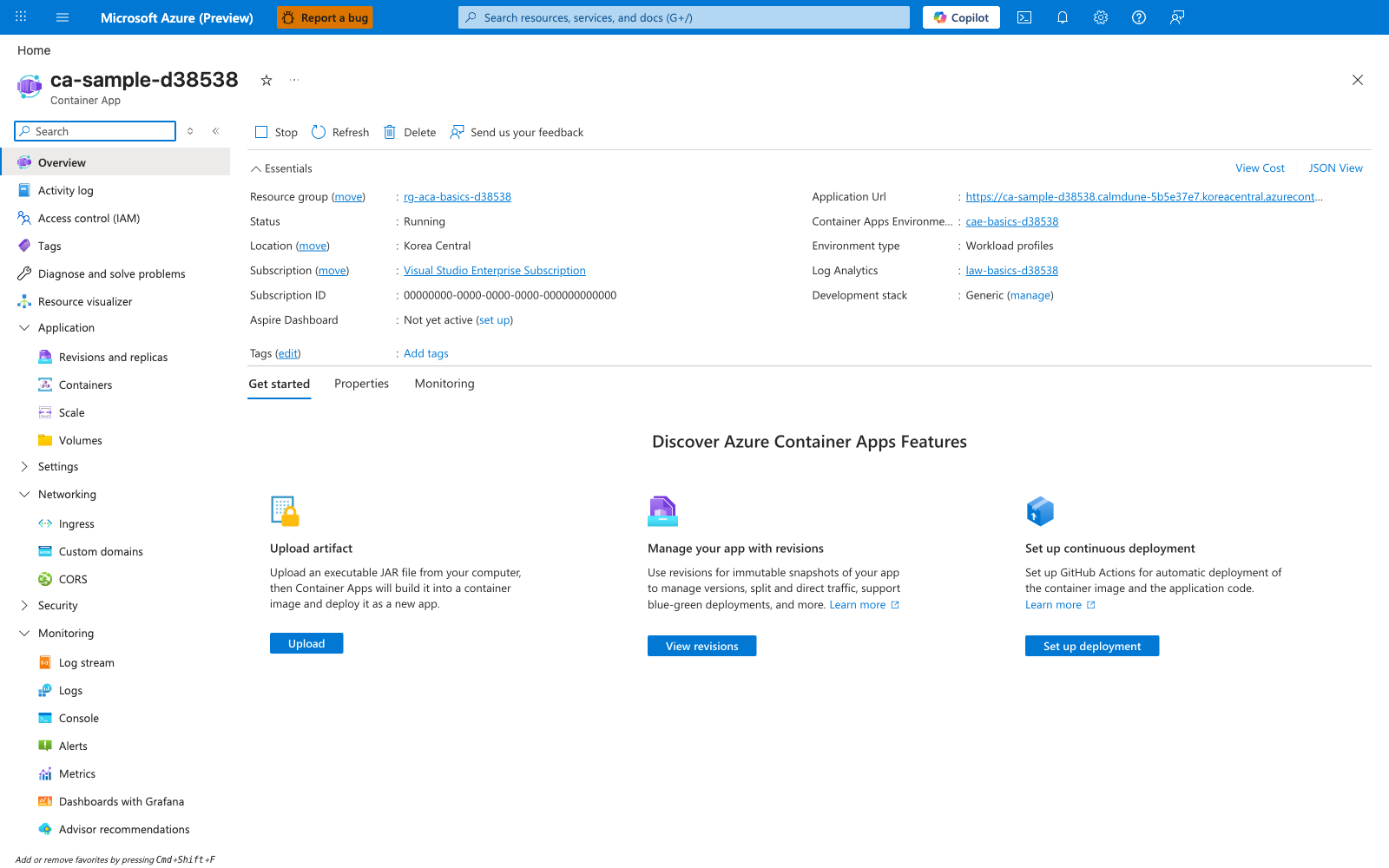
[Observed] ca-sample-d38538. Container App. Overview. Stop. Refresh. Delete. Essentials. Resource group. Status. Running. Location. Korea Central. Subscription. Visual Studio Enterprise Subscription. Subscription ID. Aspire Dashboard. Not yet active. Tags. Add tags. Application Url. Container Apps Environme.... Environment type. Workload profiles. Log Analytics. Development stack. Generic. View Cost. JSON View. Get started. Properties. Monitoring. Application. Revisions and replicas. Containers. Scale. Volumes. Networking. Ingress. Custom domains. CORS. Security. Settings. Monitoring. Log stream. Logs. Console. Alerts. Metrics.
[Inferred] The Status field value of Running appears consistent with the state:properties.provisioningState of Succeeded returned by the CLI verification in Step 8: Verify deployment. The Application Url field appears to surface the same properties.configuration.ingress.fqdn value queried in Step 7: Create Container App. The Container Apps Environme... link appears to map to the $ACA_ENV_NAME value supplied to --environment in Step 7: Create Container App. The left-navigation entries Containers, Scale, Ingress, and Logs are consistent with the artifacts created across Step 5: Create Container Apps environment and Step 7: Create Container App.
[Not Proven] Additional deployment detail and runtime health detail are not visible on this blade.