04 - Logging, Monitoring, and Observability
This tutorial step shows how to inspect console logs, query Log Analytics, and add Application Insights-based observability for production operations.
Infrastructure Context
Service: Container Apps (Consumption) | Network: VNet integrated | VNet: ✅
This tutorial assumes a production-ready Container Apps deployment with a custom VNet, ACR with managed identity pull, and private endpoints for backend services.
flowchart TD
    INET[Internet] -->|HTTPS| CA["Container App\nConsumption\nLinux Node 18 LTS"]

    subgraph VNET["VNet 10.0.0.0/16"]
        subgraph ENV_SUB["Environment Subnet 10.0.0.0/23\nDelegation: Microsoft.App/environments"]
            CAE[Container Apps Environment]
            CA
        end
        subgraph PE_SUB["Private Endpoint Subnet 10.0.2.0/24"]
            PE_ACR[PE: ACR]
            PE_KV[PE: Key Vault]
            PE_ST[PE: Storage]
        end
    end

    PE_ACR --> ACR[Azure Container Registry]
    PE_KV --> KV[Key Vault]
    PE_ST --> ST[Storage Account]

    subgraph DNS[Private DNS Zones]
        DNS_ACR[privatelink.azurecr.io]
        DNS_KV[privatelink.vaultcore.azure.net]
        DNS_ST[privatelink.blob.core.windows.net]
    end

    PE_ACR -.-> DNS_ACR
    PE_KV -.-> DNS_KV
    PE_ST -.-> DNS_ST

    CA -.->|System-Assigned MI| ENTRA[Microsoft Entra ID]
    CAE --> LOG[Log Analytics]
    CA --> AI[Application Insights]

    style CA fill:#107c10,color:#fff
    style VNET fill:#E8F5E9,stroke:#4CAF50
    style DNS fill:#E3F2FD
How Observability Works in Container Apps
flowchart TD
    APP[App container stdout/stderr] --> CONSOLE[Console logs]
    DAPR[Dapr sidecar stdout/stderr] --> CONSOLE
    PLATFORM[Platform/revision/auth events] --> SYSTEM[System logs]
    CONSOLE --> LAW[Log Analytics workspace]
    SYSTEM --> LAW
    OTEL[App instrumentation<br/>Application Insights SDK] --> AI[Application Insights]
AZMON[Azure Monitor] --> METRICS[Metrics: requests, CPU, memory, replicas]Prerequisites
- Completed 03 - Configuration, Secrets, and Dapr
- Log Analytics connected to your Container Apps environment
Step-by-step
-
Set standard variables
RG="rg-nodejs-guide"
APP_NAME=$(az containerapp list --resource-group "$RG" --query "[0].name" --output tsv)
Command Purpose APP_NAME=$(az containerapp list --resource-group "$RG" --query "[0].name" --output tsv)Captures the first app name in the tutorial resource group so the logging examples can be run without manually copying the Node.js app name. -
Stream console logs
Command Why it is used az containerapp logs show ...Runs the Azure CLI operation required by the documented step. Expected output
Note
Use Ctrl+C to stop following logs.
-
Check system logs for startup or image issues
Command Why it is used az containerapp logs show ...Runs the Azure CLI operation required by the documented step. -
Query logs via CLI (recommended for automation)
Get your Log Analytics workspace ID and run KQL queries directly from the command line:
# Get the workspace ID
WORKSPACE_ID=$(az monitor log-analytics workspace list \
  --resource-group "$RG" \
  --query "[0].customerId" \
  --output tsv)

# Query console logs (use your actual app name from $APP_NAME)
az monitor log-analytics query \
  --workspace $WORKSPACE_ID \
  --analytics-query "ContainerAppConsoleLogs_CL | where ContainerAppName_s == '$APP_NAME' | project TimeGenerated, ContainerAppName_s, Log_s | take 5" \
  --output table
Command Why it is used az monitor log-analytics ...Creates or inspects Azure Monitor alerts, diagnostic settings, or metrics. Expected output
ContainerAppName_s Log_s TimeGenerated -------------------- --------------------------------------------------------------------------------------------- ---------------------------- <your-app-name> {"timestamp":"2026-04-04T16:10:50.376Z","level":"INFO","message":"Server started on port 8000"} 2026-04-04T16:10:51.723Z <your-app-name> {"timestamp":"2026-04-04T16:11:58.005Z","level":"INFO","method":"GET","path":"/health",...} 2026-04-04T16:11:58.474Z -
Query for errors via CLI
az monitor log-analytics query \
  --workspace $WORKSPACE_ID \
  --analytics-query "ContainerAppConsoleLogs_CL | where ContainerAppName_s == '$APP_NAME' | where Log_s has_any ('error', 'exception', 'failed') | project TimeGenerated, Log_s | take 10" \
  --output table
Command Why it is used az monitor log-analytics ...Creates or inspects Azure Monitor alerts, diagnostic settings, or metrics. Expected output
If no errors exist, the query returns an empty result set:
If errors exist, they appear with timestamps:
-
Enable Application Insights (OpenTelemetry)
The reference app includes the
applicationinsightsSDK. To enable it, provide the connection string:# Get connection string from your App Insights resource CONNECTION_STRING="InstrumentationKey=...;IngestionEndpoint=..." az containerapp update \ --name "$APP_NAME" \ --resource-group "$RG" \ --set-env-vars "APPLICATIONINSIGHTS_CONNECTION_STRING=$CONNECTION_STRING"Command Why it is used az containerapp update ...Updates the existing Container App configuration without recreating the app. The app will automatically start collecting: - HTTP request metrics (latency, throughput) - Exception traces - Console log redirection to App Insights - Dependency tracking (outbound HTTP calls)
Node.js Structured Logging
The reference app uses a custom middleware to emit JSON logs. This ensures logs are easily searchable in Log Analytics.
// src/middleware/logging.js
const jsonLogger = (req, res, next) => {
  res.on('finish', () => {
    console.log(JSON.stringify({
      timestamp: new Date().toISOString(),
      level: 'INFO',
      method: req.method,
      url: req.url,
      status: res.statusCode
    }));
  });
  next();
};
Advanced Topics
- Use the
winstonorpinolibraries for more advanced logging features like log levels and multiple transports. - Configure custom metrics in Application Insights to track business-specific KPIs.
- Use Service Map in Application Insights to visualize dependencies between your microservices.
Verify log stream in Azure Portal
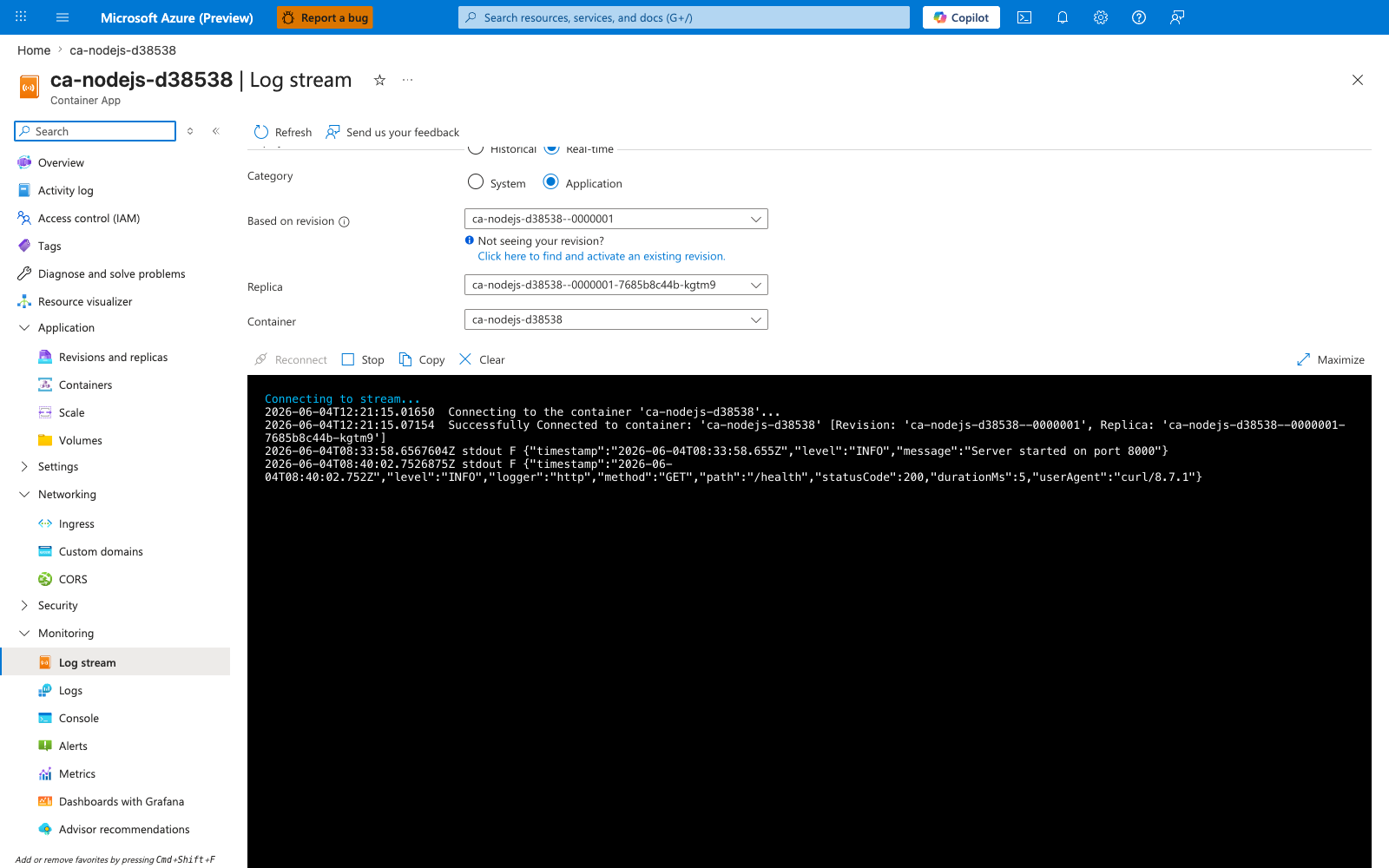
[Observed] Microsoft Azure (Preview). Report a bug. Search resources, services, and docs (G+/). Copilot. Home. ca-nodejs-d38538. Container App. Log stream. Refresh. Send us your feedback. Historical. Real-time. Category. System. Application. Based on revision. ca-nodejs-d38538--0000001. Not seeing your revision?. Click here to find and activate an existing revision.. Replica. ca-nodejs-d38538--0000001-7685b8c44b-kgtm9. Container. ca-nodejs-d38538. Reconnect. Stop. Copy. Clear. Maximize. Connecting to stream.... 2026-06-04T12:21:15.01650 Connecting to the container 'ca-nodejs-d38538'.... 2026-06-04T12:21:15.07154 Successfully Connected to container: 'ca-nodejs-d38538' [Revision: 'ca-nodejs-d38538--0000001', Replica: 'ca-nodejs-d38538--0000001-7685b8c44b-kgtm9']. 2026-06-04T08:33:58.6567604Z stdout F {"timestamp":"2026-06-04T08:33:58.655Z","level":"INFO","message":"Server started on port 8000"}. 2026-06-04T08:40:02.7526875Z stdout F {"timestamp":"2026-06-04T08:40:02.752Z","level":"INFO","logger":"http","method":"GET","path":"/health","statusCode":200,"durationMs":5,"userAgent":"curl/8.7.1"}. Overview. Activity log. Access control (IAM). Tags. Diagnose and solve problems. Resource visualizer. Application. Revisions and replicas. Containers. Scale. Volumes. Settings. Networking. Ingress. Custom domains. CORS. Security. Monitoring. Log stream. Logs. Console. Alerts. Metrics. Dashboards with Grafana. Advisor recommendations.
[Inferred] The Real-time radio appears to map to the live tail behavior triggered by az containerapp logs show --follow in Step-by-step Step 2. The Category toggle value Application appears consistent with the default console-log stream from Step-by-step Step 2, and the System option appears consistent with the system-log selector exercised in Step-by-step Step 3. The displayed log line {"timestamp":"2026-06-04T08:33:58.655Z","level":"INFO","message":"Server started on port 8000"} appears consistent with the Server started on port 8000 startup log shape shown in the expected output of Step-by-step Step 2. The displayed log line containing "method":"GET","path":"/health","statusCode":200 appears consistent with the per-request structured JSON log shape (containing HTTP method, URL, and status fields) shown in the second expected output line of Step-by-step Step 2.
[Not Proven] Additional log query output, trace export detail, and CLI command output are not visible on this view.