04 - Logging, Monitoring, and Observability
This tutorial step shows how to inspect console logs, query Log Analytics, and add OpenTelemetry-based observability for production .NET applications on Azure Container Apps.
Infrastructure Context
Service: Container Apps (Consumption) | Network: VNet integrated | VNet: ✅
This tutorial assumes a production-ready Container Apps deployment with a custom VNet, ACR with managed identity pull, and private endpoints for backend services.
flowchart TD
    INET[Internet] -->|HTTPS| CA["Container App\nConsumption\nLinux .NET 8"]

    subgraph VNET["VNet 10.0.0.0/16"]
        subgraph ENV_SUB["Environment Subnet 10.0.0.0/23\nDelegation: Microsoft.App/environments"]
            CAE[Container Apps Environment]
            CA
        end
        subgraph PE_SUB["Private Endpoint Subnet 10.0.2.0/24"]
            PE_ACR[PE: ACR]
            PE_KV[PE: Key Vault]
            PE_ST[PE: Storage]
        end
    end

    PE_ACR --> ACR[Azure Container Registry]
    PE_KV --> KV[Key Vault]
    PE_ST --> ST[Storage Account]

    subgraph DNS[Private DNS Zones]
        DNS_ACR[privatelink.azurecr.io]
        DNS_KV[privatelink.vaultcore.azure.net]
        DNS_ST[privatelink.blob.core.windows.net]
    end

    PE_ACR -.-> DNS_ACR
    PE_KV -.-> DNS_KV
    PE_ST -.-> DNS_ST

    CA -.->|System-Assigned MI| ENTRA[Microsoft Entra ID]
    CAE --> LOG[Log Analytics]
    CA --> AI[Application Insights]

    style CA fill:#107c10,color:#fff
    style VNET fill:#E8F5E9,stroke:#4CAF50
    style DNS fill:#E3F2FD
How Observability Works in Container Apps
flowchart TD
    APP[App container stdout/stderr] --> CONSOLE[Console logs]
    DAPR[Dapr sidecar stdout/stderr] --> CONSOLE
    PLATFORM[Platform/revision/auth events] --> SYSTEM[System logs]
    CONSOLE --> LAW[Log Analytics workspace]
    SYSTEM --> LAW
    OTEL[App instrumentation<br/>OpenTelemetry SDK] --> AI[Application Insights]
AZMON[Azure Monitor] --> METRICS[Metrics: requests, CPU, memory, replicas]Prerequisites
- Completed 03 - Configuration, Secrets, and Dapr
- Log Analytics connected to your Container Apps environment
- (Optional) Application Insights resource for distributed tracing
Step-by-step
- Set standard variables
RG="rg-dotnet-guide"
DEPLOYMENT_NAME="main"

APP_NAME=$(az deployment group show \
  --name "$DEPLOYMENT_NAME" \
  --resource-group "$RG" \
  --query "properties.outputs.containerAppName.value" \
  --output tsv)
| Command | Purpose |
|---|---|
| `APP_NAME=$(az deployment group show --name "$DEPLOYMENT_NAME" --resource-group "$RG" --query "properties.outputs.containerAppName.value" --output tsv)` | Captures the deployed app name from the Bicep outputs so the logging commands query the correct .NET app. |
- Stream console logs
ASP.NET Core logs to stdout by default. You can stream these directly to your terminal.
| Command | Why it is used |
|---|---|
az containerapp logs show ... | Runs the Azure CLI operation required by the documented step. |
???+ example "Expected output"
{"TimeStamp":"2026-04-04T16:15:01","Log":"Connecting to the container 'app'..."}
{"TimeStamp":"2026-04-04T16:15:01","Log":"Successfully Connected to container: 'app'"}
{"TimeStamp":"2026-04-04T16:15:02Z","Log":"info: Microsoft.Hosting.Lifetime[14]\n      Now listening on: http://0.0.0.0:8000"}
{"TimeStamp":"2026-04-04T16:15:02Z","Log":"info: Microsoft.Hosting.Lifetime[0]\n      Application started. Press Ctrl+C to shut down."}
- Check system logs for platform events
System logs capture events like container crashes, scaling activities, and health probe failures.
| Command | Why it is used |
|---|---|
az containerapp logs show ... | Runs the Azure CLI operation required by the documented step. |
???+ example "Expected output"
{"TimeStamp":"2026-04-04T16:15:00Z","Type":"Normal","Msg":"Successfully connected to events server","Reason":"ConnectedToEventsServer"}
- Query logs via CLI (recommended for automation)
Get your Log Analytics workspace ID and run KQL queries directly from the command line:
# Get the workspace ID
WORKSPACE_ID=$(az monitor log-analytics workspace list \
  --resource-group "$RG" \
  --query "[0].customerId" \
  --output tsv)

# Query console logs (use your actual app name from $APP_NAME)
az monitor log-analytics query \
  --workspace $WORKSPACE_ID \
  --analytics-query "ContainerAppConsoleLogs_CL | where ContainerAppName_s == '$APP_NAME' | project TimeGenerated, ContainerAppName_s, Log_s | take 5" \
  --output table
| Command | Purpose |
|---|---|
| `WORKSPACE_ID=$(az monitor log-analytics workspace list --resource-group "$RG" --query "[0].customerId" --output tsv)` | Captures the customer ID of the first Log Analytics workspace returned in the resource group, which is sufficient here because this tutorial provisions a single workspace and then queries it from the CLI. |
| `az monitor log-analytics query --workspace $WORKSPACE_ID --analytics-query "ContainerAppConsoleLogs_CL | where ContainerAppName_s == '$APP_NAME' | project TimeGenerated, ContainerAppName_s, Log_s | take 5" --output table` | Runs a KQL query for recent console logs so you can verify log ingestion from the deployed .NET app in an automation-friendly way. |
???+ example "Expected output"
ContainerAppName_s    Log_s                                                                                           TimeGenerated
--------------------  ----------------------------------------------------------------------------------------------  ----------------------------
<your-app-name>       {"LogLevel":"Information","Message":"Now listening on: http://0.0.0.0:8000"...}                  2026-04-04T16:13:17.631Z
<your-app-name>       {"LogLevel":"Information","Message":"Application started. Press Ctrl+C to shut down."...}        2026-04-04T16:13:17.632Z
<your-app-name>       {"LogLevel":"Information","Message":"Application is shutting down..."...}                         2026-04-04T16:12:33.373Z
- Query for .NET Exceptions via CLI
az monitor log-analytics query \
  --workspace $WORKSPACE_ID \
  --analytics-query "ContainerAppConsoleLogs_CL | where ContainerAppName_s == '$APP_NAME' | where Log_s has 'Exception' or Log_s has 'Error' | project TimeGenerated, Log_s | take 10" \
  --output table
| Command | Purpose |
|---|---|
| `az monitor log-analytics query --workspace $WORKSPACE_ID --analytics-query "ContainerAppConsoleLogs_CL | where ContainerAppName_s == '$APP_NAME' | where Log_s has 'Exception' or Log_s has 'Error' | project TimeGenerated, Log_s | take 10" --output table` | Filters the Log Analytics stream to exception and error entries so you can quickly inspect .NET failure signatures without opening the portal. |
???+ example "Expected output" | TimeGenerated | Log_s | |---|---| | 2026-04-04T16:20:00Z | fail: Microsoft.AspNetCore.Server.Kestrel[13] Connection id "0HN2..." ... |
- Enable OpenTelemetry with Azure Monitor
The reference app uses the Azure.Monitor.OpenTelemetry.AspNetCore NuGet package.
// In Program.cs
if (!string.IsNullOrEmpty(Environment.GetEnvironmentVariable("APPLICATIONINSIGHTS_CONNECTION_STRING")))
{
    builder.Services.AddOpenTelemetry().UseAzureMonitor();
}
To enable this in your Container App:
AI_CONNECTION_STRING="InstrumentationKey=...;IngestionEndpoint=..."

az containerapp update \
  --name "$APP_NAME" \
  --resource-group "$RG" \
  --set-env-vars "APPLICATIONINSIGHTS_CONNECTION_STRING=$AI_CONNECTION_STRING"
| Command | Why it is used |
|---|---|
az containerapp update ... | Updates the existing Container App configuration without recreating the app. |
- View Metrics in Azure Monitor
Navigate to the Metrics tab of your Container App to visualize: - Requests: Total number of HTTP requests. - CPU/Memory Usage: Resource consumption per replica. - Replica Count: Current number of running instances (scaled by KEDA).
Observability Best Practices for .NET
- Structured Logging: Use
ILoggerto emit logs. Container Apps captures the output and indexes it in Log Analytics. - Correlation IDs: ASP.NET Core automatically propagates
TraceIdin HTTP headers, which OpenTelemetry uses to correlate traces across services. - Health Checks: Use the ASP.NET Core Health Checks middleware (
/health) to provide the platform with accurate liveness/readiness signals.
Advanced Topics
- Custom Metrics: Use
System.Diagnostics.Metricsto emit custom business metrics likeorders-processed. - Live Metrics: Use Application Insights Live Metrics Stream for real-time monitoring of your .NET app.
- Log Scopes: Use
logger.BeginScopeto add contextual metadata (likeUserId) to every log entry.
Verify log stream in Azure Portal
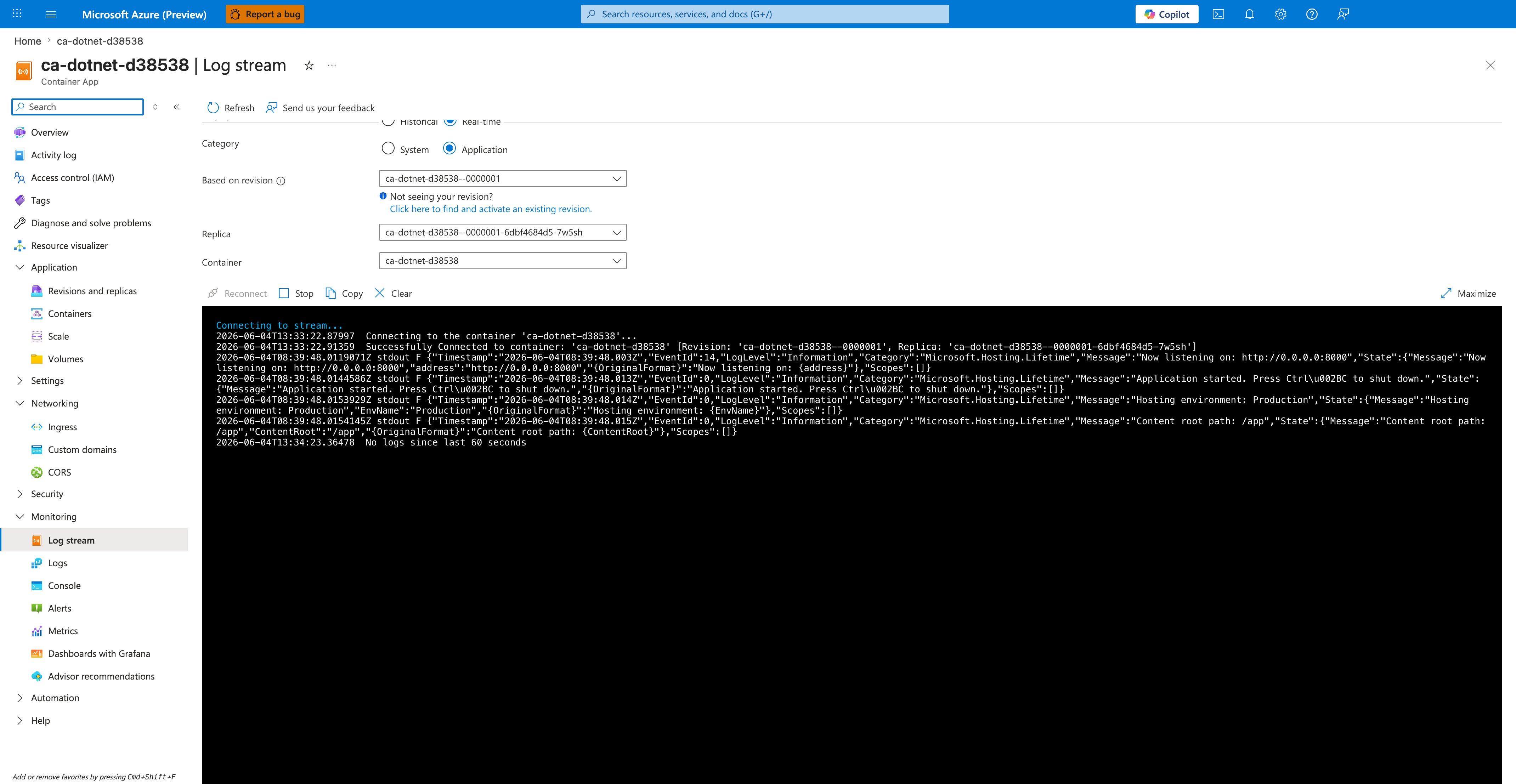
[Observed] Microsoft Azure (Preview). Report a bug. Search resources, services, and docs (G+/). Copilot. Home. ca-dotnet-d38538. Container App. Log stream. Refresh. Send us your feedback. Display. Historical. Real-time. Category. System. Application. Based on revision. ca-dotnet-d38538--0000001. Replica. ca-dotnet-d38538--0000001-6dbf4684d5-7w5sh. Container. ca-dotnet-d38538. Reconnect. Stop. Copy. Clear. Maximize. Connecting to the container 'ca-dotnet-d38538'.... Successfully Connected. Microsoft.Hosting.Lifetime. Now listening on: http://0.0.0.0:8000. Application started. Press Ctrl+C to shut down.. Hosting environment: Production. Content root path: /app. Overview. Activity log. Access control (IAM). Tags. Diagnose and solve problems. Resource visualizer. Application. Revisions and replicas. Containers. Scale. Volumes. Settings. Networking. Ingress. Custom domains. CORS. Security. Monitoring. Log stream. Logs. Console. Alerts. Metrics. Dashboards with Grafana. Advisor recommendations.
[Inferred] The Real-time radio appears to map to the live tail behavior triggered by az containerapp logs show --follow in Step-by-step Step 2. The Category toggle value Application appears consistent with the default console-log stream from Step-by-step Step 2, and the System option appears consistent with the system-log selector exercised in Step-by-step Step 3. The displayed log line Now listening on: http://0.0.0.0:8000 appears consistent with the Microsoft.Hosting.Lifetime startup log shape shown in the expected output of Step-by-step Step 2. The displayed log lines emitted from the Microsoft.Hosting.Lifetime category appear consistent with the ILogger-emitted console output that the ContainerAppConsoleLogs_CL table indexes per the KQL query in Step-by-step Step 4.
[Not Proven] Additional log query output and exporter configuration detail are not visible on this view.