Email Delivery Checklist (First 10 Minutes)
When email delivery fails or domain verification is blocked, follow these initial steps.
Step 0. Confirm diagnostic settings are routing email logs
Before running KQL queries, confirm that diagnostic settings on the ACS resource (not the Email Communication Service) are routing email logs to a Log Analytics workspace. Without this, the KQL tables below will be empty regardless of what you send.
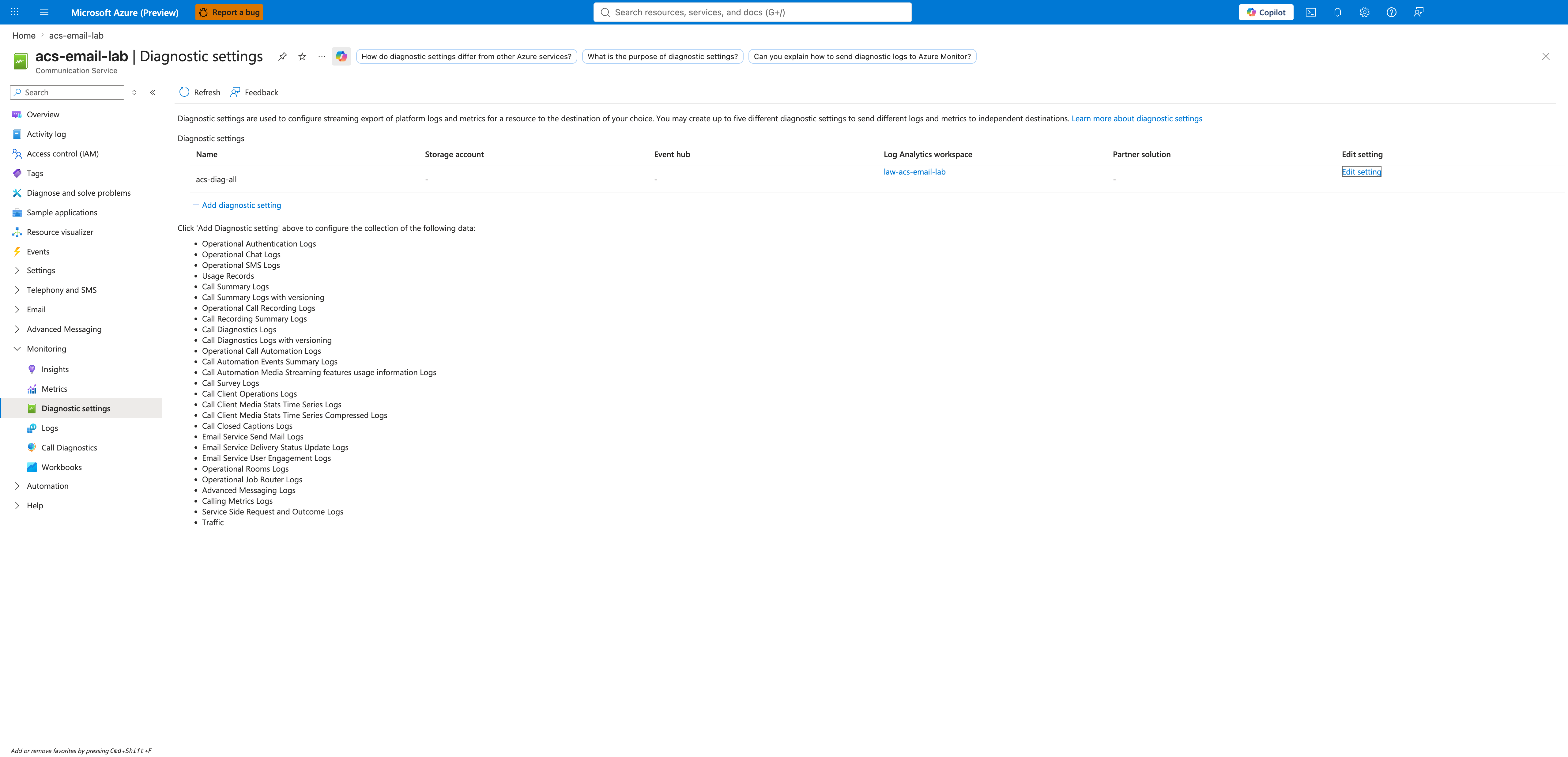
If the list view shows no diagnostic settings, or the destination is not the Log Analytics workspace you expect, see Monitoring → Step 1. Create the Log Analytics workspace to provision it. Logs typically appear within 5 minutes of the next send after the setting is enabled.
Immediate Checklist
- Diagnostic settings present: Are email logs being routed to Log Analytics (see Step 0)?
- Domain Verification Status: Is the domain status
Verifiedin the Azure Portal? - DNS Record Check: Are SPF, DKIM, and DMARC records correctly propagated?
- Sender Address Validity: Does the
Fromaddress match the verified domain? - Spam Signals: Is the email content triggering spam filters?
- Rate Limits: Are you exceeding your Send Email rate limit? Per Microsoft Learn, custom domains allow 30 emails per minute per subscription (100 per hour), and Azure Managed Domains allow 5 per minute (10 per hour, not upgradable). See Reference — Platform Limits for the full table.
Custom domain DNS verification (visual reference)
For checklist items 2 and 3 above: when a custom domain row in the Provision domains grid shows Configure instead of Verified, click Configure on the relevant status column to open the per-record verification wizard.
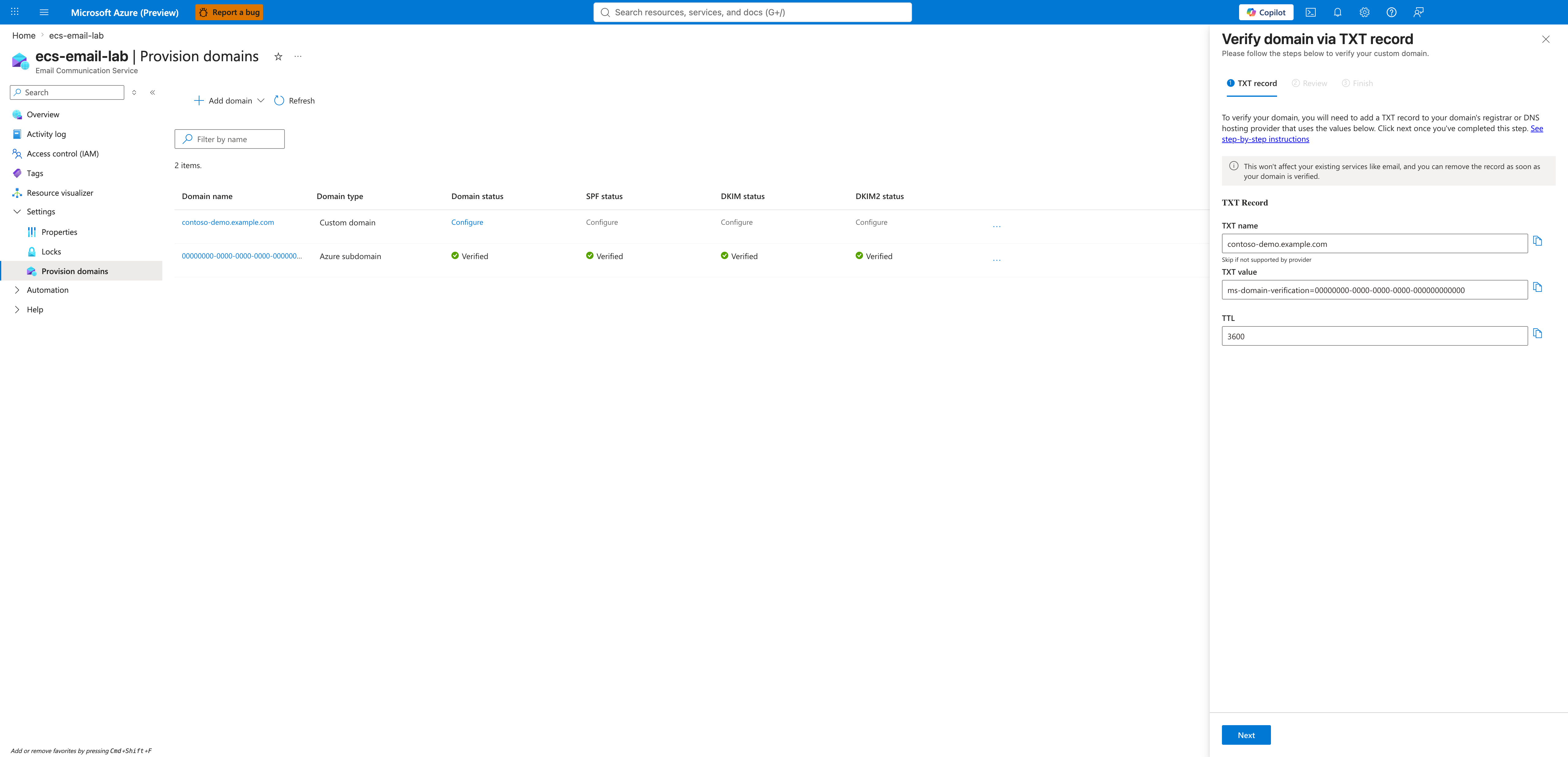
Add the host name and value shown to your DNS zone as the matching record type. After DNS propagation (typically 1–5 minutes for low-TTL records, longer for high-TTL), click Done in the wizard to re-check. The Provision domains grid status flips from Configure to Verified once Azure can resolve the record. Each record type (Domain TXT, SPF, DKIM, DKIM2) opens its own separate wizard — DMARC is not surfaced in a wizard and must be configured directly in your DNS zone per the Email Domain and Sender Authentication guide.
Essential CLI Commands
# Check domain verification status
az communication email domain list \
  --resource-group "<rg>" \
  --email-service-name "<email-service>"

# List all sender usernames for a domain
az communication email domain sender-username list \
  --domain-name "<domain>" \
  --email-service-name "<email-service>" \
  --resource-group "<rg>"

# Confirm the domain is linked to your ACS resource
az communication show \
  --name "<acs-resource>" \
  --resource-group "<rg>" \
  --query "linkedDomains" -o tsv
| Command | Purpose |
|---|---|
az communication email domain list | Lists email domains under an Email Communication Service (with verification state). |
--resource-group "<rg>" | Names the resource group that holds the service. |
--email-service-name "<email-service>" | Identifies the parent Email Communication Service. |
az communication email domain sender-username list | Lists MailFrom sender usernames for a domain. |
--domain-name "<domain>" | Identifies the domain whose senders are listed. |
az communication show | Reads the ACS resource properties to confirm the domain link. |
--name "<acs-resource>" | Names the ACS resource to inspect. |
--query "linkedDomains" -o tsv | Projects only the linked-domains list as tab-separated values. |
Key KQL Queries
Run this in Log Analytics to see recent email delivery lifecycle events. The canonical table is ACSEmailStatusUpdateOperational per the ACS Email Logs schema.
// Recent non-delivered emails (last 1 hour) — recipient-level rows only
ACSEmailStatusUpdateOperational
| where TimeGenerated > ago(1h)
| where isnotempty(RecipientId)
| where DeliveryStatus !in ("Delivered", "OutForDelivery")
| project TimeGenerated, CorrelationId, RecipientId, DeliveryStatus, SmtpStatusCode, EnhancedSmtpStatusCode
| order by TimeGenerated desc
// Delivery breakdown (last 24 hours)
ACSEmailStatusUpdateOperational
| where TimeGenerated > ago(24h)
| summarize Count=count() by DeliveryStatus
| order by Count desc
When the diagnostic pipeline is healthy, the breakdown query above returns one row per status. Each email produces ~3 lifecycle events — an empty/initial state, an OutForDelivery transition, and a terminal Delivered (or failure) status — so a 7-email send burst typically produces ~20-25 rows total.
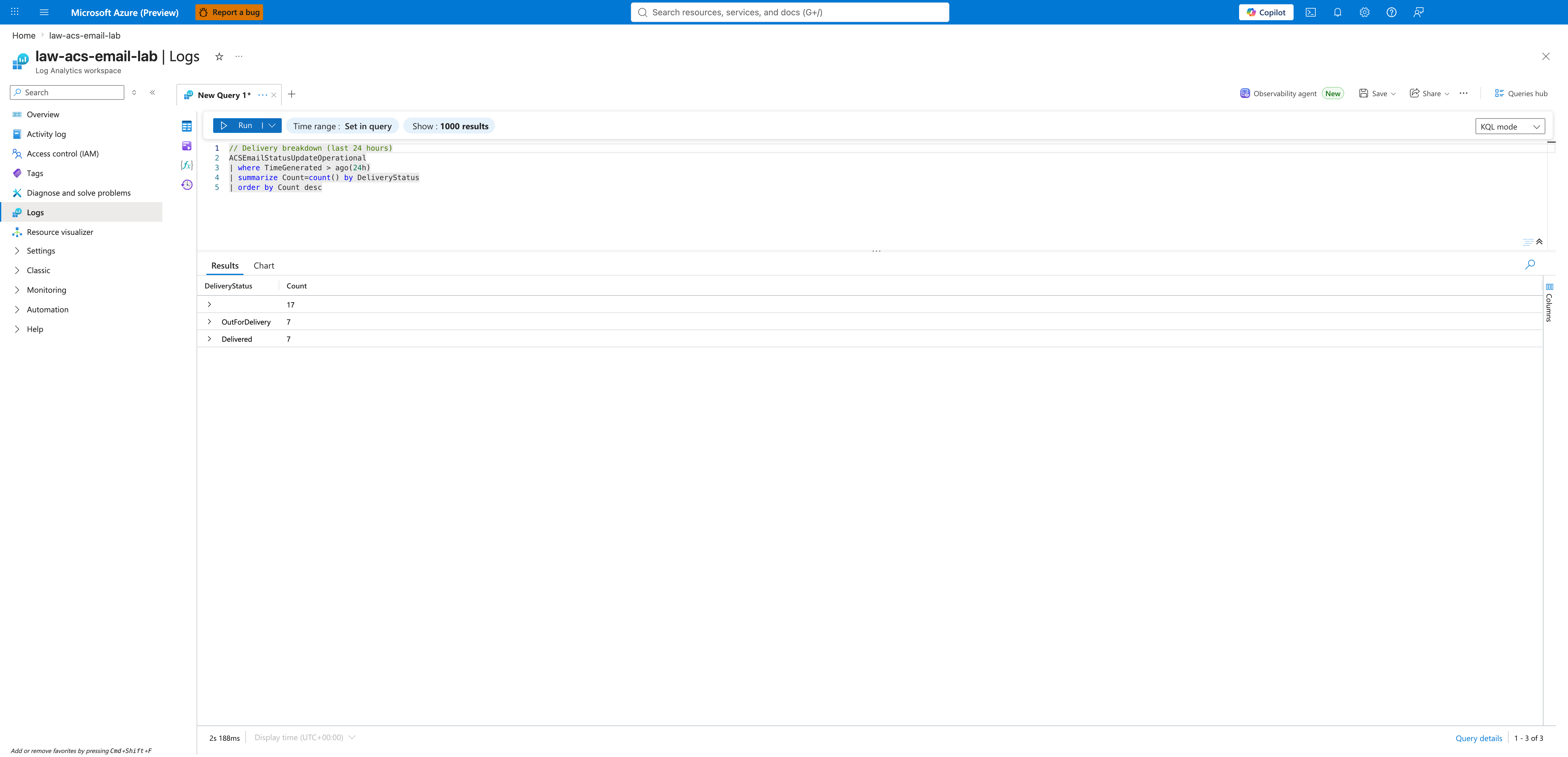
If your breakdown shows only blank or only OutForDelivery rows (no Delivered), the recipient mail server is not yet ACK'ing — wait 5-10 minutes and re-run. If it shows Bounced or Failed rows, drill in with the bounce-detail query below.
// Hard-bounce detail — recipient-level rows where IsHardBounce indicates a permanent bounce
ACSEmailStatusUpdateOperational
| where TimeGenerated > ago(24h)
| where isnotempty(RecipientId)
| where tolower(IsHardBounce) == "true"
| project TimeGenerated, RecipientId, SmtpStatusCode, EnhancedSmtpStatusCode, SenderDomain
| order by TimeGenerated desc
IsHardBounce is a string per the documented schema — use tolower(IsHardBounce) == "true" so the predicate matches regardless of how the value is capitalized in the workspace (empirical values observed in law-acs-email-lab are Pascal-cased). If you need the recipient mail server host, use RecipientMailServerHostName; if you need domain-level grouping instead of exact host, derive it from the RecipientId suffix (for example, extend RecipientDomain = tostring(split(RecipientId, "@")[1])).
Immediate Triage Questions
- Are you using a free domain like
@outlook.comor@gmail.comas the sender? (Not supported — ACS requires a domain you control or an AzureManagedDomain.) - Is this a new custom domain that needs reputation warming up?
- Are the emails bouncing with a specific SMTP code (e.g., 550 user unknown, 421 service unavailable)?
- For AzureManagedDomain sends to consumer mailboxes (Gmail/Outlook/Yahoo): are recipients reporting the mail landed in Spam? AzureManagedDomain has neutral reputation — production traffic should use a custom verified domain with aligned SPF/DKIM/DMARC.
See Also
- Email Service Provisioning — full provisioning walkthrough with screenshots
- Monitoring Azure Communication Services — Log Analytics setup and Email log schema
- Email Delivery Failures Playbook
- Domain Verification Playbook