Monitoring Azure Communication Services
Monitoring ensures your ACS application is healthy, messages are delivered, and communication latency is within acceptable limits. This page walks through the full setup — Log Analytics workspace, diagnostic settings, verification, and alerting — in the order you should run it.
graph TD
    ACS[ACS Resource] --> Metrics[Azure Metrics Explorer]
    ACS --> Logs[Log Analytics]
    ACS --> Events[Azure Event Grid]

    Metrics --> Alerts[Azure Monitor Alerts]
    Logs --> Dashboards[Azure Dashboards]
Events --> Functions[Azure Functions Handler]Prerequisites
- An ACS resource that you can write diagnostic settings to. To create one with an Email channel, see Email Service Provisioning. To create a resource without email, see Provisioning ACS Resources.
- Permissions to create and modify Log Analytics workspaces, diagnostic settings, alert rules, and action groups. The built-in Monitoring Contributor role is sufficient; Reader is not.
-
Azure CLI 2.50+. The
monitor,monitor log-analytics,monitor diagnostic-settings, andmonitor action-groupcommand groups are built into the base CLI. Themonitor scheduled-querycommand group ships in thescheduled-queryextension — install it once before running Step 4's CLI flow:Command Purpose az extension addInstalls an Azure CLI extension. --name scheduled-queryInstalls the scheduled-queryextension that providesaz monitor scheduled-query.If you skip this and run
az monitor scheduled-query createdirectly, the CLI auto-installs the extension on first invocation, but it prints a one-time warning and prompts on some shells; installing it explicitly avoids that detour. - For alert receivers: SMTP email addresses, SMS-capable phone numbers, or webhook endpoints that you control.
When to Use
| Situation | Use this page |
|---|---|
| Stand up monitoring for a brand-new ACS resource | Yes — start at Step 1 |
| Add diagnostic settings to an existing ACS resource that has none | Yes — skip to Step 2 |
| Tune existing alerts because thresholds are noisy | Partial — see Step 4 and Alert Rule Tuning |
| Investigate why logs are missing | No — see the Email Delivery Checklist (Step 0 covers the diagnostic-pipeline check) |
Procedure
The five steps below build on each other. Run them in order on a new resource; revisit individual steps when changing thresholds or destinations later.
Step 1. Create the Log Analytics workspace
The Log Analytics workspace is the durable store that every diagnostic setting on every Azure resource routes telemetry into. Create it before the diagnostic setting so the setting can point at a workspace that already exists.
Portal (UI flow):
- In the Azure Portal, search for Log Analytics workspaces in the top search bar and open the service blade.
- Click + Create on the command bar.
- On the Basics tab:
- Subscription: the same subscription that hosts the ACS resource.
- Resource group: the same resource group as the ACS resource (e.g.,
rg-acs-email-lab) so cost rolls up together. - Name: a stable name like
law-acs-email-lab. Workspace names are immutable. - Region: the same region as the ACS resource for the lowest ingestion latency and to keep data sovereignty consistent.
- Click Review + create, then Create. Provisioning takes 30–60 seconds.
- When deployment finishes, click Go to resource to confirm the workspace Overview blade renders with Essentials populated (resource group, region, pricing tier
PerGB2018, retention30 days).
Capture pending
A 5120×2472 Portal screenshot of the LAW Overview blade is queued as capture #8 in scripts/email-capture-plan.md and will land in a follow-up commit. Until then, follow the textual steps above or use the CLI equivalent.
CLI equivalent:
# Set variables to match your environment
RG="rg-acs-email-lab"
LOCATION="koreacentral"
LAW="law-acs-email-lab"

az monitor log-analytics workspace create \
  --resource-group "$RG" \
  --workspace-name "$LAW" \
  --location "$LOCATION"
| Command | Purpose |
|---|---|
az monitor log-analytics workspace create | Creates the Log Analytics workspace that diagnostic settings route telemetry into. |
--resource-group "$RG" | Names the resource group that holds the workspace. |
--workspace-name "$LAW" | Names the workspace to create. |
--location "$LOCATION" | Sets the workspace region (match the ACS resource region). |
The command is idempotent: re-running it on an existing workspace updates the SKU and tags but does not destroy data.
Step 2. Add a diagnostic setting on the ACS resource
Diagnostic settings on the ACS resource (not the Email Communication Service) are what route emitted telemetry into your Log Analytics workspace. Without this step, every KQL query in this guide returns zero rows regardless of how much email you send.
Portal (UI flow):
- Open your ACS resource (e.g.,
acs-email-lab) in the Portal. - Left navigation → Monitoring → Diagnostic settings. The URL fragment should end with
/diagnostics(the older/diagnosticLogspath silently redirects to the resource overview). - Click + Add diagnostic setting on the command bar.
- On the diagnostic setting form:
- Diagnostic setting name: a stable identifier like
acs-diag-all. - Logs: check categoryGroup → allLogs. This single checkbox enables every current and future log category — including the three Email categories (Send Mail, Delivery Status Update, User Engagement) and any new channels you add later.
- Metrics: check AllMetrics.
- Destination details: check Send to Log Analytics workspace. Select the subscription and the workspace you created in Step 1 (
law-acs-email-lab).
- Diagnostic setting name: a stable identifier like
- Click Save. The list view refreshes and the new setting appears with its destination and category counts.
Capture pending
The Edit/Add form is queued as capture #9 in scripts/email-capture-plan.md. The Portal SPA's <span role="button">Edit setting</span> control did not respond to scripted clicks during the prior capture session (see the 6a Reality note in the plan), so capture #9 will use the Add flow on a fresh setting rather than the Edit flow on the existing one. The list view that confirms the setting is wired up correctly is shown below as capture #6a.
CLI equivalent:
# Continue with the variables from Step 1
ACS_NAME="acs-email-lab"
DIAG_NAME="acs-diag-all"
SUBSCRIPTION_ID="<subscription-id>"

az monitor diagnostic-settings create \
  --name "$DIAG_NAME" \
  --resource "/subscriptions/$SUBSCRIPTION_ID/resourceGroups/$RG/providers/Microsoft.Communication/communicationServices/$ACS_NAME" \
  --workspace "/subscriptions/$SUBSCRIPTION_ID/resourceGroups/$RG/providers/Microsoft.OperationalInsights/workspaces/$LAW" \
  --logs '[{"categoryGroup":"allLogs","enabled":true}]' \
  --metrics '[{"category":"AllMetrics","enabled":true}]'
| Command | Purpose |
|---|---|
az monitor diagnostic-settings create | Creates a diagnostic setting that routes resource telemetry to a destination. |
--name "$DIAG_NAME" | Names the diagnostic setting. |
--resource "/subscriptions/.../communicationServices/$ACS_NAME" | Targets the ACS resource (full ARM resource ID) the setting attaches to. |
--workspace "/subscriptions/.../workspaces/$LAW" | Sets the Log Analytics workspace destination (full ARM resource ID). |
--logs '[{"categoryGroup":"allLogs","enabled":true}]' | Enables all current and future log categories. |
--metrics '[{"category":"AllMetrics","enabled":true}]' | Enables all platform metrics. |
After running the CLI commands above (or completing the Portal-driven steps), the ACS resource's Diagnostic settings blade shows the configured setting plus the categories it enables:
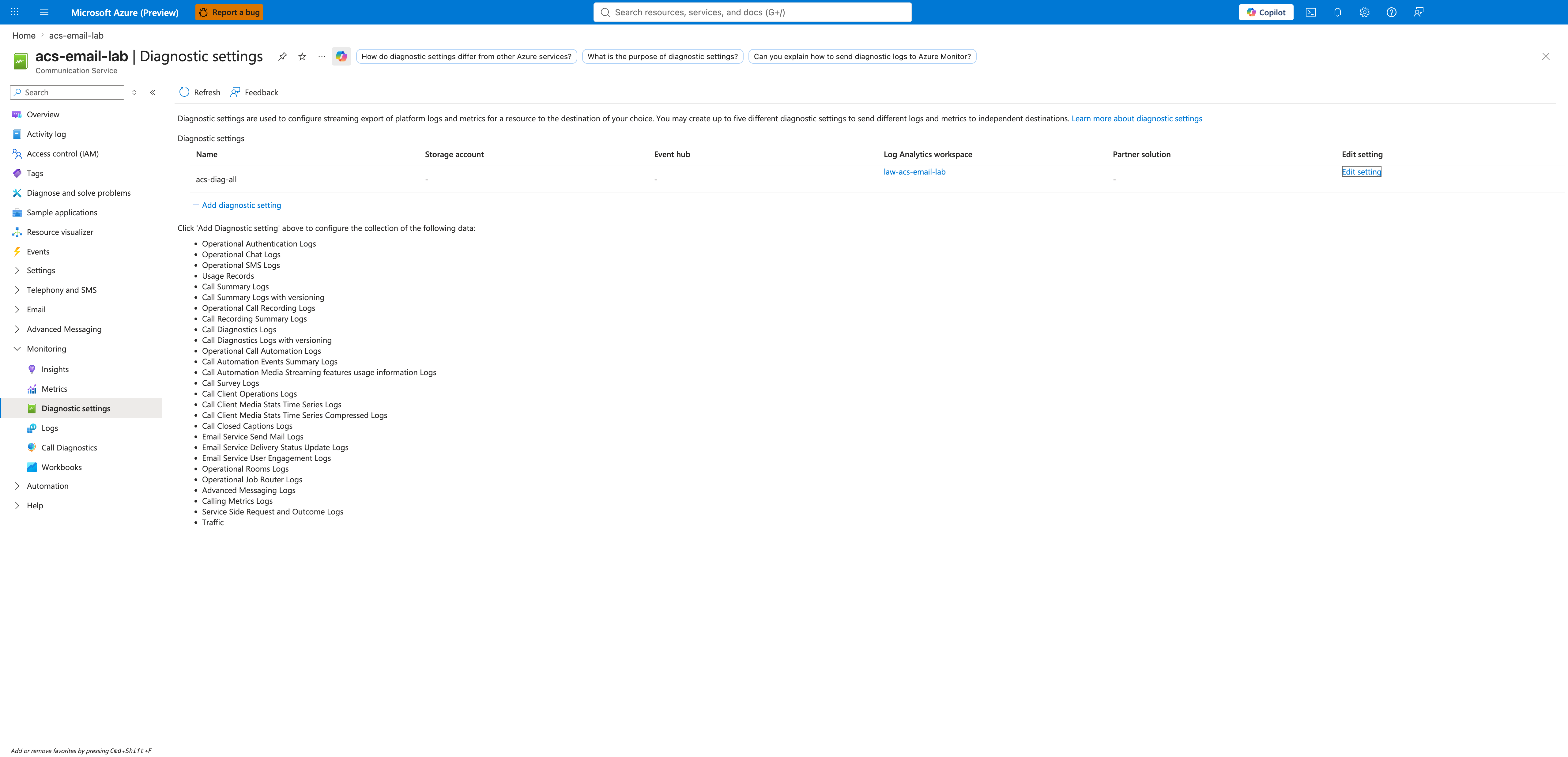
The three Email log categories visible in the capture are what ACS Email emits. They map to the Log Analytics tables you query later:
| Portal category | Log Analytics table | What it records |
|---|---|---|
| Email Service Send Mail Logs | ACSEmailSendMailOperational | Initial send request, sender, recipients, message ID |
| Email Service Delivery Status Update Logs | ACSEmailStatusUpdateOperational | Delivery lifecycle (OutForDelivery → Delivered / Bounced) |
| Email Service User Engagement Logs | ACSEmailUserEngagementOperational | Recipient interactions (opens, clicks) when tracking enabled |
Use categoryGroup: allLogs in IaC
Rather than enumerating individual categories, set --logs '[{"categoryGroup":"allLogs","enabled":true}]' in CLI or categoryGroup: allLogs in Bicep/Terraform. The Portal-shown categories are dynamic — Azure adds new ones as features ship, and allLogs opts you into them automatically. The capture above shows the dynamic set rendered for an ACS resource whose only enabled channel is Email.
Step 3. Verify logs are flowing
The diagnostic setting is a contract, not an acknowledgement. Until ACS actually emits a log and Log Analytics actually ingests it, the pipeline is unproven. Send one test email, wait five minutes, then run the sanity-check query below.
Send a test email using one of the SDK tutorials (any language is fine — the diagnostic pipeline does not care):
Wait ~5 minutes. Log Analytics ingestion latency for ACS Email is consistently under 5 minutes in the testing this guide is built on, but the absolute floor is ~2 minutes even for tiny payloads.
Run the sanity-check query in the LAW Logs blade:
// Confirm the diagnostic pipeline is wired up end to end.
// Columns are the documented Email Send Mail schema; see Sources.
ACSEmailSendMailOperational
| where TimeGenerated > ago(15m)
| project TimeGenerated, OperationName, CorrelationId, Size, UniqueRecipientsCount, TrafficSource
| order by TimeGenerated desc
| take 10
A row in ACSEmailSendMailOperational proves two things at once: the SDK reached the ACS Email API (the row would not exist otherwise), and the diagnostic setting routed the resulting log to your workspace (the row would not be queryable otherwise). The table does not expose a ResultType/success column — success vs failure of the delivery is tracked in the companion ACSEmailStatusUpdateOperational table via DeliveryStatus.
| Result | What it means | Next action |
|---|---|---|
| One or more rows returned | Diagnostic pipeline is wired up. The send API was hit and the log routed correctly. Move to Step 4. | None — proceed |
| Zero rows after 5 minutes, but new rows appear at 10–15 minutes | Slow ingestion. Acceptable on a new workspace. | None — proceed |
| Zero rows after 15 minutes, send code returned 202 Accepted | Diagnostic setting is not wired up. Most common causes: setting placed on the Email Communication Service resource instead of the ACS resource, wrong workspace, or --logs payload missing enabled: true. | Re-run Step 2 and re-check the setting in the Portal. |
| Zero rows after 15 minutes, send code did not return 202 | The SendMail request never reached ACS. | Triage the client/auth/network first; the diagnostic pipeline is not at fault. |
To check actual delivery success (the lifecycle that runs after the API call), query ACSEmailStatusUpdateOperational with a where isnotempty(RecipientId) filter so you only see per-recipient terminal states (Delivered, Failed, Bounced, etc.) rather than the message-level intermediate states (Queued, OutForDelivery).
Step 4. Create an alert rule
Alerts turn "data exists" into "the on-call gets paged when something is wrong". An alert rule is a saved KQL query (for log alerts) or metric threshold (for metric alerts) plus the action group it should fire on. This step creates a log alert because the most useful Email signals come from ACSEmailStatusUpdateOperational; metric alerts on the built-in Email metrics are possible too, but the log-based rule is more flexible.
Portal (UI flow):
- Open your Log Analytics workspace (
law-acs-email-lab) in the Portal. - Left navigation → Monitoring → Alerts → + Create → Alert rule.
- On the Scope tab, the workspace is already selected. Click Next: Condition.
- On the Condition tab:
- Signal name: select Custom log search (under Log alerts).
- Search query: paste the high-bounce-rate query below.
- Measurement:
Table rows→Count. - Aggregation granularity:
5 minutes. - Evaluation frequency:
5 minutes. - Threshold:
Static→Greater than→0.
- Click Next: Actions and attach the action group you create in Step 5. (Create the alert rule first with no action group if needed; you can attach later via Edit.)
- On the Details tab:
- Severity:
2 - Warning(start conservative; raise to1once tuned). - Alert rule name:
acs-email-bounce-rate-high. - Region: the same region as the workspace.
- Severity:
- Click Review + create, then Create.
Capture pending
Portal screenshots of the alert wizard's Condition step (#11) and Details/Review step (#12) are queued in scripts/email-capture-plan.md. They will replace the textual steps above with annotated visuals.
The KQL the alert evaluates:
// Fires when bounce rate exceeds 5% over a 5-minute window with at least 20 recipient-level
// delivery events. Filters to recipient-level rows only (message-level rows from
// ACSEmailStatusUpdateOperational have an empty RecipientId and no terminal bounce state).
// IsHardBounce is a string per the documented schema; use tolower() so the predicate matches
// regardless of how the value is capitalized (empirical rows in law-acs-email-lab are Pascal-cased).
ACSEmailStatusUpdateOperational
| where TimeGenerated > ago(5m)
| where isnotempty(RecipientId)
| summarize
    Total = count(),
    Bounced = countif(DeliveryStatus == "Bounced" or tolower(IsHardBounce) == "true")
| extend BounceRate = todouble(Bounced) / todouble(Total)
| where Total >= 20 and BounceRate > 0.05
The Total >= 20 floor prevents the alert from firing on tiny send volumes where a single bounce produces a misleading rate (1 bounce out of 3 sends is 33% but is not actionable signal). The isnotempty(RecipientId) filter is required — ACSEmailStatusUpdateOperational mixes message-level events (which have a blank RecipientId and use DeliveryStatus values like Queued/OutForDelivery) with recipient-level events (which carry the Bounced/Delivered/Failed terminal states). Without the filter, the denominator double-counts and the bounce rate is artificially low.
CLI equivalent (using a scheduled query rule):
The az monitor scheduled-query create --condition argument uses placeholder syntax — you pass count 'NAME' > 0 in --condition, and the actual KQL in --condition-query NAME='...'. The KQL itself already enforces the threshold (where Total >= 20 and BounceRate > 0.05), so the alert fires whenever the query returns any row.
# Continue with the variables from Steps 1-2 and run `az extension add --name scheduled-query` once first.
WORKSPACE_ID=$(az monitor log-analytics workspace show \
  --resource-group "$RG" \
  --workspace-name "$LAW" \
  --query id -o tsv)

az monitor scheduled-query create \
  --name "acs-email-bounce-rate-high" \
  --resource-group "$RG" \
  --scopes "$WORKSPACE_ID" \
  --condition "count 'BounceAlert' > 0" \
  --condition-query BounceAlert='ACSEmailStatusUpdateOperational | where TimeGenerated > ago(5m) | where isnotempty(RecipientId) | summarize Total=count(), Bounced=countif(DeliveryStatus == "Bounced" or tolower(IsHardBounce) == "true") | extend BounceRate = todouble(Bounced)/todouble(Total) | where Total >= 20 and BounceRate > 0.05' \
  --description "ACS email bounce rate exceeded 5% over 5 minutes (min 20 sends)" \
  --evaluation-frequency 5m \
  --window-size 5m \
  --severity 2
| Command | Purpose |
|---|---|
az monitor log-analytics workspace show | Reads the workspace properties. |
--query id -o tsv | Projects only the workspace ARM ID and prints it as a bare tab-separated value. |
az monitor scheduled-query create | Creates a scheduled log-query alert rule. |
--name "acs-email-bounce-rate-high" | Names the alert rule. |
--resource-group "$RG" | Names the resource group that holds the alert rule. |
--scopes "$WORKSPACE_ID" | Targets the workspace the query runs against. |
--condition "count 'BounceAlert' > 0" | Fires when the named query returns any row. |
--condition-query BounceAlert='...' | Supplies the KQL bound to the condition placeholder. |
--description "..." | Sets the human-readable alert description. |
--evaluation-frequency 5m | Runs the query every 5 minutes. |
--window-size 5m | Evaluates over a 5-minute look-back window. |
--severity 2 | Sets the alert severity (2 = Warning). |
Alert Rule Tuning
After the rule has fired (or failed to fire) a few times, adjust:
| Symptom | Tuning |
|---|---|
| Alert fires on every spam wave but you only care about transient infrastructure issues | Increase the Total >= 20 floor; add | where SmtpStatusCode startswith "5" to filter only permanent failures |
| Alert is silent during real incidents | Lower the evaluation window from 5m → 1m, or remove the floor |
| Alert is too noisy | Add | where DeliveryStatus != "Suppressed" (Suppressed = recipient on your suppression list, not an infra failure) |
Step 5. Create an action group
Action groups are the reusable receiver of notifications. The same action group can be attached to many alert rules — create one per on-call rotation, not one per alert.
Portal (UI flow):
- In the Portal, search for Monitor and open the service.
- Left navigation → Alerts → Action groups → + Create.
- On the Basics tab:
- Subscription / Resource group: same as the ACS resource.
- Region:
Global(action groups are global by design — alert evaluation happens regionally but the action group can fire from anywhere). - Action group name: e.g.,
ag-acs-oncall. - Display name: a short name (≤12 chars) used as the SMS/Email subject prefix, e.g.,
ACSOnCall.
- On the Notifications tab, click + to add a receiver:
- Notification type:
Email/SMS message/Push/Voice. - Name:
oncall-email. - Check Email and enter the on-call distribution list address.
- Optionally check SMS and enter a phone number for high-severity rotations.
- Common alert schema: leave Yes (newer payload format that downstream automation expects).
- Notification type:
- On the Actions tab (optional): attach an Automation Runbook or Logic App to auto-remediate. Skip for the initial setup.
- Click Review + create, then Create.
Capture pending
Portal screenshots of the Notifications tab (#13) and Review+Create tab (#14) are queued in scripts/email-capture-plan.md.
CLI equivalent:
AG_NAME="ag-acs-oncall"
EMAIL_ADDR="acs-oncall@example.com"

# `usecommonalertschema` is a single token (no hyphens) — it's the literal
# trailing flag the --action argument accepts after the email address.
az monitor action-group create \
  --name "$AG_NAME" \
  --resource-group "$RG" \
  --short-name "ACSOnCall" \
  --action email oncall-email "$EMAIL_ADDR" usecommonalertschema
| Command | Purpose |
|---|---|
az monitor action-group create | Creates a reusable notification/automation target for alert rules. |
--name "$AG_NAME" | Names the action group. |
--resource-group "$RG" | Names the resource group that holds the action group. |
--short-name "ACSOnCall" | Sets the ≤12-char prefix used in SMS/email subjects. |
--action email oncall-email "$EMAIL_ADDR" usecommonalertschema | Adds an email receiver named oncall-email at the given address using the common alert schema. |
Attach the action group to the alert rule (created in Step 4):
ACTION_GROUP_ID=$(az monitor action-group show \
  --name "$AG_NAME" \
  --resource-group "$RG" \
  --query id -o tsv)

az monitor scheduled-query update \
  --name "acs-email-bounce-rate-high" \
  --resource-group "$RG" \
  --action-groups "$ACTION_GROUP_ID"
| Command | Purpose |
|---|---|
az monitor action-group show | Reads the action group properties. |
--name "$AG_NAME" | Names the action group to inspect. |
--query id -o tsv | Projects only the action group ARM ID and prints it as a bare tab-separated value. |
az monitor scheduled-query update | Updates an existing scheduled-query alert rule. |
--name "acs-email-bounce-rate-high" | Names the alert rule to update. |
--action-groups "$ACTION_GROUP_ID" | Attaches the action group so the rule fires notifications. |
After this, fire a test by manually triggering a high bounce condition (e.g., send 25 emails to a known-bad address) and confirm the notification arrives within ~5–7 minutes of the burst.
Verification
A monitoring setup is complete when all of the following are true:
- [ ] LAW workspace exists in the same region/RG as the ACS resource and is reachable from the Portal.
- [ ] Diagnostic setting on the ACS resource routes
allLogs+AllMetricsto that workspace. - [ ] A test email send produces rows in
ACSEmailSendMailOperationalwithin ~5 minutes (Step 3). - [ ] At least one alert rule is attached to an action group, and a manual trigger confirms the notification path works end to end.
- [ ] The on-call rotation knows the alert rule exists, the threshold rationale, and the runbook to follow when it fires.
Rollback / Troubleshooting
If the setup stops working, take down the least amount of infrastructure that proves the failure mode, then re-add layer by layer.
| Symptom | Likely cause | Recovery |
|---|---|---|
| LAW Logs blade returns zero rows for every ACS table | Diagnostic setting was deleted, moved to the wrong resource, or routes to the wrong workspace | Re-run Step 2. Verify the --resource ARM ID points at Microsoft.Communication/communicationServices/<name>, not at the Email Communication Service. |
KQL returns rows but DeliveryStatus is always blank | Query targeted message-level events only | Add where isnotempty(RecipientId) to filter to recipient-level rows that carry terminal states |
Alert rule fires constantly with Total = 1, Bounced = 1 | The Total >= 20 floor is missing from the deployed query | Re-deploy via az monitor scheduled-query update --condition-query BounceAlert='<full KQL>'; the floor must live inside the KQL, not in the alert threshold |
| Alert rule never fires during a real bounce storm | The KQL filter uses casing that does not match the workspace's actual IsHardBounce value (e.g., IsHardBounce == "true" will not match Pascal-cased "True" rows, because IsHardBounce is documented as a string) | Compare the deployed --condition-query against the canonical KQL in Step 4 — use tolower(IsHardBounce) == "true" so the predicate matches regardless of casing |
| Action group notification never arrives | Receiver type / address typo, or usecommonalertschema was passed as a separate flag instead of a trailing token of --action | Run az monitor action-group show -n $AG_NAME -g $RG --query 'emailReceivers' -o jsonc and compare against the example in Step 5 |
az monitor scheduled-query create errors with "command not found" / "extension not installed" | The scheduled-query extension is not installed | Run az extension add --name scheduled-query (covered in Prerequisites) and retry |
To roll back the monitoring setup entirely (e.g., during a cost audit):
# Remove alert rule first (depends on action group)
az monitor scheduled-query delete --name "acs-email-bounce-rate-high" --resource-group "$RG"

# Then the action group
az monitor action-group delete --name "ag-acs-oncall" --resource-group "$RG"

# Then the diagnostic setting (logs stop flowing; existing log data remains until LAW retention expires)
az monitor diagnostic-settings delete \
  --name "acs-diag-all" \
  --resource "/subscriptions/$SUBSCRIPTION_ID/resourceGroups/$RG/providers/Microsoft.Communication/communicationServices/$ACS_NAME"

# Finally the LAW workspace. By default this is a soft-delete: the workspace
# name is held for 14 days and can be recovered with
# `az monitor log-analytics workspace recover` during that window. Add --force
# to skip soft-delete and release the name immediately.
az monitor log-analytics workspace delete --resource-group "$RG" --workspace-name "$LAW" --yes
| Command | Purpose |
|---|---|
az monitor scheduled-query delete | Deletes the alert rule (remove first — it depends on the action group). |
az monitor action-group delete | Deletes the action group. |
az monitor diagnostic-settings delete | Deletes the diagnostic setting so telemetry stops flowing. |
--resource "/subscriptions/.../communicationServices/$ACS_NAME" | Targets the ACS resource the diagnostic setting is attached to. |
az monitor log-analytics workspace delete | Deletes the workspace (soft-delete by default; recoverable for 14 days). |
--yes | Skips the interactive delete confirmation prompt. |
Order matters: deleting the LAW first while the diagnostic setting is still pointing at it leaves an orphan setting that errors silently and is easy to forget.
Advanced Topics
Viewing Email Metrics in Azure Monitor
Logs answer "what happened to each message"; metrics answer "how much volume and how often". Both flow from the same diagnostic setting above, but metrics appear in the Portal's Monitoring → Metrics blade with no KQL required.
To see Email send-request volume:
- Open your ACS resource (
acs-email-lab) in the Portal. - Left nav → Monitoring → Metrics.
- Metric Namespace:
Communication Services standard metrics(auto-selected). - Metric:
Email Service API Requests(countsSendEmailREST calls). - Aggregation:
Count(auto-selected; sums requests in each time bucket).
ACS Email surfaces three metrics on this blade:
| Metric name | What it counts |
|---|---|
Email Service API Requests | Inbound SendEmail REST/SDK calls (one per send attempt, including retries) |
Email Service Delivery Status Updates | Lifecycle transitions per recipient (OutForDelivery, Delivered, Bounced, etc.) |
Email Service User Engagement | Recipient interactions (opens, clicks) when engagement tracking is enabled |
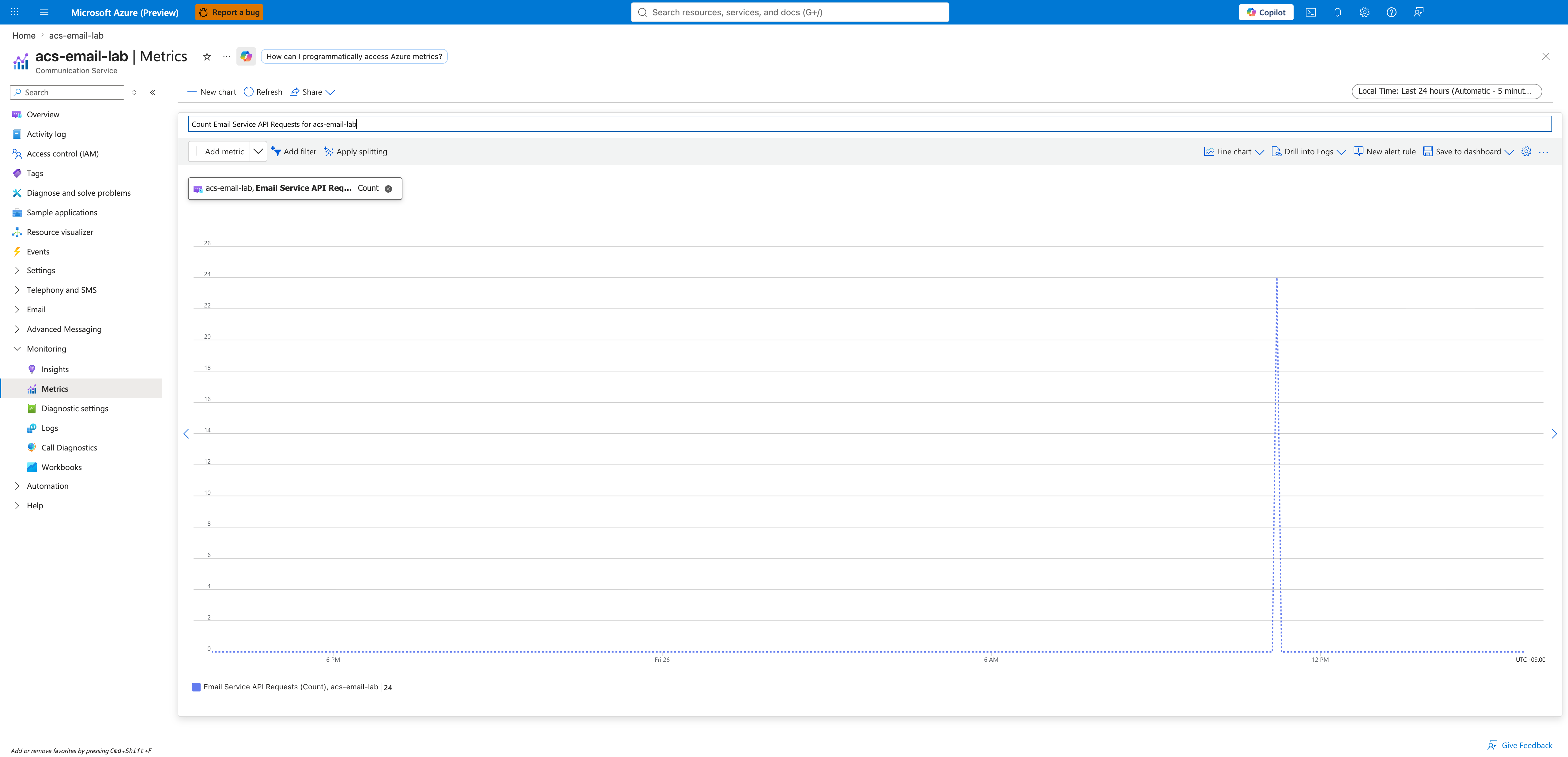
The capture above shows a 24-request spike at the right edge of the chart — that is the test burst that also appears in the Email Delivery Checklist KQL view as 31 status-update rows on ACSEmailStatusUpdateOperational. The metric and the log are different telemetry surfaces: the metric aggregates SendEmail API requests on the Portal Metrics pipeline, while status updates record per-recipient lifecycle transitions (a single send produces several status rows as the message moves through queueing, dispatch, and terminal states). Reconcile the two only loosely — they answer different questions.
Need KQL instead of Portal Metrics?
For send-volume analysis in KQL — daily total, hourly trend, 7-day rollup with recipient fan-out, and per-sender attribution via join — see Email KQL Overview → Total Send Volume. The KQL view runs against ACSEmailSendMailOperational; the table and the Portal metric are different telemetry surfaces, so counts may differ for the same window and should be reconciled loosely.
Pin metric charts to a dashboard
Once a chart configuration is useful, click Save to dashboard to pin it to a shared Azure Dashboard. SRE on-call runbooks typically pin Email Service API Requests, Email Service Delivery Status Updates, and Email Service User Engagement side-by-side so a single glance shows send volume, lifecycle progression, and recipient interaction together. ACS does not expose a built-in "delivery rate" percentage metric — compute it in a KQL view at the recipient level by dividing recipient-level Delivered rows in ACSEmailStatusUpdateOperational (filter where isnotempty(RecipientId)) by the total intended recipients (for example sum(UniqueRecipientsCount) from ACSEmailSendMailOperational).
Key Metrics Across ACS Channels
The Procedure above focuses on Email because that is this guide's scope. For completeness, ACS surfaces additional channel-level metrics on the same Monitoring → Metrics blade. Per the ACS Metrics Reference, the ACS metric families listed below are request-count metrics dimensioned by Operation, Status Code, and StatusSubClass. They do not directly emit delivery rates, latencies, or quality scores. Use the table below as a starting point when monitoring scope expands beyond Email.
Metric (namespace: Communication Services standard metrics) | Channel | Selected Operation dimension values |
|---|---|---|
SMS API Requests | SMS | SMSMessageSent, SMSDeliveryReportsReceived, SMSMessagesReceived |
Chat API Requests | Chat | SendChatMessage, ListChatMessages, CreateChatThread, AddChatThreadParticipants (16 operations total) |
Call Automation API Requests | Voice (server-side) | Create Call, Answer Call, Add Participants, Play, Recognize, Transfer Call To Participant (17 operations total) |
Network Traversal API Requests | Voice (client-side) | IssueRelayConfiguration (TURN/STUN token issuance) |
Rooms API Requests | Rooms | CreateRoom, AddParticipants, PatchRoom, ListRooms (9 operations total) |
Authentication API Requests | Identity (cross-channel) | CreateIdentity, CreateToken, RevokeToken, ExchangeTeamsUserAccessToken, DeleteIdentity |
Advanced Messaging API requests | WhatsApp / Advanced Messaging | SendMessage, ReceiveMessage, DownloadMedia, ListTemplates, SendMessageDeliveryStatus |
See the canonical ACS Metrics Reference for the full per-channel operation enumeration.
Where call quality, latency, and per-message delivery values live
Quality, latency, and per-message lifecycle data are emitted as Log Analytics tables (KQL surface), not as Metrics-blade values. Examples per the ACS Metrics Reference and Voice and video call logs:
- Voice/Video quality (objective): jitter, packet loss, round-trip time →
ACSCallDiagnostics(per-media-stream network metrics); useACSCallSummaryfor call metadata and per-participant finalization context - Voice/Video quality (subjective): User rating 1–5 → End of Call Survey logs (per End of Call Survey)
- SMS delivery outcomes: per-message
Delivered/Failedrows →ACSSMSIncomingOperationsfiltered toOperationName == "SMSDeliveryReportsReceived" - Chat message events: per-request Chat REST operations (e.g.,
SendChatMessage,ListChatMessages,CreateChatThread) →ACSChatIncomingOperationsfiltered byOperationName - Email delivery rate: compute in KQL at the recipient level by comparing
DeliveryStatus == "Delivered"rows inACSEmailStatusUpdateOperationalagainst the total intended recipients
Compute rates, latencies, and quality scores in KQL against these tables — they are not exposed as standalone Azure Monitor metrics.
Diagnostic Settings Categories Beyond Email
The diagnostic setting created in Step 2 uses categoryGroup: allLogs, which opts the resource into every current and future ACS log category. The categories surface in the Portal grouped by channel — Email is what this guide validates end-to-end, but the same setting also captures:
- SMS logs: Detailed delivery and status information.
- Email logs: Delivery, bounce, and spam report tracking (3 categories — see the table in Step 2).
- Chat logs: Message events and participant updates.
- Calling logs: Call summary and call diagnostic details.
See the per-channel troubleshooting playbooks (linked under See Also) for KQL examples that exercise these other tables.
See Also
- Email Service Provisioning — provisions the ACS resource and Email Service that this page monitors
- Email Delivery Checklist (First 10 Minutes) — quick KQL checks for the tables above
- Email Delivery Failures Playbook — uses the alert rule from Step 4 as a starting signal
Sources
- Monitoring ACS using Azure Monitor
- ACS Metrics Reference — authoritative enumeration of API request metrics and operation dimensions across all ACS channels
- ACS Email Logs Reference — authoritative schema for
ACSEmailSendMailOperational,ACSEmailStatusUpdateOperational, andACSEmailUserEngagementOperational - ACSEmailStatusUpdateOperational — Azure Monitor Logs reference — column-level schema (documented type for
IsHardBounce,FailureMessage,FailureReason,RecipientMailServerHostName) - Voice and video call logs — authoritative reference for
ACSCallSummary,ACSCallDiagnostics,ACSCallSurvey, and other voice/video log tables (where per-stream network metrics such asJitterAvgandPacketLossRateAvglive) - How to: Create diagnostic settings in Azure Monitor
- Create an Azure Monitor alert rule
- Action groups
az monitor scheduled-queryreference (requires thescheduled-queryextension)az monitor action-groupreference