Email Service Provisioning
This page walks through provisioning an Azure Communication Services (ACS) Email channel end to end, with screenshots from a real deployment. It covers the order in which resources must be created, the difference between Azure Managed Domains and custom verified domains, and the linkage required between the Email Communication Service and the ACS resource that ultimately sends mail.
For a generic ACS resource walk-through (without email), see Provisioning ACS Resources.
Prerequisites
- An Azure subscription with the
Microsoft.Communicationresource provider registered. - An existing or planned ACS resource (will be linked to the Email Communication Service).
- For custom domains: control of the DNS zone (ability to add TXT records).
- Azure CLI 2.50+ with the
communicationextension, or Portal access.
When to Use
| Situation | Use this page |
|---|---|
| First time setting up email for an ACS workload | Yes — walk through all five steps |
| Adding a second domain to an existing Email Service | Yes — skip to step 2 |
| Switching from AzureManagedDomain to a custom verified domain | Yes — skip to step 3 |
| Migrating away from ACS Email | No — see Health & Recovery |
Procedure
Step 1. Create the Email Communication Service
The Email Communication Service is a distinct Azure resource from the ACS resource. It owns the verified domains; the ACS resource owns the connection string that the SDK uses. They are linked in a later step.
az communication email create \
  --name "ecs-email-lab" \
  --location "Global" \
  --data-location "Korea" \
  --resource-group "rg-acs-email-lab"
| Command | Purpose |
|---|---|
az communication email create | Creates the Email Communication Service resource that owns verified domains. |
--name "ecs-email-lab" | Names the Email Communication Service to create. |
--location "Global" | Sets the resource location (Email Communication Services are Global resources). |
--data-location "Korea" | Sets the immutable region where message data is stored. |
--resource-group "rg-acs-email-lab" | Places the resource in the named resource group. |
After creation, the Email Service Overview blade renders with the Essentials section populated and two call-to-action cards prompting domain setup:
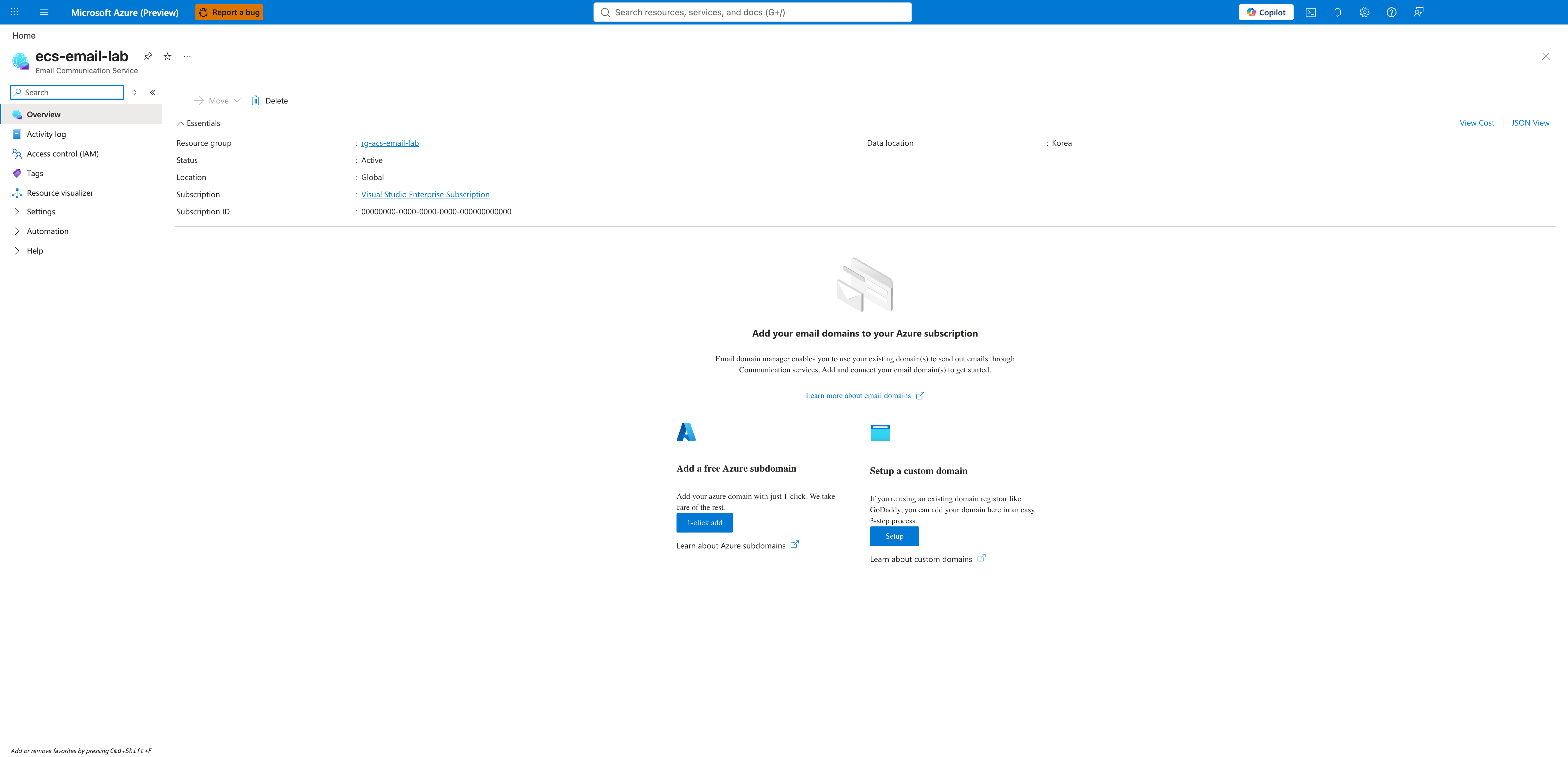
Data location is immutable
The --data-location value (here Korea) cannot be changed after creation. If you need to move data to a different region you must create a new Email Communication Service. Pick the location that matches your customer base and compliance requirements before running the create command.
Step 2. Provision domains (managed vs. custom)
Open the Provision domains blade from the Email Service left navigation. This is the grid where every domain associated with the service appears, regardless of whether it is Azure-managed or a custom verified domain.
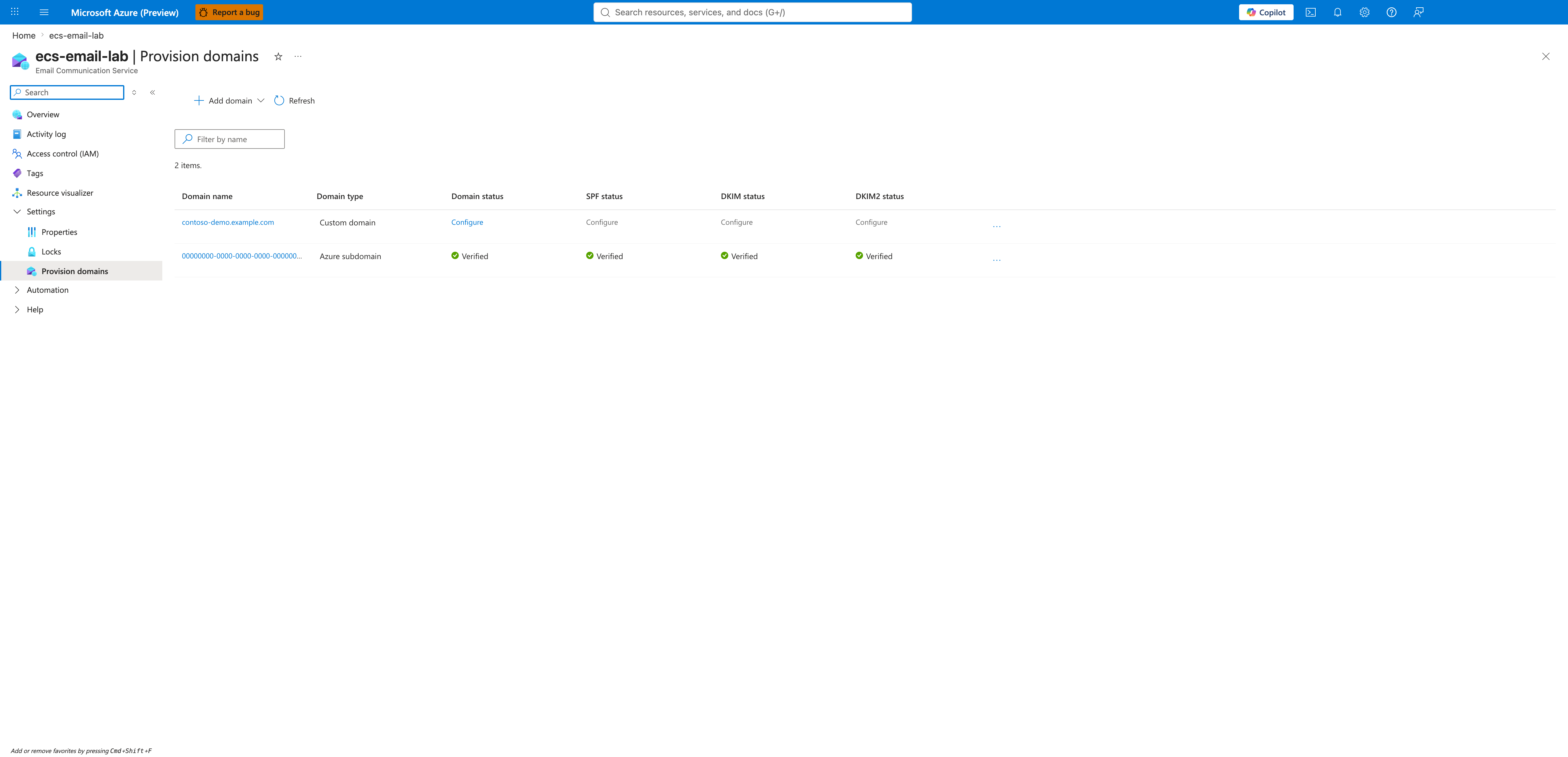
The grid contrasts the two domain types you can attach:
| Type | Verification | Sender address format | Use case |
|---|---|---|---|
| AzureManagedDomain | Auto-verified by Azure | <sender>@<random-guid>.azurecomm.net | Testing, internal tooling, development |
| Custom verified domain | DNS-based (you add TXT records) | <sender>@<your-domain> | Production, brand-aligned mail |
To add an AzureManagedDomain via CLI:
az communication email domain create \
  --domain-name "AzureManagedDomain" \
  --email-service-name "ecs-email-lab" \
  --resource-group "rg-acs-email-lab" \
  --location "Global" \
  --domain-management AzureManaged
| Command | Purpose |
|---|---|
az communication email domain create | Creates an email domain under the Email Communication Service. |
--domain-name "AzureManagedDomain" | Names the domain; AzureManagedDomain is the reserved name for the auto-verified managed domain. |
--email-service-name "ecs-email-lab" | Identifies the parent Email Communication Service. |
--resource-group "rg-acs-email-lab" | Names the resource group that holds the Email Communication Service. |
--location "Global" | Sets the resource location (email domains are Global resources). |
--domain-management AzureManaged | Provisions an Azure-managed, auto-verified domain (no DNS setup required). |
To add a custom domain (verification follows in step 3):
az communication email domain create \
  --domain-name "contoso-demo.example.com" \
  --email-service-name "ecs-email-lab" \
  --resource-group "rg-acs-email-lab" \
  --location "Global" \
  --domain-management CustomerManaged
| Command | Purpose |
|---|---|
az communication email domain create | Creates an email domain under the Email Communication Service. |
--domain-name "contoso-demo.example.com" | Names the custom domain to register for verification. |
--email-service-name "ecs-email-lab" | Identifies the parent Email Communication Service. |
--resource-group "rg-acs-email-lab" | Names the resource group that holds the Email Communication Service. |
--location "Global" | Sets the resource location (email domains are Global resources). |
--domain-management CustomerManaged | Provisions a customer-managed domain requiring DNS-based verification. |
Step 3. Verify a custom domain via DNS
When you click Configure on any of the four status columns (Domain, SPF, DKIM, DKIM2) for a custom domain, the Portal opens a separate wizard per record. The capture below shows the first wizard (Domain TXT), which is the gating record that proves you own the domain.
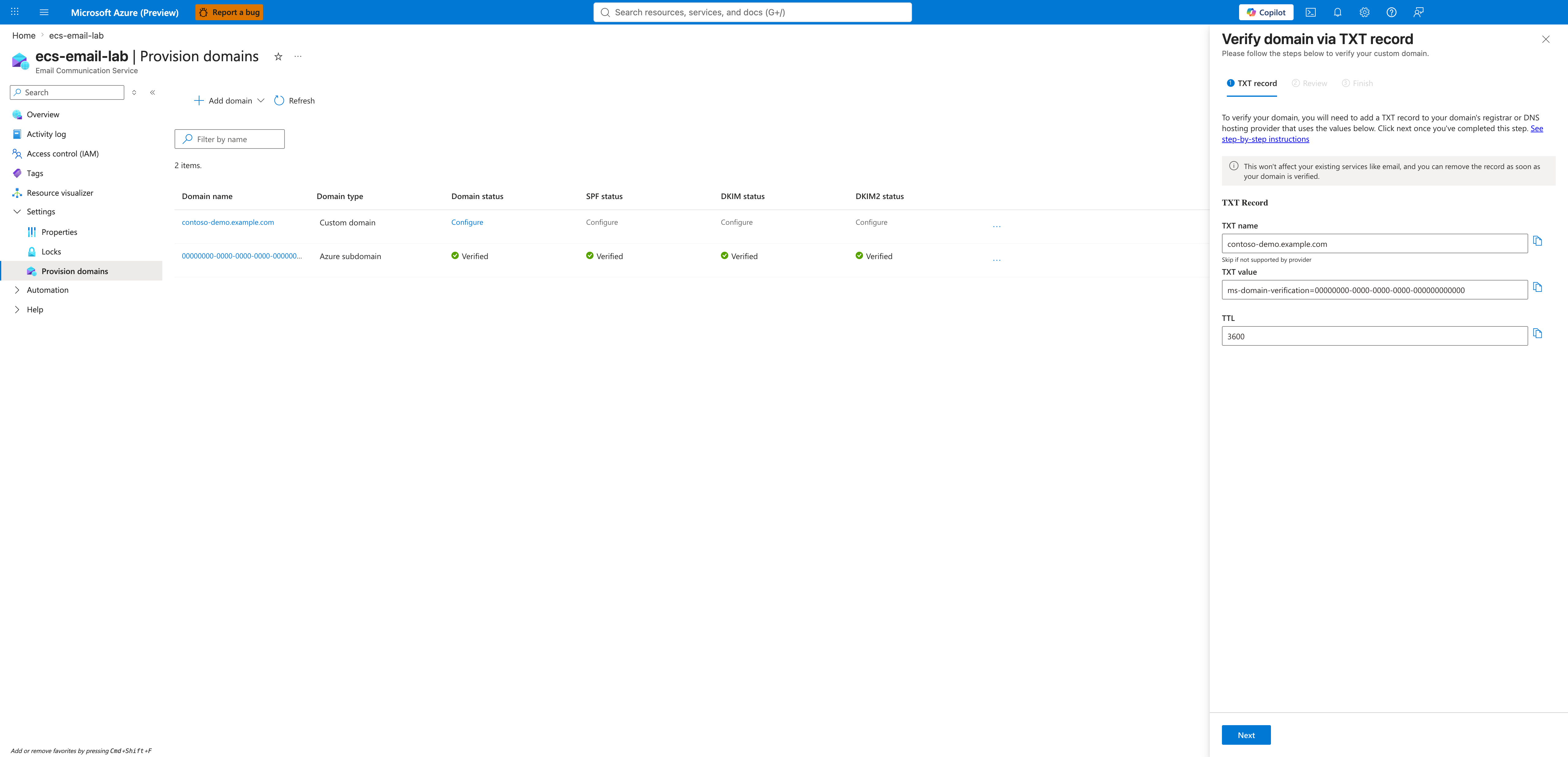
Each DNS record is its own wizard
Despite what older documentation may suggest, the Portal does not render a single consolidated DNS-records table. You must run the wizard four times — once for Domain TXT, once for SPF, once for DKIM, and once for DKIM2. DMARC is not surfaced as a Portal wizard at all; configure it directly in your DNS provider following RFC 7489.
MX records are not required for ACS Email
ACS Email is documented as an outbound (application-to-person) sending service. Microsoft Learn covers only sending capabilities — SendMail and Get Status — plus the four custom-domain DNS wizards (Domain TXT, SPF, DKIM, DKIM2). It does not document an inbound mail-receive capability or any MX target for ACS Email.
If your domain must also receive replies, keep the MX record pointed at your separate inbound mail provider (Microsoft 365, Google Workspace, your own MTA, etc.) and use ACS only for the outbound leg. The two responsibilities are independent: SPF/DKIM/DMARC for outbound (ACS signs outgoing mail) and MX for inbound (your separate provider receives incoming mail).
References: the Email overview (Key features list only outbound operations such as send mail, sender authentication, and engagement tracking) and Email SDK features (capability table lists only SendMail and Get Status).
The four wizards must complete in order: Domain TXT first (proves ownership), then SPF (sender policy), then DKIM and DKIM2 (signing keys). Each wizard polls the DNS resolver after you click Done — propagation typically completes within minutes but can take up to 30 minutes depending on your DNS provider and TTL.
After all four records verify, the Provision domains grid (step 2) will show all four columns as Verified for the custom domain.
Step 4. Link the domain to the ACS resource
The Email Communication Service owns the domain; the ACS resource owns the connection string the SDK uses. Until you connect them, calling EmailClient.send with the ACS connection string returns a permission error.
Open the ACS resource → Email → Domains blade and use Connect domain:
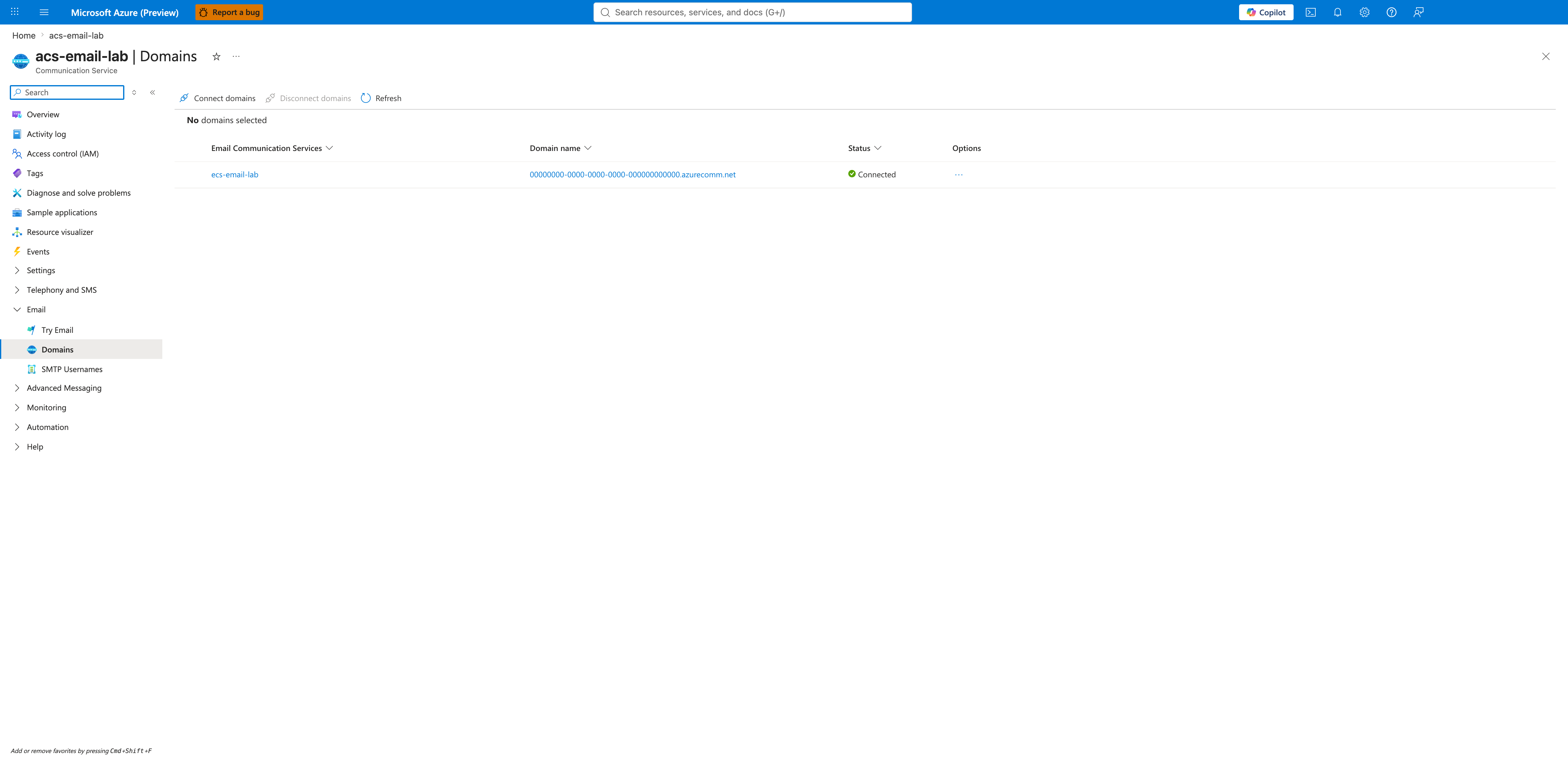
CLI equivalent:
az communication update \
  --name "acs-email-lab" \
  --resource-group "rg-acs-email-lab" \
  --linked-domains "/subscriptions/<subscription-id>/resourceGroups/rg-acs-email-lab/providers/Microsoft.Communication/emailServices/ecs-email-lab/domains/AzureManagedDomain"
| Command | Purpose |
|---|---|
az communication update | Updates the ACS resource configuration. |
--name "acs-email-lab" | Names the ACS resource to update. |
--resource-group "rg-acs-email-lab" | Names the resource group that holds the ACS resource. |
--linked-domains "/subscriptions/.../domains/AzureManagedDomain" | Grants the ACS resource permission to send from the referenced email domain (full ARM resource ID). |
The --linked-domains flag is additive: pass every domain you want the ACS resource to be allowed to send from. Removing a domain from this list immediately revokes the ACS resource's ability to send from it.
Step 5. Configure sender usernames (MailFrom)
Each linked domain exposes a MailFrom addresses blade where you can manage the local-part of sender addresses (the bit before the @).
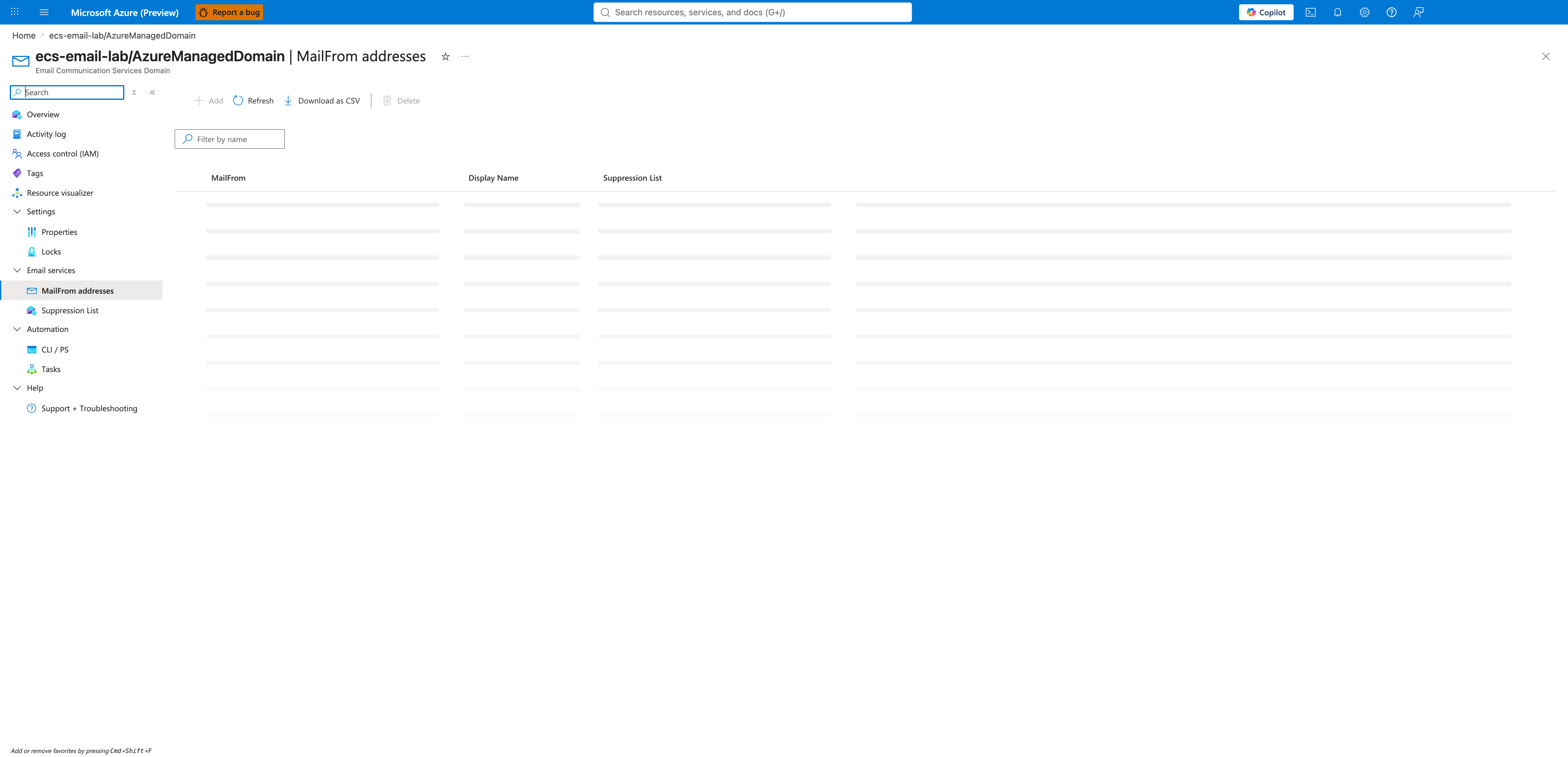
AzureManagedDomain has restricted MailFrom
For an AzureManagedDomain the Add command is disabled and the grid is empty. The implicit DoNotReply@<guid>.azurecomm.net identity is the only sender — it exists at the SMTP-envelope level but is not represented as a Portal row. This is by design: Azure-managed domains are intended for testing and internal tooling, and rewriting the MailFrom would defeat the auto-verification guarantees.
To use a custom sender username (e.g., support@contoso.com), you must complete steps 2–4 with a custom verified domain. The MailFrom blade for a custom verified domain renders with Add enabled.
CLI equivalent for a custom domain:
az communication email domain sender-username create \
  --domain-name "contoso-demo.example.com" \
  --email-service-name "ecs-email-lab" \
  --resource-group "rg-acs-email-lab" \
  --sender-username "support" \
  --display-name "Contoso Support"
| Command | Purpose |
|---|---|
az communication email domain sender-username create | Creates a MailFrom sender username on a custom verified domain. |
--domain-name "contoso-demo.example.com" | Identifies the custom verified domain that owns the sender. |
--email-service-name "ecs-email-lab" | Identifies the parent Email Communication Service. |
--resource-group "rg-acs-email-lab" | Names the resource group that holds the Email Communication Service. |
--sender-username "support" | Sets the local-part of the sender address (the text before @). |
--display-name "Contoso Support" | Sets the friendly From display name shown to recipients. |
Verification
After completing all five steps, verify the deployment by sending one email through the SDK:
# Confirm the domain is linked
az communication show \
  --name "acs-email-lab" \
  --resource-group "rg-acs-email-lab" \
  --query "linkedDomains" -o tsv

# Confirm the domain is verified
az communication email domain show \
  --domain-name "AzureManagedDomain" \
  --email-service-name "ecs-email-lab" \
  --resource-group "rg-acs-email-lab" \
  --query "verificationStates" -o json
| Command | Purpose |
|---|---|
az communication show | Reads the ACS resource properties to confirm the domain link. |
--name "acs-email-lab" | Names the ACS resource to inspect. |
--resource-group "rg-acs-email-lab" | Names the resource group that holds the ACS resource. |
--query "linkedDomains" -o tsv | Projects only the linked-domains list and prints it as tab-separated values. |
az communication email domain show | Reads the email domain properties to confirm verification. |
--domain-name "AzureManagedDomain" | Identifies the domain to inspect. |
--email-service-name "ecs-email-lab" | Identifies the parent Email Communication Service. |
--query "verificationStates" -o json | Projects only the per-record verification states and prints them as JSON. |
Then send a test email using one of the SDK tutorials:
A successful send returns a message ID with status: "Succeeded". The mail typically reaches the recipient inbox within 3–6 seconds for AzureManagedDomain → Gmail/Outlook routes (measured during this guide's capture session).
Rollback / Troubleshooting
| Symptom | Likely cause | Fix |
|---|---|---|
403 Forbidden from EmailClient.send | Domain not linked to ACS resource | Re-run step 4; verify with az communication show --query linkedDomains |
| Custom domain stuck on "Configure" for SPF/DKIM after Domain TXT verified | Each record is a separate wizard — you must run all four | Open Provision domains grid → click Configure on each pending column |
Add button greyed out on MailFrom blade | You are on an AzureManagedDomain | Switch to a custom verified domain (steps 2–4 with --domain-management CustomerManaged) |
| Verification wizard reports "DNS record not found" after you added it | DNS propagation delay | Wait up to 30 min and click Done again; check TTL on your DNS provider |
| Recipient marks mail as spam after AzureManagedDomain send | Azure-managed domain has neutral reputation | Move to a custom verified domain with proper SPF/DKIM/DMARC alignment |
For deeper troubleshooting (delivery failures, bounce analysis, DMARC interaction) see:
- Email Delivery Failures Playbook
- Domain Verification Playbook
- Email Delivery Checklist (First 10 Minutes)
See Also
- Provisioning ACS Resources — generic ACS resource creation (without email)
- Monitoring Azure Communication Services — diagnostic settings + Log Analytics for the resources created here
- Send Email Tutorial (Python)
- Email with Attachments Recipe (Python)