Scaling
Scaling in Azure App Service is the process of adjusting compute capacity to meet traffic demand while balancing reliability and cost. Effective scaling combines platform features (scale up/out, autoscale) with application architecture (statelessness, externalized state, dependency resilience).
Prerequisites
- App Service Plan with production-capable tier
- Azure Monitor access for metrics and autoscale rules
- Basic load profile data (expected baseline and peak)
Main Content
Core scaling dimensions
graph TD
    Traffic[Traffic Change] --> Choice{Scaling Strategy}
    Choice --> Up["Scale Up (Vertical)"]
    Choice --> Out["Scale Out (Horizontal)"]
    Up --> Bigger[Bigger Instance Size]
    Out --> More[More Instance Count]
Scale up (vertical)
Scale up changes the size/SKU of compute instances in your plan.
Use when:
- Workload needs more memory per instance
- CPU saturation happens before scale-out helps
- Required features exist only in higher tiers
Trade-offs:
- Usually triggers recycle/restart
- Has finite ceiling per instance size
- Can increase cost rapidly if used alone for growth
Portal view: Scale up blade
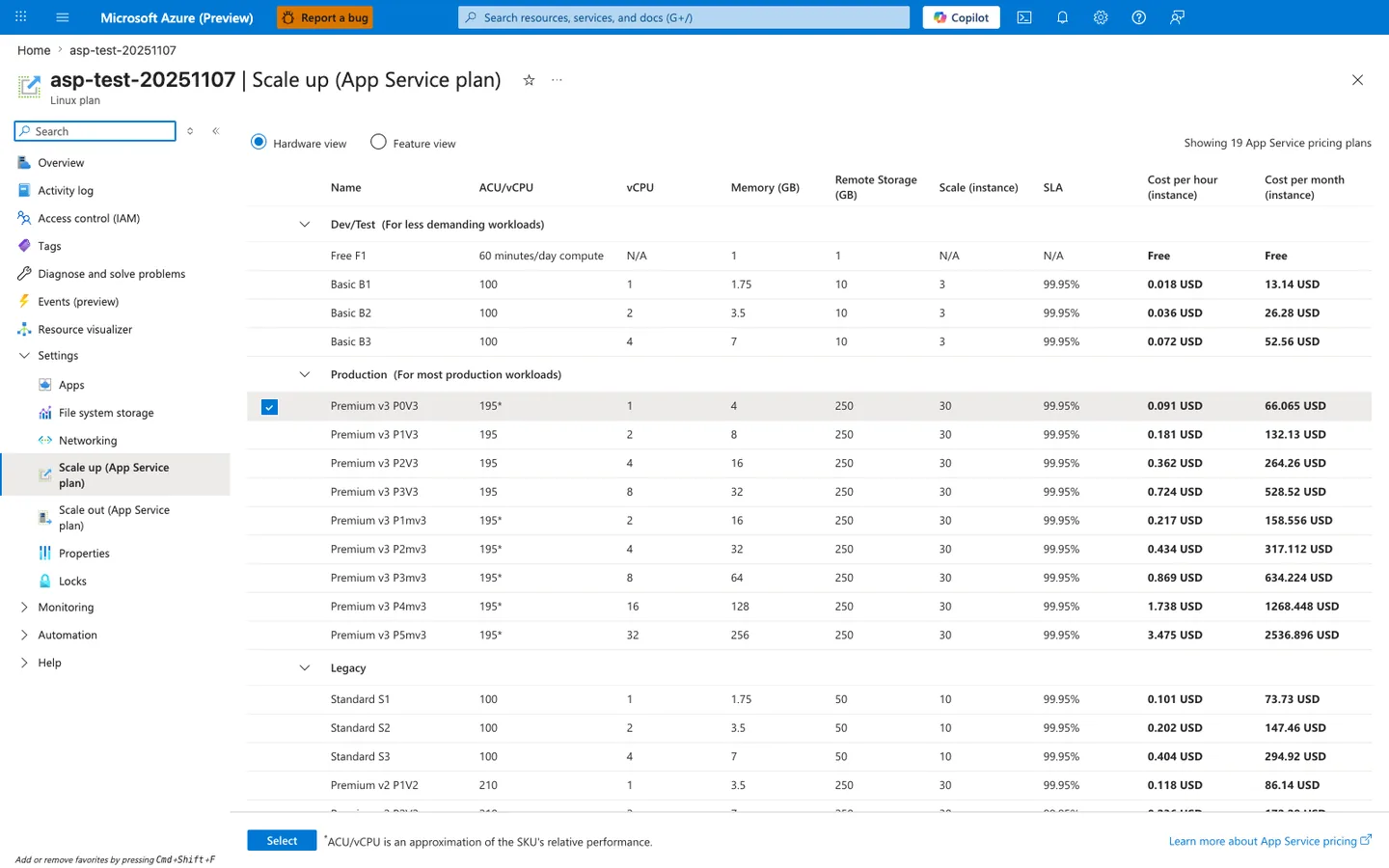
The Scale up blade is the vertical scaling control for changing the per-instance resource envelope. Tier cards such as Production V3 and the SKU table with vCPU, RAM, and storage values show that scale-up means selecting a larger worker shape like P0v3 or P1mv3, not adding more instances. The Upgrade action also hints at the operational consequence this page calls out: changing plan size is a control-plane mutation that can recycle workers while giving each instance more headroom.
Scale out (horizontal)
Scale out adds more instances to distribute load.
Use when:
- Traffic volume is growing
- You need higher availability and fault tolerance
- Application is stateless and can run on multiple instances
Trade-offs:
- Requires shared external state (sessions/cache/locks)
- Dependency services must handle increased parallelism
- Operational complexity increases with instance count
Portal view: Scale out blade
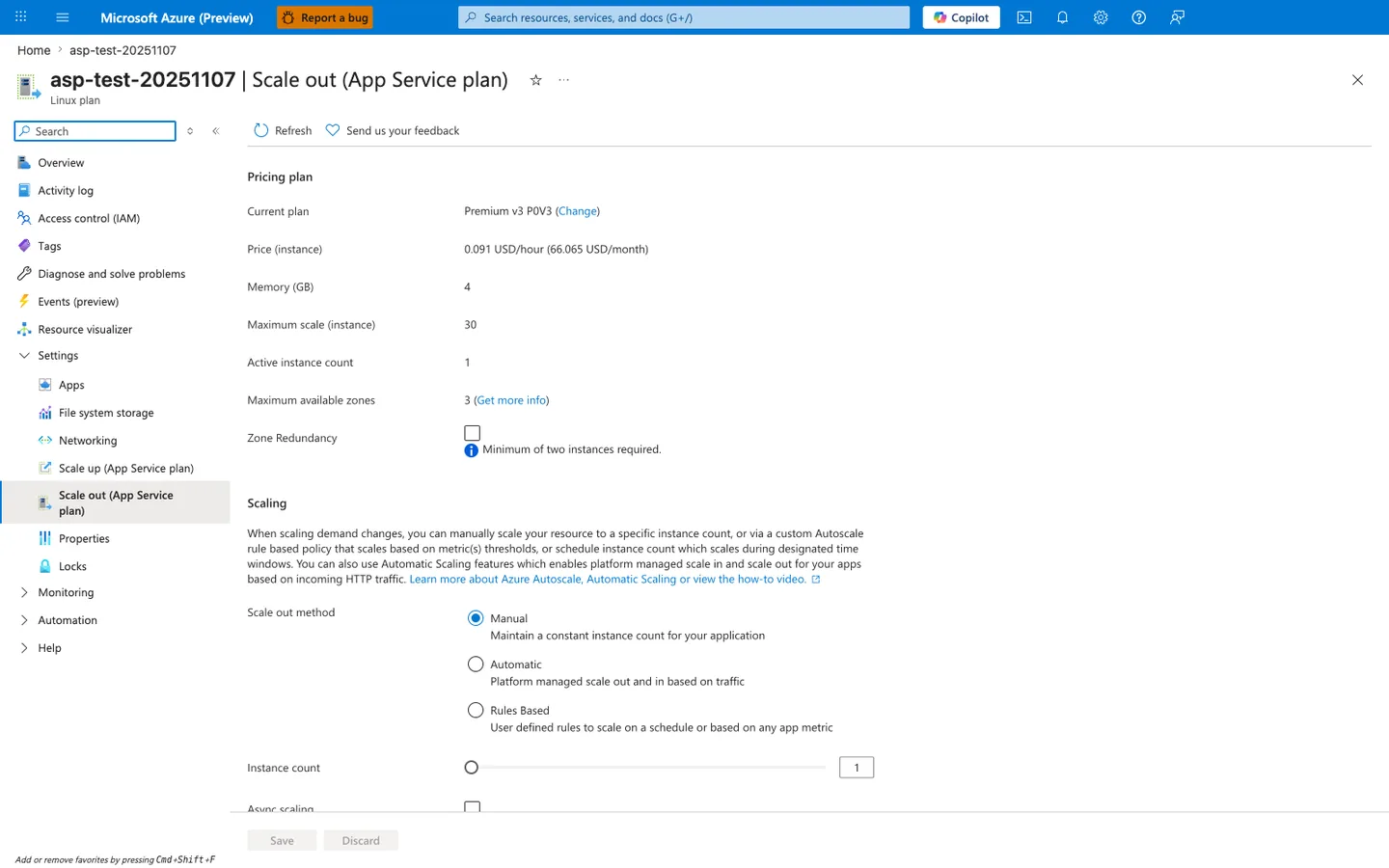
The Scale out blade is the horizontal scaling surface for changing how many workers serve the app. Manual, Automatic, and Rules Based modes separate fixed instance counts from autoscale-driven behavior, while the Instance count slider makes the current worker fan-out explicit for the selected Premium V3 plan. This is the UI expression of scale-out architecture: App Service can add parallel instances for capacity and resilience, but only within the limits allowed by the plan SKU and the application's stateless design.
Stateless design requirement
Horizontal scale works best when instances are interchangeable.
Stateless patterns:
- Session data in distributed cache
- Durable workflows in queues/storage/database
- Shared file/content access via managed storage services
Anti-patterns:
- In-memory session-only state
- Local file writes used as source-of-truth
- Single-instance background jobs without leader control
Autoscale fundamentals
Autoscale adjusts instance count based on metric rules and schedules.
Common rule signals:
- CPU percentage
- Memory percentage
- HTTP queue depth/request count
- Custom Azure Monitor metrics
flowchart TD
    Metric[Metric Breach] --> Rule[Autoscale Rule Evaluation]
    Rule --> Action[Scale Out or Scale In]
    Action --> Cooldown[Cooldown Window]
    Cooldown --> Reevaluate[Next Evaluation Cycle]
Designing good autoscale rules
Rule quality matters more than rule quantity.
Best practices:
- Use separate thresholds for scale-out and scale-in
- Add cooldown periods to avoid oscillation
- Set a non-zero minimum instance floor for production
- Set a maximum instance cap for cost control
- Monitor if rules trigger before user-visible saturation
Minimum/maximum envelope
Define minimum and maximum instance bounds first, then tune trigger thresholds. Bounds protect both uptime and budget.
Session affinity considerations
Session affinity can keep users on the same instance, but this can undermine even load distribution.
graph TD
    FE[Frontend] --> A[Instance A]
    FE --> B[Instance B]
    FE --> C[Instance C]
    Sticky[Affinity Cookie] -.biases routing.-> A
Prefer distributed state patterns over sticky routing when designing for scale and resilience.
Plan-level scaling behavior
Because apps in the same plan share compute:
- One noisy app can impact others
- Autoscale affects plan capacity used by all co-hosted apps
- Capacity planning should consider aggregate workload patterns
For critical workloads, dedicate plans to reduce blast radius.
Dependency-aware scaling
Scaling app instances increases outbound concurrency to dependencies.
Potential downstream bottlenecks:
- Database connection limits
- API rate limits
- Cache throughput caps
- Outbound port/SNAT constraints
Scale strategy should include dependency capacity tests, not only app-layer tests.
CLI examples for scaling operations
Manual scale out to 3 instances:
| Flag | Description |
|---|---|
--resource-group "$RG" | Targets the resource group that contains the App Service Plan. |
--name "$PLAN_NAME" | Chooses the plan whose instance count will change. |
--number-of-workers 3 | Sets the plan to run three worker instances, which is a manual scale-out operation. |
Scale up SKU to Premium:
| Flag | Description |
|---|---|
--resource-group "$RG" | Locates the plan inside the specified resource group. |
--name "$PLAN_NAME" | Selects the App Service Plan to resize. |
--sku "P1v3" | Changes the hosting plan SKU to Premium v3 P1, which is a vertical scale-up operation. |
Create autoscale profile:
az monitor autoscale create \
    --resource-group "$RG" \
    --resource "$PLAN_NAME" \
    --resource-type "Microsoft.Web/serverfarms" \
    --name "$AUTOSCALE_NAME" \
    --min-count 2 \
    --max-count 10 \
    --count 2
| Flag | Description |
|---|---|
--resource-group "$RG" | Creates the autoscale setting in the same resource group as the plan. |
--resource "$PLAN_NAME" | Points the autoscale setting at the specific App Service Plan resource to manage. |
--resource-type "Microsoft.Web/serverfarms" | Declares that the autoscale target is an App Service Plan resource type. |
--name "$AUTOSCALE_NAME" | Names the autoscale setting object that will hold profiles and rules. |
--min-count 2 | Prevents autoscale from going below two plan instances. |
--max-count 10 | Caps autoscale growth at ten plan instances. |
--count 2 | Sets the default instance count used when the profile is first created. |
Add CPU-based scale-out rule:
az monitor autoscale rule create \
    --resource-group "$RG" \
    --autoscale-name "$AUTOSCALE_NAME" \
    --condition "Percentage CPU > 70 avg 10m" \
    --scale out 1
| Flag | Description |
|---|---|
--resource-group "$RG" | Adds the rule to the autoscale setting stored in that resource group. |
--autoscale-name "$AUTOSCALE_NAME" | Chooses the autoscale profile that will receive the new rule. |
--condition "Percentage CPU > 70 avg 10m" | Triggers the rule when average CPU stays above 70 percent for 10 minutes. |
--scale out 1 | Increases the instance count by one when the condition is met. |
Add CPU-based scale-in rule:
az monitor autoscale rule create \
    --resource-group "$RG" \
    --autoscale-name "$AUTOSCALE_NAME" \
    --condition "Percentage CPU < 35 avg 20m" \
    --scale in 1
| Flag | Description |
|---|---|
--resource-group "$RG" | Adds the rule within the resource group that stores the autoscale setting. |
--autoscale-name "$AUTOSCALE_NAME" | Selects the autoscale configuration to update. |
--condition "Percentage CPU < 35 avg 20m" | Triggers the rule when average CPU stays below 35 percent for 20 minutes. |
--scale in 1 | Decreases the instance count by one when the low-utilization condition is met. |
Example autoscale output snippet (PII masked):
{
  "enabled": true,
  "profiles": [
    {
      "capacity": {
        "default": "2",
        "maximum": "10",
        "minimum": "2"
      },
      "name": "default"
    }
  ],
  "targetResourceUri": "/subscriptions/<subscription-id>/resourceGroups/rg-<masked>/providers/Microsoft.Web/serverfarms/plan-<masked>"
}
Scaling playbooks
Traffic spike playbook
- Verify autoscale trigger latency
- Increase minimum instance floor temporarily
- Confirm dependency saturation is not primary bottleneck
- Roll back temporary floor after event
Memory pressure playbook
- Identify memory growth pattern (steady vs burst)
- Scale up if per-instance memory headroom is insufficient
- Scale out if concurrency pressure dominates
- Investigate leaks and object retention behavior
Cost optimization playbook
- Use schedule-based profiles for predictable low-traffic windows
- Tune scale-in aggressively but safely
- Review maximum instance cap monthly
Advanced Topics
Warm instance strategy
Keep at least one extra warmed instance during critical periods to absorb sudden bursts while autoscale catches up.
Multi-region scaling patterns
Distribute traffic across regions for resiliency and lower client latency. Coordinate scale profiles with global routing health checks.
Autoscale oscillation avoidance
Use wider hysteresis between scale-out and scale-in thresholds. Oscillation increases recycle frequency and can worsen tail latency.
KPI baseline for scaling governance
- p95/p99 latency
- Error rate by status family
- CPU and memory utilization
- Queue depth
- Restart count per hour
Language-Specific Details
For language-specific implementation details, see: - Node.js Guide - Python Guide - Java Guide - .NET Guide
See Also
- How App Service Works
- Request Lifecycle
- Networking
- Scale up App Service (Microsoft Learn)
- Azure Monitor autoscale (Microsoft Learn)