Outbound Client Certificates
Use this runbook when your App Service app must present its own client certificate to a downstream service for mutual TLS. The platform handles certificate upload and exposure to app code, but your application still must load the certificate and attach it to the outbound TLS client.
Prerequisites
- Private certificate exported as password-protected
.pfx/ PKCS#12 - Permission to upload certificates and update app settings
- Target service that requires client-certificate authentication
- Variables set:
$RG$APP_NAME
When to Use
Use outbound client certificates when:
- A partner API requires certificate-based client authentication
- Internal APIs behind a gateway require mTLS from the caller
- The application must present a private certificate instead of bearer-token-based identity
Procedure
flowchart TD
    A[Private certificate PFX] --> B[az webapp config ssl upload]
    B --> C[Certificate thumbprint]
    C --> D[WEBSITE_LOAD_CERTIFICATES]
    D --> E[Windows store or Linux file path]
    E --> F[Application outbound TLS client]
1) Upload the private certificate
az webapp config ssl upload \
  --resource-group $RG \
  --name $APP_NAME \
  --certificate-file ./client-cert.pfx \
  --certificate-password "<certificate-password>" \
  --output json
| Flag | Description |
|---|---|
--resource-group $RG | Targets the resource group that contains the web app. |
--name $APP_NAME | Selects the app that should store the private client certificate. |
--certificate-file ./client-cert.pfx | Uploads the local PFX/PKCS#12 file that contains the client certificate and private key. |
--certificate-password "<certificate-password>" | Supplies the password needed to decrypt the uploaded PFX file. |
--output json | Returns the uploaded certificate metadata as JSON, including the thumbprint. |
Capture the thumbprint from the command output or inspect uploaded certificates:
| Flag | Description |
|---|---|
--resource-group $RG | Lists uploaded certificates that belong to apps in this resource group. |
--output json | Returns the certificate inventory as JSON so you can capture thumbprints and expiration dates. |
Portal view: Certificates blade (.pfx tab)
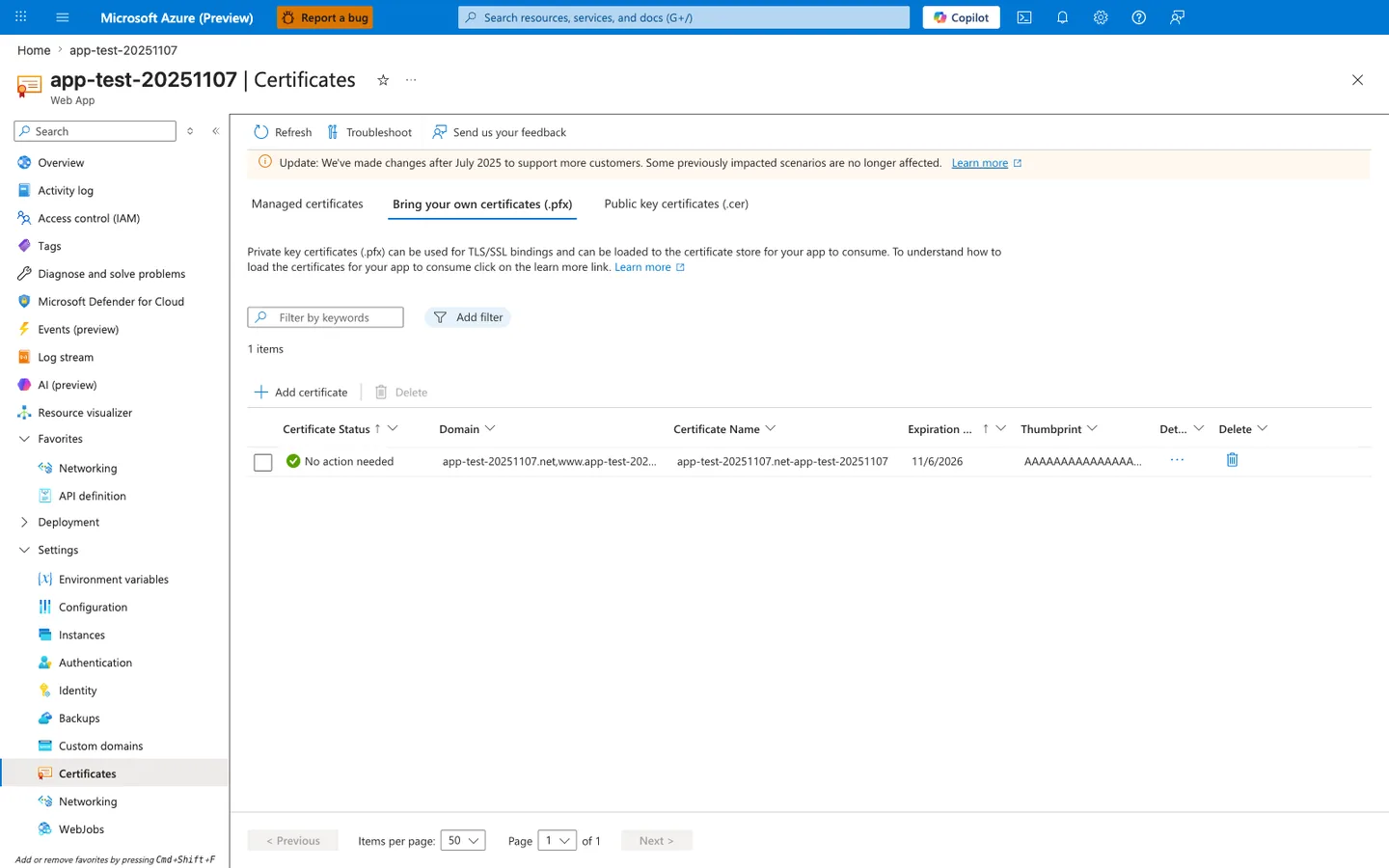
The Certificates blade with the Bring your own certificates (.pfx) tab active is where every certificate uploaded by az webapp config ssl upload appears. The row shown is a typical post-upload state: the Certificate Status of No action needed means the platform has validated the PFX, the Thumbprint column is the exact value to plug into WEBSITE_LOAD_CERTIFICATES, and Expiration: 11/6/2026 is the date that should drive a calendar reminder for the rotation procedure in step 5 below. The three tabs are not interchangeable for outbound mTLS — only .pfx certificates carry the private key the application needs to present the certificate to a downstream service, so always confirm you are on this tab before reading thumbprints. The Add certificate action is the Portal equivalent of az webapp config ssl upload and additionally surfaces alternative sources such as importing from Key Vault when the certificate is already stored centrally.
2) Make the certificate available to code
Expose one certificate by thumbprint:
az webapp config appsettings set \
  --resource-group $RG \
  --name $APP_NAME \
  --settings WEBSITE_LOAD_CERTIFICATES="<thumbprint>" \
  --output json
| Flag | Description |
|---|---|
--resource-group $RG | Targets the resource group that contains the app. |
--name $APP_NAME | Selects the app that should expose the uploaded certificate to application code. |
--settings WEBSITE_LOAD_CERTIFICATES="<thumbprint>" | Tells App Service to load only the certificate whose thumbprint matches the provided value. |
--output json | Returns the updated app settings payload as JSON. |
Expose all uploaded certificates:
az webapp config appsettings set \
  --resource-group $RG \
  --name $APP_NAME \
  --settings WEBSITE_LOAD_CERTIFICATES="*" \
  --output json
| Flag | Description |
|---|---|
--resource-group $RG | Targets the resource group that contains the app. |
--name $APP_NAME | Selects the app whose certificate-loading behavior you want to change. |
--settings WEBSITE_LOAD_CERTIFICATES="*" | Tells App Service to load every uploaded certificate into the runtime environment, not just one thumbprint. |
--output json | Returns the updated app settings payload as JSON. |
Prefer explicit thumbprints over wildcard loading
WEBSITE_LOAD_CERTIFICATES="*" is convenient for testing, but explicit thumbprints reduce ambiguity and make certificate rotation easier to audit.
3) Know where the certificate appears at runtime
Runtime access differs by hosting OS:
| Hosting model | Where the certificate appears |
|---|---|
| Windows-hosted App Service | CurrentUser\My certificate store |
| Windows containers | C:\appservice\certificates\... paths or container certificate stores, depending on container model |
| Linux containers / built-in Linux | /var/ssl/private for private certificates and /var/ssl/certs for public certificates |
Useful environment variables in containers:
WEBSITE_PRIVATE_CERTS_PATHWEBSITE_PUBLIC_CERTS_PATHWEBSITE_INTERMEDIATE_CERTS_PATHWEBSITE_ROOT_CERTS_PATH
4) Restart after changing certificate visibility
When you change thumbprints or add certificates after initial configuration, restart the app so the new certificate exposure is consistent for application code.
| Flag | Description |
|---|---|
--resource-group $RG | Targets the resource group that contains the app. |
--name $APP_NAME | Restarts the selected web app so newly exposed certificates are loaded consistently for application code. |
5) Plan rotation deliberately
Recommended rotation shape:
- Upload the renewed certificate.
- Add the new thumbprint to
WEBSITE_LOAD_CERTIFICATESor switch to the new thumbprint. - Restart the app.
- Validate outbound mTLS calls.
- Remove the retired certificate after successful cutover.
For configuration indirection, use Key Vault references where appropriate and remember that unpinned references can refresh to the latest version within 24 hours.
Note
Key Vault references help with configuration rotation, but the exact certificate-loading pattern still depends on how your app reads certificate material at runtime.
Verification
Check the app setting:
az webapp config appsettings list \
--resource-group $RG \
--name $APP_NAME \
--query "[?name=='WEBSITE_LOAD_CERTIFICATES']" \
--output json
| Flag | Description |
|---|---|
--resource-group $RG | Targets the resource group that contains the app. |
--name $APP_NAME | Selects the app whose certificate-loading app setting you want to verify. |
--query "[?name=='WEBSITE_LOAD_CERTIFICATES']" | Filters the app settings list down to the single WEBSITE_LOAD_CERTIFICATES entry if it exists. |
--output json | Formats the filtered app-setting record as JSON. |
Check uploaded certificates:
az webapp config ssl list \
--resource-group $RG \
--query "[?hostNames==null].{thumbprint:thumbprint,subjectName:subjectName,expirationDate:expirationDate}" \
--output json
| Flag | Description |
|---|---|
--resource-group $RG | Lists uploaded certificates in the resource group. |
--query "[?hostNames==null].{thumbprint:thumbprint,...}" | Filters to certificates that are not bound to hostnames and projects each result to thumbprint, subject name, and expiration date. |
--output json | Formats the filtered certificate inventory as JSON. |
Application-level verification:
- Windows code-based app can find the certificate in
CurrentUser\My - Windows container app can resolve the certificate from its documented container path or store model
- Linux app can open the expected file under
/var/ssl/private - The remote service accepts the outbound request and logs the expected client certificate identity
Rollback / Troubleshooting
Common issues:
- Certificate not found in app code:
- thumbprint mismatch in
WEBSITE_LOAD_CERTIFICATES - app restart was skipped
- wrong OS-specific lookup logic
- thumbprint mismatch in
- Upload succeeded but outbound calls still fail:
- wrong certificate password at runtime for
.p12 - remote service does not trust the client certificate chain
- app never attached the certificate to its HTTP or TLS client
- wrong certificate password at runtime for
- Rotation did not take effect:
- app still references old thumbprint
- certificate reference refresh window not yet elapsed
Rollback by restoring the previous thumbprint and restarting the app:
az webapp config appsettings set \
--resource-group $RG \
--name $APP_NAME \
--settings WEBSITE_LOAD_CERTIFICATES="<previous-thumbprint>" \
--output json
az webapp restart \
  --resource-group $RG \
  --name $APP_NAME
| Command | Description |
|---|---|
az webapp config appsettings set ... | Restores WEBSITE_LOAD_CERTIFICATES to the previous certificate thumbprint so app code uses the earlier client certificate again. |
az webapp restart ... | Restarts the app so the reverted thumbprint is loaded into the runtime environment. |
See Also
- Mutual TLS Architecture
- Incoming Client Certificates
- Python mTLS Client Certificates Recipe
- .NET mTLS Client Certificates Recipe