Redis Cache with redis-py
Use Azure Cache for Redis from Flask with secure configuration and optional Microsoft Entra authentication.
Architecture
flowchart TD
    Client[Client] --> App[App Service]
    App --> Redis[(Azure Cache for Redis)]
    App -.-> MI[Managed Identity]
    MI -.-> Entra[Microsoft Entra ID]
Solid arrows show runtime data flow. Dashed arrows show identity and authentication.
Prerequisites
- Azure Cache for Redis instance
- App Service application settings for host/port/auth mode
- Python dependency:
redis
Step-by-Step Guide
Step 1: Configure Redis settings in App Service
az webapp config appsettings set \
  --resource-group "$RG" \
  --name "$APP_NAME" \
  --settings \
    REDIS_HOST="<redis-name>.redis.cache.windows.net" \
    REDIS_PORT="6380" \
    REDIS_SSL="true" \
    REDIS_ACCESS_KEY="@Microsoft.KeyVault(VaultName=<vault-name>;SecretName=redis-access-key)"
| Flag | Description |
|---|---|
--resource-group "$RG" | Targets the resource group that contains the web app. |
--name "$APP_NAME" | Selects the web app that should receive the Redis settings. |
--settings REDIS_HOST="<redis-name>.redis.cache.windows.net" REDIS_PORT="6380" REDIS_SSL="true" REDIS_ACCESS_KEY="@Microsoft.KeyVault(VaultName=<vault-name>;SecretName=redis-access-key)" | Writes the Redis hostname, TLS port, SSL mode, and secret-backed access key into App Service app settings. |
Step 2: Add cache helpers in Flask
import json
import os
import redis
from flask import Flask, jsonify

app = Flask(__name__)


def get_redis_client() -> redis.Redis:
    return redis.Redis(
        host=os.environ["REDIS_HOST"],
        port=int(os.environ.get("REDIS_PORT", "6380")),
        password=os.environ.get("REDIS_ACCESS_KEY"),
        ssl=os.environ.get("REDIS_SSL", "true").lower() == "true",
        decode_responses=True,
        socket_timeout=2,
    )


@app.get("/api/cache/demo")
def cache_demo():
    client = get_redis_client()
    key = "demo:counter"
    counter = client.incr(key)
    client.expire(key, 300)
    return jsonify({"key": key, "value": counter, "ttl_seconds": 300})


@app.get("/api/cache/profile/<user_id>")
def read_profile(user_id: str):
    client = get_redis_client()
    cache_key = f"profile:{user_id}"
    cached = client.get(cache_key)
    if cached:
        return jsonify({"source": "cache", "profile": json.loads(cached)})

    # Replace with DB fetch
    profile = {"id": user_id, "name": "sample-user"}
    client.setex(cache_key, 120, json.dumps(profile))
    return jsonify({"source": "origin", "profile": profile})
Complete Example
# Health probe endpoint that includes Redis check
@app.get("/health/cache")
def cache_health():
    client = get_redis_client()
    pong = client.ping()
    return jsonify({"redis": "ok" if pong else "down"}), 200 if pong else 503
Troubleshooting
Timeout connecting to server:- Verify firewall/network path, VNet integration, and TLS port (
6380).-NOAUTH Authentication required: - Check key rotation and App Service setting value source.- Cache misses too high:
- Review TTL, key design, and serialization consistency.
- Verify firewall/network path, VNet integration, and TLS port (
Advanced Topics
- Use Redis as session backend for cross-instance session sharing.
- Use cache-aside with per-key jittered TTL to reduce stampede effects.
- Consider premium tier with zone redundancy for higher resilience.
Run It in the Portal
Portal view: Identity blade (optional Microsoft Entra authentication path)
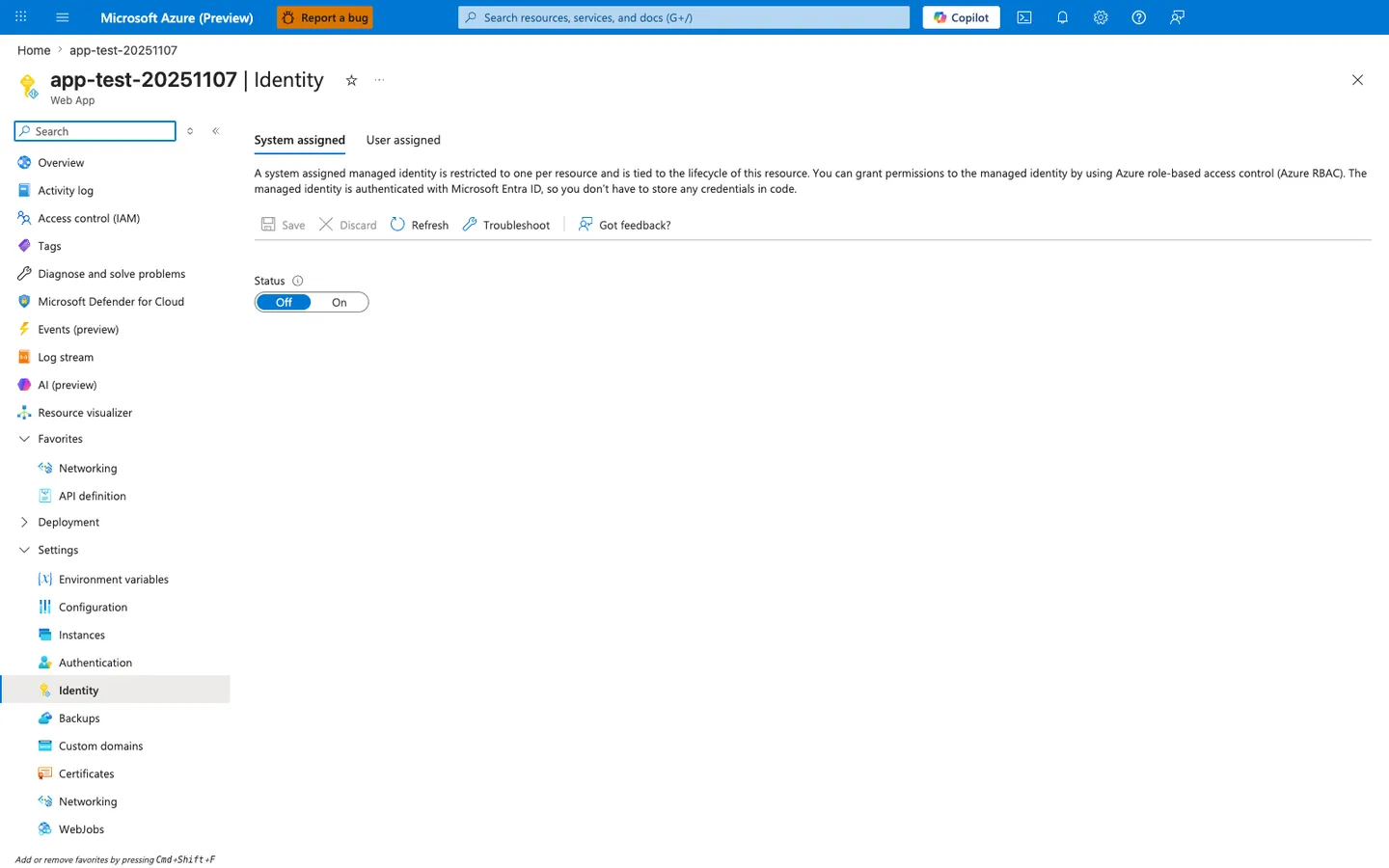
The Identity blade is relevant only if you extend this recipe from the default key-based REDIS_ACCESS_KEY configuration to the optional Microsoft Entra authentication path mentioned in the introduction. In the visible pre-enable state, System assigned is selected and Status is still Off; turning it On is the Portal step that creates the app identity before any Redis-side access mapping can happen. For the recipe's default flow, keep using the REDIS_ACCESS_KEY app setting and redis.Redis(..., password=...) configuration shown above.