Node.js Guide
This guide covers the full path for building, deploying, and operating Express apps on Azure App Service.
Main Content
flowchart TD
    A[01 Local Run] --> B[02 First Deploy]
    B --> C[03 Configuration]
    C --> D[04 Logging & Monitoring]
    D --> E[05 Infrastructure as Code]
    E --> F[06 CI/CD]
F --> G[07 Custom Domain & SSL]- 01 - Local Run
- 02 - First Deploy
- 03 - Configuration
- 04 - Logging and Monitoring
- 05 - Infrastructure as Code
- 06 - CI/CD
- 07 - Custom Domain and SSL
Advanced Topics
Use Node.js-focused recipes for framework and integration scenarios.
Run It in the Portal
Portal view: App Service Plan overview (Pricing tier surfaces here)
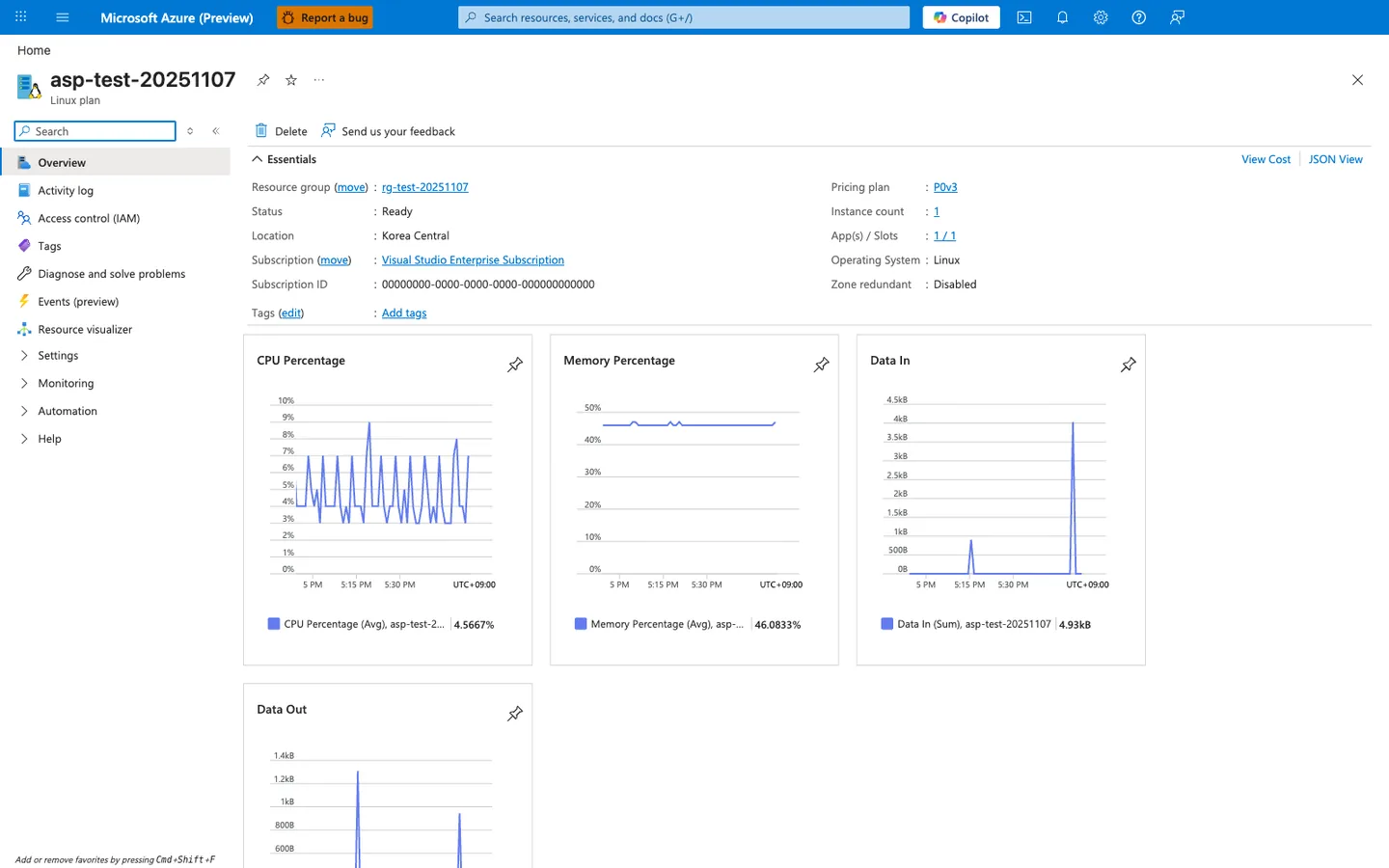
The App Service Plan overview blade makes the hosting tier concrete by showing the plan identity, Pricing tier: Premium0 V3, Operating system: Linux, and Status: Ready in one view. For this Node.js guide's tier architecture, the most relevant visible fields are the plan SKU and operating system because they tell you which Linux plan the Express app is running on. The hosted apps list at the bottom shows app-test-20251107 and its staging slot attached to the same plan. The CPU Percentage and Memory Percentage charts on the right show that this blade is also the plan-level view for shared compute usage.