Azure SQL
Connect ASP.NET Core 8 to Azure SQL using Entity Framework Core and managed identity authentication for passwordless production access.
flowchart TD
    A[Enable managed identity] --> B[Grant SQL access]
    B --> C[Set SQL connection string]
    C --> D[Register DbContext]
    D --> E[Run migration or query]
E --> F[Verify data endpoint]Prerequisites
- Existing Azure SQL Server and Database
- App Service system-assigned managed identity enabled
Microsoft.EntityFrameworkCore.SqlServerpackage available
Main content
1) Add NuGet packages
<ItemGroup>
  <PackageReference Include="Microsoft.EntityFrameworkCore" Version="8.0.4" />
  <PackageReference Include="Microsoft.EntityFrameworkCore.SqlServer" Version="8.0.4" />
  <PackageReference Include="Azure.Identity" Version="1.12.0" />
</ItemGroup>
2) Configure connection string pattern
Use an App Setting or Connection String with managed identity authentication:
Server=tcp:<sql-server>.database.windows.net,1433;Database=<database-name>;Authentication=Active Directory Managed Identity;Encrypt=True;TrustServerCertificate=False;
Set it in App Service:
az webapp config connection-string set \
  --resource-group "$RESOURCE_GROUP_NAME" \
  --name "$WEB_APP_NAME" \
  --connection-string-type SQLAzure \
  --settings MainDb="Server=tcp:<sql-server>.database.windows.net,1433;Database=<database-name>;Authentication=Active Directory Managed Identity;Encrypt=True;TrustServerCertificate=False;" \
  --output json
az webapp config connection-string set | Writes a named connection string into the App Service configuration. | | --resource-group "$RESOURCE_GROUP_NAME" | Targets the resource group that contains the web app. | | --name "$WEB_APP_NAME" | Selects the web app that will receive the connection string. | | --connection-string-type SQLAzure | Marks the value as an Azure SQL connection string so App Service stores it in the SQLAzure slot. | | --settings MainDb="..." | Creates or updates the MainDb connection string with managed-identity authentication parameters. | | --output json | Returns the updated connection-string payload as JSON. | 3) Register DbContext
using Microsoft.EntityFrameworkCore;

builder.Services.AddDbContext<AppDbContext>((serviceProvider, options) =>
{
    var configuration = serviceProvider.GetRequiredService<IConfiguration>();
    var conn = configuration["SQLAZURECONNSTR_MainDb"]
        ?? throw new InvalidOperationException("MainDb connection string not configured.");

    options.UseSqlServer(conn, sql =>
    {
        sql.EnableRetryOnFailure(maxRetryCount: 5, maxRetryDelay: TimeSpan.FromSeconds(10), errorNumbersToAdd: null);
    });
});
4) Sample entity and controller
public sealed class TodoItem
{
    public int Id { get; set; }
    public string Title { get; set; } = string.Empty;
    public bool Completed { get; set; }
}

public sealed class AppDbContext : DbContext
{
    public AppDbContext(DbContextOptions<AppDbContext> options) : base(options) { }
    public DbSet<TodoItem> TodoItems => Set<TodoItem>();
}
[ApiController]
[Route("api/todos")]
public sealed class TodoController : ControllerBase
{
    private readonly AppDbContext _db;
    public TodoController(AppDbContext db) => _db = db;

    [HttpGet]
    public async Task<IActionResult> GetAll(CancellationToken cancellationToken)
        => Ok(await _db.TodoItems.AsNoTracking().ToListAsync(cancellationToken));
}
5) Grant database access to managed identity
Create user mapped to the web app identity inside Azure SQL (run as Entra admin):
CREATE USER [<web-app-name>] FROM EXTERNAL PROVIDER;
ALTER ROLE db_datareader ADD MEMBER [<web-app-name>];
ALTER ROLE db_datawriter ADD MEMBER [<web-app-name>];
6) Optional token-based SqlConnection pattern
using Azure.Core;
using Azure.Identity;
using Microsoft.Data.SqlClient;

var credential = new DefaultAzureCredential();
var token = credential.GetToken(new TokenRequestContext(new[] { "https://database.windows.net/.default" }));
var connection = new SqlConnection("Server=tcp:<sql-server>.database.windows.net,1433;Database=<database-name>;Encrypt=True;")
{
    AccessToken = token.Token
};
await connection.OpenAsync();
7) Azure DevOps migration step example
- task: DotNetCoreCLI@2
  displayName: Run EF Core migrations
  inputs:
    command: custom
    custom: ef
    arguments: database update --project apps/dotnet-aspnetcore/GuideApi --configuration Release
Avoid SQL username/password in production
Prefer managed identity and Entra-based database users. If temporary SQL credentials are unavoidable, store them in Key Vault and rotate aggressively.
Verification
Also query SQL audit logs or App Insights dependencies to confirm successful SQL calls.
Troubleshooting
Login failed for token-identified principal
- Ensure system-assigned identity is enabled on App Service.
- Ensure SQL server has Entra admin configured.
- Ensure SQL user created from external provider matches identity principal.
Transient connectivity errors
Enable EF Core retries and verify firewall/private endpoint rules.
Slow queries
Capture query plans and add indexes; review dependencies telemetry for high-duration SQL operations.
Run It in the Portal
Portal view: Identity blade (managed identity enabled for Azure SQL access)
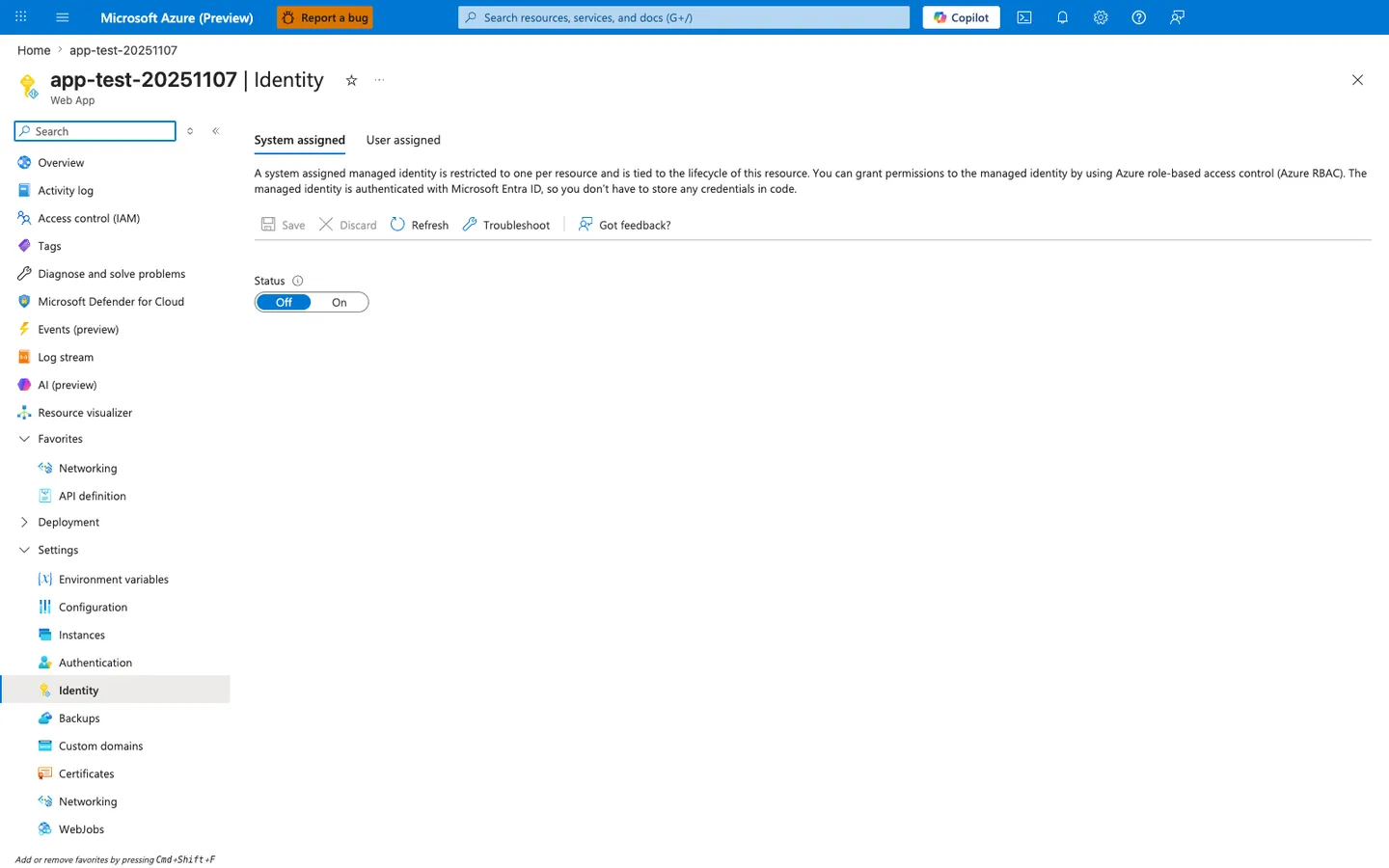
The Identity blade is the Portal entry point for the managed-identity flow this recipe uses to connect to Azure SQL from the ASP.NET Core app without a stored password. With the System assigned tab selected and the Status toggle flipped from Off to On, App Service creates the Entra-backed identity that the SQL statements earlier in the recipe grant access to with CREATE USER ... FROM EXTERNAL PROVIDER and ALTER ROLE ... ADD MEMBER .... Use this blade as the first verification step for the recipe before testing the passwordless Microsoft.Data.SqlClient and Microsoft.EntityFrameworkCore.SqlServer connection from the .NET app using DefaultAzureCredential from Azure.Identity.
See Also
- Managed Identity
- Key Vault References
- For platform details, see Azure App Service Guide